The moment an iPhone’s screen becomes unresponsive following a software update is a scenario that induces immediate frustration for users worldwide. The device, typically a seamless extension of daily productivity and communication, suddenly transforms into a static slab of glass. This phenomenon, often referred to as “touch disease” in colloquial tech forums, is rarely a permanent hardware failure immediately after an update. More frequently, it stems from a conflict between the new operating system’s drivers and the existing calibration data on the device. Understanding the mechanics behind why an iOS update might disrupt touch sensitivity is the first step toward a logical resolution. The update process rewrites low-level system files that manage input interpretation; if this process is interrupted or if cached data conflicts with new protocols, the digitizer—the component responsible for translating physical touch into digital signals—may fail to register input correctly.
Before diving into complex troubleshooting, it is essential to recognize that not all touch failures are identical. Some users experience a total blackout where no part of the screen responds, while others encounter “ghost touches,” where the phone registers taps that never occurred, or specific dead zones where certain areas of the display are unresponsive. Apple’s official support documentation outlines several preliminary checks that address the most common software-induced glitches. These initial steps are designed to rule out temporary system hangs rather than assuming catastrophic hardware damage. The distinction is critical because attempting hardware repairs on a software-locked device can void warranties and incur unnecessary costs. A systematic approach, moving from the least invasive software resets to more advanced recovery modes, ensures that the root cause is identified without compromising the device’s integrity.
Immediate Diagnostic Steps and Environmental Factors
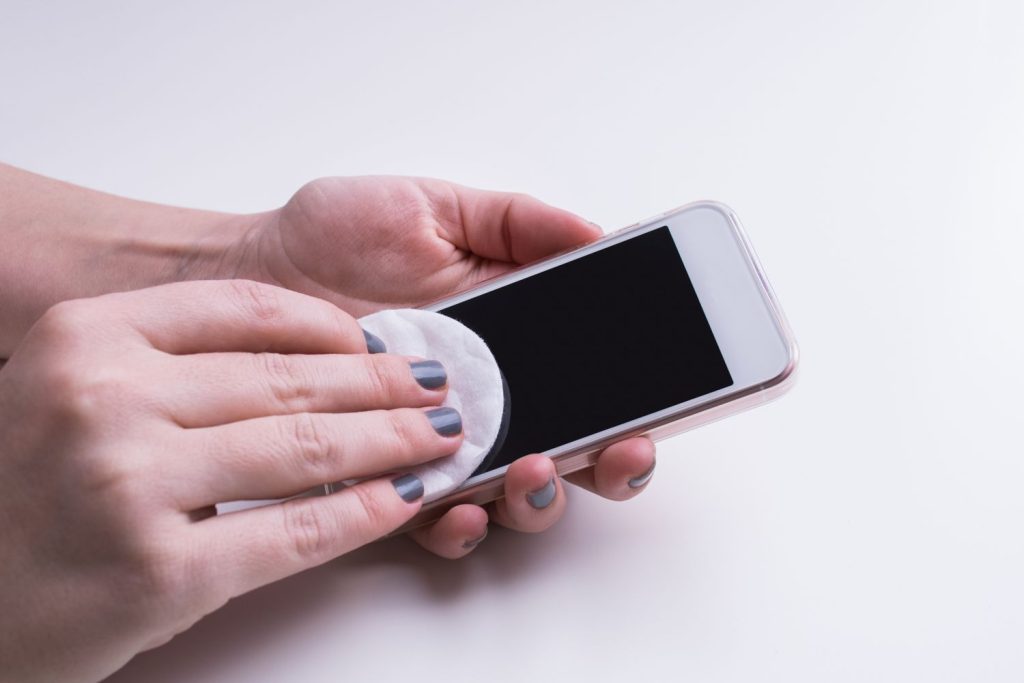
When the touchscreen ceases to function post-update, the instinct is often to force a restart immediately. However, a brief diagnostic pause can reveal environmental factors that exacerbate software bugs. The capacitive technology used in iPhone screens relies on the electrical properties of the human body to detect touch. If the screen surface is compromised by moisture, extreme temperatures, or incompatible accessories, the new iOS version may struggle to filter out noise from genuine input signals. Apple explicitly advises removing any case or screen protector that might be pressing against the edges of the display, as even a slight shift in pressure can confuse the digitizer after a system recalibration. Furthermore, cleaning the screen with a lint-free, slightly damp cloth can eliminate oils or debris that interfere with sensitivity, a step often overlooked in the rush to fix the issue.
Temperature plays a surprisingly significant role in touch responsiveness following major updates. If the device was updating while charging or in a warm environment, the battery and processor heat can cause the screen components to expand microscopically, leading to temporary unresponsiveness. Allowing the iPhone to cool down to room temperature before attempting further troubleshooting is a recommended best practice supported by thermal management guidelines from Apple Support. In many documented cases, users who waited for their devices to normalize thermally found that touch functionality returned spontaneously without any manual intervention. This highlights the importance of distinguishing between a software crash and a thermal throttling event, as the solutions for each differ vastly.
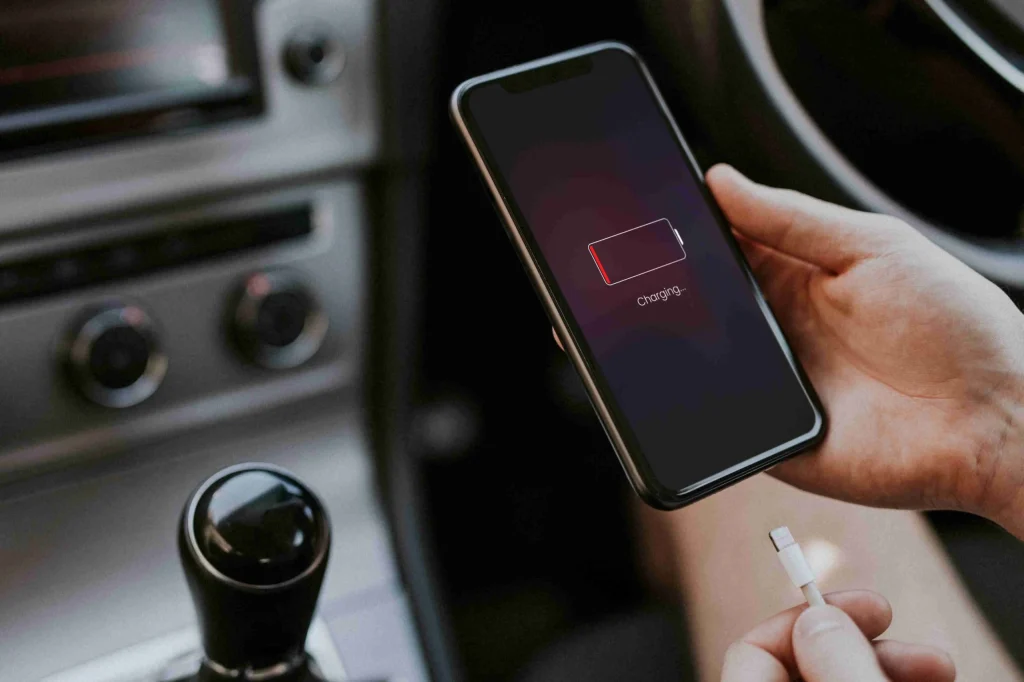
Another critical factor is the power source. Updating an iPhone while connected to a non-certified charger or a unstable power outlet can introduce voltage fluctuations that corrupt the installation of touch drivers. If the update completed under these conditions, the system might be running in a degraded state. Disconnecting the device from any power source and letting it run on battery power for a short period can sometimes stabilize the voltage regulation enough for the touch controller to re-initialize. This is particularly relevant for older iPhone models where battery health may already be compromised. Checking the battery health status, if the screen allows intermittent access, or observing if the issue persists only while plugged in, provides valuable clues. For a deeper understanding of how power management affects iOS performance, resources from Consumer Reports often provide independent testing data on device behavior under various power conditions.
The Force Restart Procedure: A Deep Dive
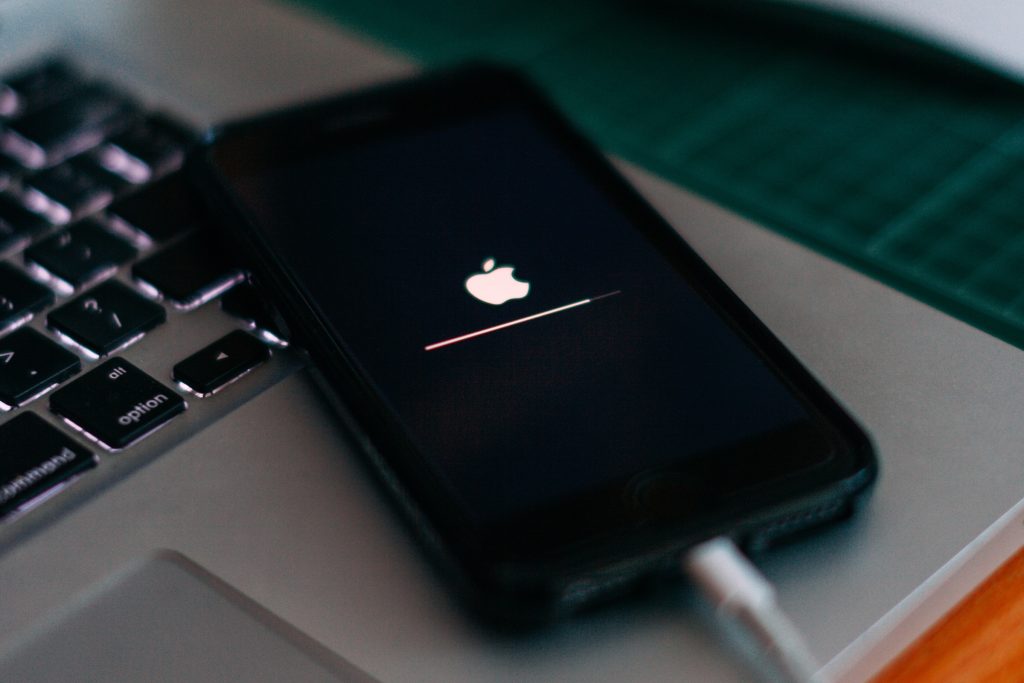
The most effective initial solution for an unresponsive screen after an update is the force restart. Unlike a standard shutdown, which relies on the software to close processes gracefully, a force restart cuts power to the logic board at a hardware level, forcing the system to reboot from a cold state. This action clears the volatile memory (RAM) where corrupted touch driver data may be residing. It is crucial to execute the button combination correctly, as the sequence varies depending on the iPhone model. For iPhone 8, iPhone X, and all subsequent models including the iPhone 15 and 16 series, the procedure involves quickly pressing and releasing the volume up button, then quickly pressing and releasing the volume down button, and finally holding the side button until the Apple logo appears. This specific timing is engineered to bypass the standard software interrupt handlers that might be frozen.
For users with older devices like the iPhone 7 or 7 Plus, the combination differs, requiring the simultaneous hold of the volume down and side buttons. The iPhone SE (first generation) and earlier models utilize the home button and top/side button combination. Confusion regarding these sequences is common, and performing them incorrectly often leads users to believe the device is bricked when it is simply not receiving the correct input command. Detailed visual guides and model-specific instructions are available on the official Apple Support page for forcing a restart, which serves as an authoritative reference for ensuring the correct physical inputs are applied. It is not uncommon for the screen to remain black for up to 30 seconds during this process; patience is vital, as releasing the buttons too early can abort the reset cycle.
The efficacy of a force restart lies in its ability to reload the kernel and all associated drivers, including the Multi-Touch driver, from the read-only memory. If the update caused a deadlock in the touch service, this fresh load often resolves the conflict. Statistics from repair technicians suggest that a significant percentage of “post-update touch failure” tickets are resolved at this stage. However, if the device restarts and the touch issue persists, it indicates that the problem may be embedded in the user data partition or the settings configuration rather than the core system memory. In such cases, the troubleshooting path must evolve from a simple reboot to more targeted configuration resets. The force restart remains the gold standard for first-response troubleshooting because it carries zero risk of data loss while offering a high probability of resolving transient software glitches.
Adjusting Accessibility and Touch Settings
If a force restart fails to restore full functionality, the next logical step involves examining the accessibility and touch settings within the iOS interface. Paradoxically, fixing a touch issue when the screen is partially unresponsive can be challenging, but if there are areas of the screen that still work, or if an external mouse is connected via Bluetooth or a Lightning/USB-C adapter, navigation is possible. iOS includes a feature called “Touch Accommodations,” designed to help users with motor impairments, but these settings can sometimes interfere with standard touch interpretation if accidentally enabled or misconfigured during an update. Navigating to Settings > Accessibility > Touch > Touch Accommodations allows users to verify if features like “Hold Duration” or “Ignore Repeat” are active. Disabling these options can immediately restore normal sensitivity.
Another potent tool in the iOS arsenal is the “AssistiveTouch” feature. While primarily intended as an alternative input method, enabling AssistiveTouch can sometimes bypass a frozen native touch layer. If the physical screen is unresponsive but the device is otherwise operational, connecting a compatible external pointing device can allow the user to navigate to Settings > Accessibility > Touch > AssistiveTouch and toggle it on. This creates a virtual home button on the screen that responds to external input, potentially allowing access to other menus to perform further fixes. The versatility of iOS accessibility features is well-documented in guides provided by organizations like the National Federation of the Blind, which highlight how these tools can serve as emergency workarounds for various interface failures.
Calibration issues can also manifest as erratic cursor movement or delayed response times. While iOS does not offer a manual “calibrate screen” button like some Android counterparts, toggling certain display settings can force a refresh of the display pipeline. Changing the wallpaper, switching between Light and Dark mode, or adjusting the text size in Display & Brightness settings can trigger the system to redraw the interface elements, occasionally clearing up touch lag. Additionally, ensuring that “Zoom” or “Magnifier” features are turned off is essential, as these can capture touch gestures for magnification purposes, making the standard interface feel unresponsive. For users who cannot navigate the settings due to total touch failure, the next phase of troubleshooting requires entering recovery modes where physical button inputs take precedence over the touchscreen.
Utilizing Recovery and DFU Modes for System Restoration
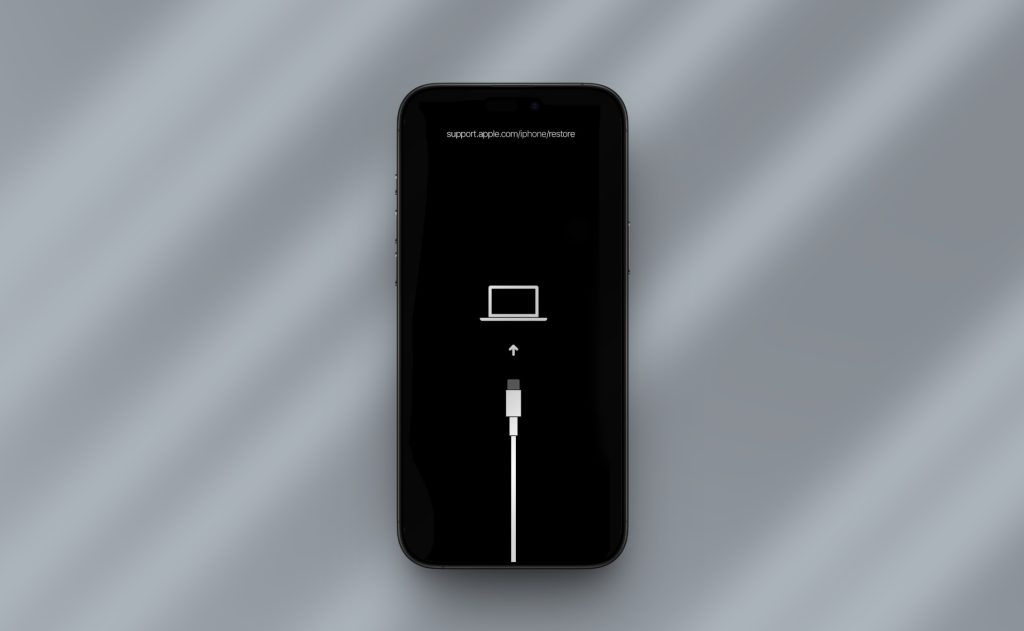
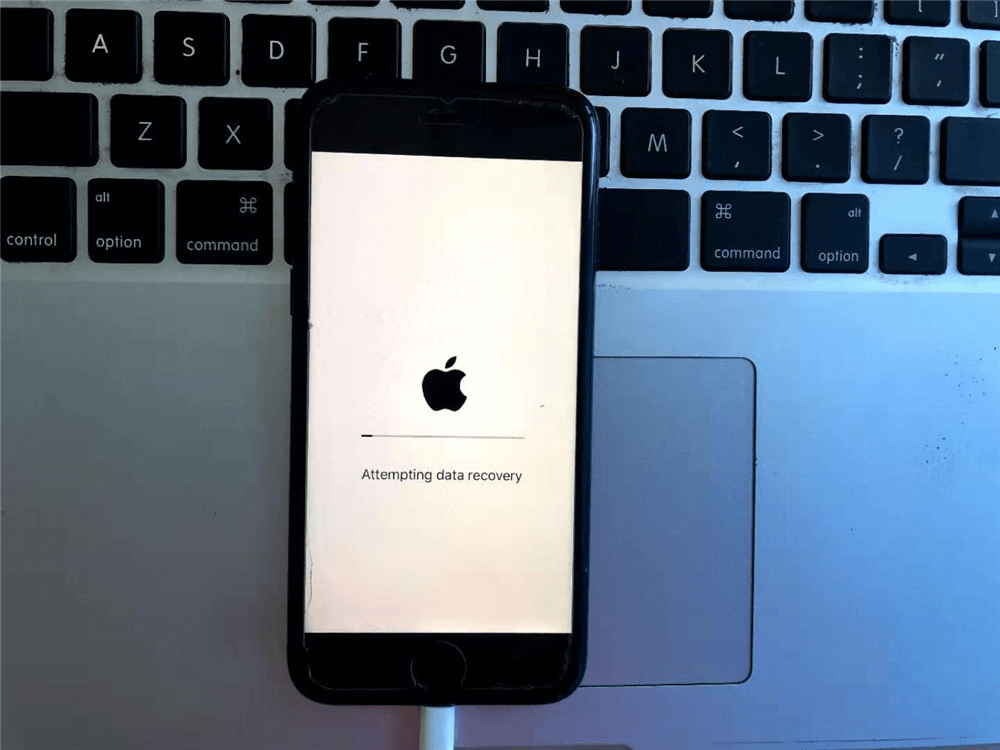
When standard restarts and setting adjustments prove ineffective, the issue likely resides deep within the file system, necessitating a restoration of the iOS software. This process requires a computer (Mac or PC) and a reliable data cable. The first tier of this repair is Recovery Mode. To enter Recovery Mode, the user connects the iPhone to the computer and performs the force restart sequence but continues holding the button even after the Apple logo appears, waiting until the “Connect to Computer” image displays. On a Mac running macOS Catalina or later, the Finder will detect the device; on older macOS versions or Windows PCs, iTunes (or the Apple Devices app) will prompt an option to “Update” or “Restore.” Choosing “Update” is critical here, as this attempts to reinstall the operating system without erasing user data. This process downloads a fresh copy of the firmware and verifies it against the device’s hardware, replacing any corrupted touch driver files.
If the Update process fails or the touch issue persists, the more aggressive Device Firmware Update (DFU) mode is the next step. DFU mode is distinct from Recovery Mode because it bypasses the bootloader and iBoot, allowing for a complete low-level restoration of the firmware. Entering DFU mode requires precise timing: connecting the device, performing specific button holds, and watching for a black screen while the computer detects the device. Because the screen remains black in DFU mode, this method is ideal for situations where the display is completely unresponsive. A comprehensive guide on entering DFU mode for various iPhone models can be found on iMore, which provides step-by-step visual aids to ensure the timing is executed correctly. A successful DFU restore wipes the device clean and installs a pristine version of iOS, eliminating any software-based conflict that could be causing the touch failure.
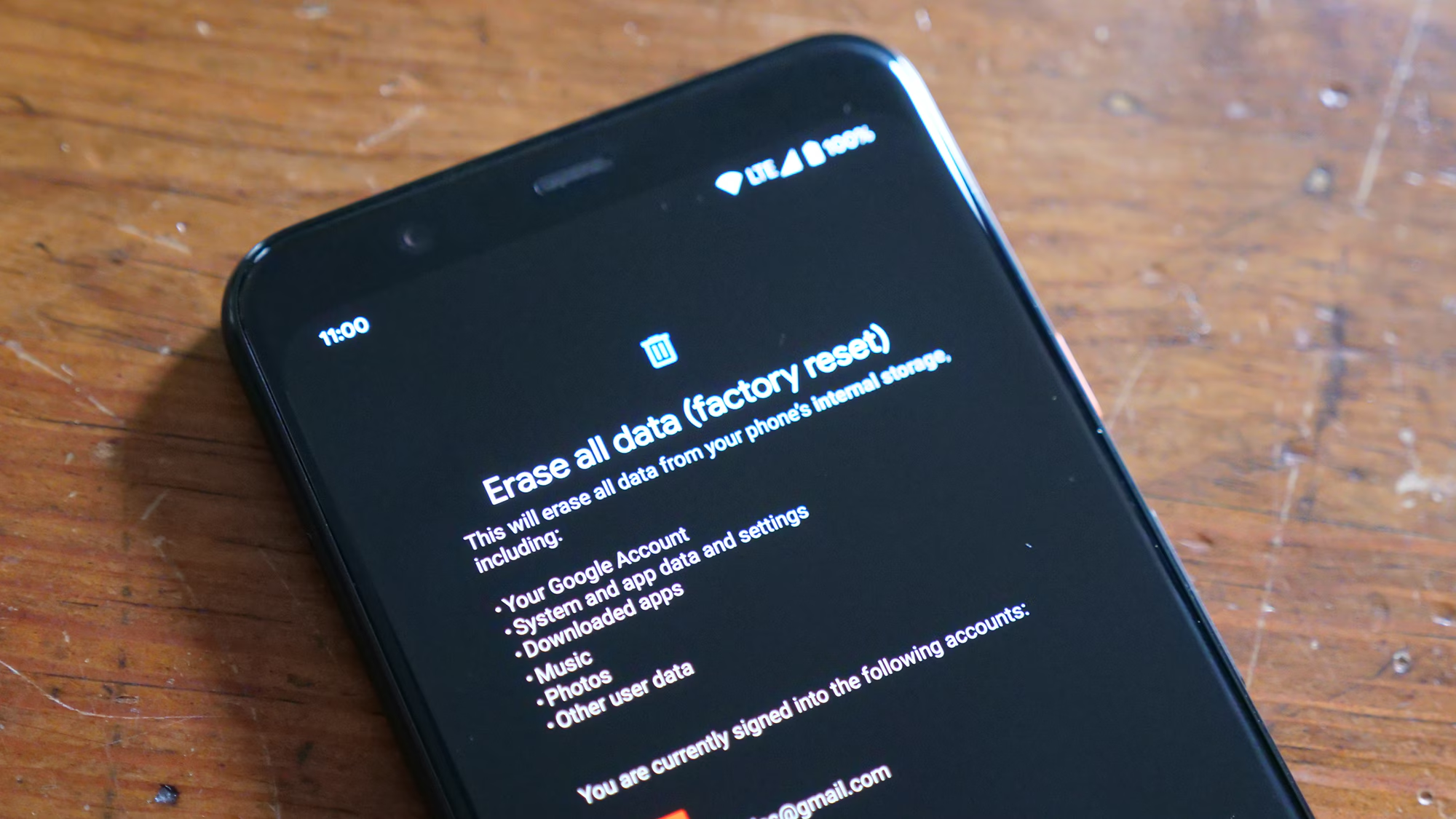
It is important to note that a Restore operation (as opposed to an Update) will erase all data on the device. Therefore, having a recent backup is paramount. If the device was backed up to iCloud prior to the update, data can be restored seamlessly after the fix. If no backup exists, users face a difficult choice between a non-functional device and data loss. However, in scenarios where the touch screen is the only barrier to backing up, connecting to a trusted computer that has previously synced with the device might allow for a local backup to be initiated via iTunes or Finder, provided the “Trust This Computer” prompt was previously accepted. The rigor of the restoration process underscores the importance of maintaining regular backups, a principle emphasized by cybersecurity experts and data recovery specialists alike.
Hardware Verification and External Interference
If a full DFU restore yields no improvement, the probability shifts significantly toward a hardware fault that coincidentally manifested or was exacerbated by the update. Software updates often push hardware components harder, utilizing new features or higher processing demands that can reveal underlying weaknesses in the battery, digitizer, or logic board. For instance, a swollen battery can exert pressure on the back of the screen assembly, disrupting the connection between the digitizer and the logic board. This physical distortion might have been negligible under the previous OS version but becomes critical under the new power management profiles of the update. Visually inspecting the device for any curvature, gaps along the seams, or difficulty in laying flat on a surface can indicate battery swelling. In such cases, immediate cessation of use is advised due to safety risks, and professional inspection is required.
Another hardware consideration is the quality of replacement parts if the device has undergone prior repairs. Non-genuine screens or digitizers often lack the specific calibration chips that Apple’s iOS expects. While these third-party parts might function adequately on older iOS versions, a new update can include stricter verification checks or altered communication protocols that render unofficial parts incompatible. This results in partial or total touch failure. Apple’s “Parts and Service History” feature, available in Settings > General > About, can reveal if non-genuine parts have been installed. If an unknown part is listed, it strongly suggests a compatibility issue. Detailed explanations of how iOS interacts with internal components are available through iFixit’s teardown analyses, which often highlight the integration of proprietary chips in display assemblies.
External interference from electromagnetic sources or damaged charging ports can also mimic touch failures. A shorted charging port can send erroneous signals to the touch controller, especially if the device interprets the electrical noise as input. Inspecting the charging port for lint, debris, or bent pins is a necessary physical check. Additionally, testing the device in a different location, away from strong magnetic fields or high-voltage equipment, can rule out environmental interference. If the device works normally in a different environment, the issue is external rather than internal. For persistent hardware suspicions, seeking a diagnostic from an Apple Authorized Service Provider is the most reliable course of action. These providers have access to proprietary diagnostic tools that can test the digitizer’s signal strength and latency, providing a definitive answer on whether the hardware needs replacement.
| Troubleshooting Method | Complexity Level | Data Risk | Success Probability (Software Issues) | Estimated Time |
|---|---|---|---|---|
| Environmental Check | Low | None | Low-Medium | 5 Minutes |
| Force Restart | Low | None | High | 2 Minutes |
| Accessibility Reset | Medium | None | Medium | 10 Minutes |
| Recovery Mode Update | Medium | Low | Very High | 30-45 Minutes |
| DFU Mode Restore | High | High (Erases All) | Highest | 45-60 Minutes |
| Hardware Inspection | High | N/A | N/A (Requires Repair) | Varies |
Advanced Diagnostics and Professional Intervention
When all software avenues have been exhausted and hardware inspections yield no obvious physical defects, the issue may lie within the logic board itself, specifically the touch IC (Integrated Circuit). This component, responsible for processing touch signals, can suffer from microscopic solder fractures or component degradation. This condition, historically known as “Touch Disease” on specific older models like the iPhone 6 Plus, involves the touch IC detaching slightly from the board due to flexing. While modern iPhones are more robust, the stress of thermal expansion during an update can theoretically aggravate marginal connections. Diagnosing this requires microsoldering expertise and specialized equipment to reflow or replace the IC. This is not a user-serviceable repair and necessitates a visit to a specialized repair shop or Apple Store.
Users should also consider the possibility of a bug specific to the iOS version they updated to. Occasionally, Apple releases updates that contain unforeseen bugs affecting specific device batches. Monitoring community forums and official release notes can reveal if other users are experiencing similar issues. If a widespread bug is confirmed, Apple typically releases a point update (e.g., iOS 17.1.1) to address it. In such cases, waiting for the patch or contacting Apple Support to report the issue is the prudent path. The Apple Community Forums serve as a valuable real-time barometer for such issues, where thousands of users share their experiences and workarounds. Reporting the bug through official channels not only helps the individual user get guidance but also contributes to the broader data set Apple uses to prioritize fixes.
For devices still under warranty or covered by AppleCare+, seeking professional help is the most efficient resolution. Attempting advanced hardware repairs independently can void remaining coverage. Apple’s diagnostic tools can remotely identify if the touch controller is sending erratic signals or no signals at all, distinguishing between a dead component and a software lockout. Even if the screen is unresponsive, Genius Bar appointments can often be managed via a computer or another Apple device. The expertise available at authorized centers ensures that if a logic board repair or screen replacement is needed, it is performed with genuine parts and proper calibration, restoring the device to factory specifications.
Preventative Measures and Future Update Strategies
To mitigate the risk of touch issues during future updates, adopting a strategic approach to iOS installations is advisable. One effective method is waiting a few days or weeks after a major iOS release before updating. This delay allows early adopters to uncover potential bugs, and Apple to release immediate patches if critical issues arise. Checking reputable tech news sites and user forums for reports of touch sensitivity problems before initiating an update can save significant trouble. Additionally, ensuring the device has ample storage space (at least 5-10 GB free) before updating prevents the installation process from becoming corrupted due to space constraints, which can lead to incomplete driver installations.
Maintaining a consistent backup routine is another crucial preventative measure. Whether using iCloud or local backups via iTunes/Finder, having a recent restore point ensures that if an update does cause severe issues, the device can be rolled back or restored with minimal data loss. It is also recommended to update devices while connected to a stable Wi-Fi network and a certified power source, avoiding the use of the device during the installation process to prevent thermal spikes. These best practices, though simple, significantly reduce the likelihood of encountering post-update glitches. For those managing multiple devices, staggering the updates allows for testing on a secondary device first, ensuring stability before deploying the new OS to primary daily drivers.
Conclusion
The experience of an iPhone touchscreen failing after a software update is undeniably disruptive, yet it is predominantly a solvable challenge rooted in software conflicts rather than permanent hardware destruction. By systematically progressing through environmental checks, force restarts, accessibility adjustments, and ultimately, recovery mode restorations, the vast majority of users can regain full control of their devices without professional intervention. The architecture of iOS is designed with multiple layers of redundancy and recovery, acknowledging that software updates are complex operations that can occasionally encounter friction with existing data or hardware states. Understanding these mechanisms empowers users to act decisively and logically, avoiding unnecessary panic or premature hardware replacements.
While the prospect of a DFU restore or hardware inspection may seem daunting, these steps represent the thoroughness required to address deep-seated technical issues. The integration of official resources from Apple, alongside independent technical analysis, provides a robust framework for troubleshooting. As mobile operating systems continue to evolve in complexity, the interplay between software drivers and hardware components will remain a critical area of focus. Users who stay informed about update patterns, maintain regular backups, and apply a methodical approach to troubleshooting will find themselves well-equipped to handle not just touch issues, but a wide array of potential technical hurdles. The resilience of the iPhone ecosystem lies in this balance of advanced technology and accessible recovery paths, ensuring that a temporary glitch does not become a permanent obstacle.
Frequently Asked Questions
Q1: Why does my iPhone screen become unresponsive only after an iOS update?
A: iOS updates rewrite system drivers, including those for the touch digitizer. If the update process is interrupted, or if cached data conflicts with new driver protocols, the system may fail to interpret touch inputs correctly. Additionally, updates can change power management settings that affect how the screen handles electrical signals, leading to temporary unresponsiveness.
Q2: Will a force restart delete my photos and messages?
A: No, a force restart is a hardware-level reboot that clears the RAM but does not alter the data stored on the flash memory. Your photos, messages, apps, and settings remain intact. It is the safest first step to attempt when facing screen issues.
Q3: What is the difference between Recovery Mode and DFU Mode?
A: Recovery Mode allows the computer to interact with the iOS bootloader to update or restore the software, often preserving data if “Update” is selected. DFU (Device Firmware Update) Mode bypasses the bootloader entirely, allowing for a complete low-level restoration of the firmware. DFU is more powerful but always results in data erasure.
Q4: Can a cracked screen cause touch issues after an update?
A: Yes. If a screen has been previously damaged or replaced with non-genuine parts, a new iOS update might introduce stricter compatibility checks or altered signal requirements that the compromised hardware cannot meet. This can result in sudden touch failure post-update.
Q5: How long should I wait for the screen to respond after an update?
A: After an update, the iPhone performs background indexing and optimization, which can cause temporary lag. However, total unresponsiveness lasting more than 15-20 minutes usually indicates a problem. If a force restart does not resolve it within a few minutes, further troubleshooting is required.
Q6: Is it safe to use a third-party repair shop for touch issues?
A: While many third-party shops are skilled, using non-authorized services can void your Apple warranty. Furthermore, non-genuine replacement screens may not function correctly with future iOS updates. For devices under warranty or AppleCare+, an Apple Authorized Service Provider is the recommended choice.
Q7: Can I recover my data if I have to do a DFU restore?
A: A DFU restore erases all data on the device. Data can only be recovered if you have a previous backup stored in iCloud or on a computer. If no backup exists, the data is unfortunately lost once the restore process begins.
Q8: Does cold weather affect iPhone touch sensitivity after an update?
A: Yes, extreme cold can temporarily reduce the conductivity of the screen and slow down the battery’s chemical reactions, leading to sluggish or unresponsive touch. This effect can be more pronounced after an update if the new OS has different thermal management thresholds. Warming the device to room temperature usually resolves this.