The moment a finger slips and the “Delete” confirmation is tapped, a distinct sense of dread washes over any smartphone user. Whether it is a cherished family photograph from a recent vacation, a critical PDF contract needed for a meeting in an hour, or a voice memo containing unique ideas, the loss of digital data feels tangible. In the Android ecosystem, this panic is often compounded by the misconception that recovering such files requires complex technical maneuvers, specifically “rooting” the device. Rooting, the process of gaining superuser access to the Android operating system, was once the only viable path for deep data recovery. However, the landscape of mobile forensics and data management has shifted dramatically. Today, effective recovery is possible through standard user permissions, cloud synchronization, and sophisticated software algorithms that do not require compromising the device’s security architecture.
Understanding the mechanics of file deletion on modern Android devices is the first step toward successful recovery. When a file is deleted from an Android device without root access, the operating system does not immediately erase the binary data from the flash storage. Instead, the file system, typically F2FS (Flash-Friendly File System) or ext4, simply marks the space occupied by that file as “available for overwriting.” The data remains physically present on the storage chip until new data is written over those specific sectors. This window of opportunity is critical. The moment a user continues to use the phone—taking new photos, downloading apps, or browsing the web—they risk overwriting the very data they wish to salvage. Consequently, the immediate cessation of device usage is the single most important action one can take upon realizing data loss. This principle underpins every recovery method discussed herein, from checking native trash bins to utilizing professional desktop recovery suites.
The First Line of Defense: Native Trash and Recycle Bins
Modern Android implementations have evolved to include safety nets that mirror the “Recycle Bin” functionality long established in desktop computing environments. Major smartphone manufacturers and Google itself have integrated temporary holding folders where deleted media and files reside for a set period before permanent erasure. For users running Android 11 or later, the Google Files app often includes a “Trash” folder that retains deleted items for 30 days. Similarly, device-specific galleries, such as those found on Samsung Galaxy devices, Xiaomi phones, and Google Pixel handsets, maintain their own internal recycle bins.
When a photo or video is deleted from the gallery, it is frequently moved to a “Recently Deleted” or “Trash” album rather than being purged instantly. This folder is typically accessible by opening the gallery application, navigating to the “Albums” or “Library” tab, and scrolling to the bottom of the list. Inside, users will find a chronological list of deleted media. The retention policy varies by manufacturer; Samsung devices, for instance, generally hold files for 30 days, while some other OEMs may extend this to 60 days. Once this period expires, or if the user manually empties the trash, the file reference is removed, and the storage space is flagged as reusable. It is crucial to check these native repositories first, as they offer the highest success rate with zero risk of data corruption or privacy compromise. The process is entirely contained within the device’s secure sandbox, requiring no external tools or permissions beyond the standard user interface.
Beyond media files, document management has also seen improvements. The “Files by Google” application, which comes pre-installed on many devices and is available via the Google Play Store, manages a trash bin for various file types, including documents, audio recordings, and archives. If a user accidentally deletes a downloaded PDF or an APK file, checking the “Trash” section within this specific file manager often yields immediate results. The interface is designed for simplicity, allowing users to select specific items and tap “Restore” to return them to their original directory. This native functionality represents the most reliable and safest method for recovery, eliminating the need for third-party intervention entirely. However, if the trash has been emptied or the retention period has lapsed, the search for the lost data must move to more advanced, yet still non-root, methodologies.
Leveraging Cloud Synchronization and Backup Ecosystems
In an era where connectivity is ubiquitous, the likelihood of data existing simultaneously on a local device and a remote server is high. Cloud synchronization services act as an invisible safety net, often preserving versions of files that users believe are lost forever. For Android users, the primary ecosystem is Google One, which manages backups for photos, videos, contacts, and device settings. Even if a file is deleted from the local gallery and the local trash bin is emptied, a copy may persist in the cloud if synchronization was active at the time of the file’s creation or prior to its deletion.
Accessing the web interface of Google Photos provides a broader view than the mobile app sometimes allows. By logging into the associated Google account via a desktop browser, users can navigate to the “Trash” or “Bin” section on the web platform. Occasionally, synchronization delays or glitches mean that a file deleted locally has not yet propagated the delete command to the cloud server, or the cloud trash bin operates on a slightly different retention timeline. Furthermore, Google Photos features an “Archive” function, which hides photos from the main view without deleting them. Users often mistake archived images for deleted ones. Checking the “Library” > “Archive” section can resolve many cases of perceived data loss without any recovery software.
Beyond Google’s native offerings, third-party cloud storage applications like Dropbox, Microsoft OneDrive, and Box offer robust versioning and recovery capabilities. These services often maintain a “deleted files” folder for up to 30 days (or longer for business accounts) and, more importantly, keep version histories of files. If a document was modified and then deleted, or if an older version is needed, these platforms allow users to revert to previous states. For users who have installed these apps and enabled “Camera Upload” or “Auto-Sync,” the probability of recovering lost media is exceptionally high. The key lies in verifying which cloud services were active on the device at the time the data existed. Many users unknowingly have multiple backup layers active, providing several avenues for retrieval that require nothing more than an internet connection and login credentials.
Desktop-Based Recovery Software: The Non-Root Solution
When native trash bins are empty and cloud backups yield no results, the focus shifts to desktop-based recovery software. These tools operate on a different principle than mobile apps. Due to Android’s security sandboxing, an app installed directly on the phone cannot scan the entire internal storage memory, especially the sectors where deleted files reside, without root privileges. However, when the Android device is connected to a computer via USB, specialized desktop software can communicate with the device’s storage controller to perform a deeper scan. These programs utilize the Media Transfer Protocol (MTP) or, in some cases, trigger a temporary debugging mode to access file tables that are otherwise hidden from on-device applications.
Leading software solutions in this category include Dr.Fone – Data Recovery, DiskDigger (which has a PC component for deeper scanning), and EaseUS MobiSaver. These tools are designed to analyze the logical structure of the file system. They look for file headers and footers—specific binary signatures that indicate the start and end of a file type, such as a JPEG image or an MP4 video. Even if the file allocation table entry is gone, the actual data cluster may remain intact. The software reconstructs the file based on these signatures. It is important to note that while these tools claim “no root” recovery, their effectiveness can vary depending on the Android version. Newer versions of Android (Android 10 and above) have tightened security protocols, making low-level access more difficult. However, for media files stored on the internal shared storage or external SD cards, success rates remain respectable.
The process typically involves installing the software on a Windows or macOS computer, enabling “USB Debugging” on the Android device (found in Developer Options), and connecting the phone via a high-quality USB cable. The software then scans the device, presenting a preview of recoverable files. Users can selectively choose which files to restore, saving them directly to the computer’s hard drive. This method is superior to mobile-only apps because the computer’s processing power allows for more complex algorithmic reconstruction of fragmented files. Furthermore, saving the recovered data to the computer ensures that the recovery process itself does not overwrite other deleted data on the phone. While no software can guarantee 100% recovery, especially if the storage has been heavily overwritten, these desktop solutions represent the most powerful non-root option available to the average consumer.
The Role of External SD Cards and OTG Drives
A significant portion of Android users utilizes external storage, either through microSD cards or USB On-The-Go (OTG) drives. The recovery dynamics for these storage mediums differ fundamentally from internal flash memory. When files are deleted from an SD card, the Android operating system treats the card as removable mass storage. This distinction is vital because it allows for the use of card readers and desktop forensic tools that bypass Android’s permission layers entirely. By removing the SD card from the phone and inserting it into a computer via a card reader, the storage medium appears as a standard drive letter (e.g., E: or F:).
In this scenario, the computer can employ powerful, industry-standard data recovery utilities like Recuva or PhotoRec. These tools are highly effective because they interact directly with the file system of the card without the interference of the Android OS. PhotoRec, in particular, is an open-source tool renowned for its ability to ignore the damaged file system and search for underlying data signatures, making it exceptionally good at recovering photos and videos from corrupted or formatted cards. Since the recovery happens on the computer, there is absolutely no risk of the phone’s background processes writing new data to the card during the scan.
For users who store data on USB OTG drives, the same principle applies. Disconnecting the drive and connecting it directly to a PC allows for a comprehensive scan. The success rate for external media is generally higher than for internal storage because external cards are less subject to the constant read/write cycles of the operating system and apps. However, the golden rule remains: once data loss is detected on an SD card, the card should be immediately unmounted and removed from the device to prevent any potential background indexing or caching from writing to the card. Utilizing these desktop-grade tools on removable media offers a level of recovery depth that rivals professional forensic services, all without needing to root the Android device itself.
Comparative Analysis of Recovery Methods
To assist in selecting the appropriate recovery strategy, the following table compares the efficacy, requirements, and risks associated with the primary non-root recovery methods.
| Recovery Method | Success Probability | Technical Difficulty | Risk of Data Overwrite | Cost | Best Use Case |
|---|---|---|---|---|---|
| Native Trash/Recycle Bin | Very High | None (Built-in) | None | Free | Recent deletions (<30 days) within Gallery or Files app. |
| Cloud Backup (Google/OneDrive) | High | Low | None | Free/Paid Storage | Files synced prior to deletion; accidental permanent deletes. |
| Desktop Recovery Software | Moderate to High | Medium | Low (if used correctly) | Paid (Free trials limited) | Older deletions; internal storage where trash is empty. |
| SD Card Reader + PC Tools | Very High | Low | None | Free/Paid | Data lost on removable microSD cards or OTG drives. |
| Mobile Recovery Apps (No Root) | Low | Low | High | Free/Paid | Generally ineffective for internal storage due to sandboxing. |
This comparison highlights a critical insight: the most effective methods often involve removing the data source from the active Android environment (either by checking the cloud or using a PC) rather than trying to fix the problem from within the compromised device. Mobile apps that claim to recover deleted internal files without root often fail because the Android security model prevents them from accessing the raw disk sectors necessary for recovery. Relying on desktop-based solutions or external card readers significantly increases the likelihood of a successful outcome.
Preventive Measures and Best Practices for Data Hygiene
While recovery is possible, prevention remains the superior strategy. The volatility of flash memory means that every second a deleted file sits on the drive increases the risk of permanent loss. Establishing a robust data hygiene routine is essential for any Android user. The most effective safeguard is the automation of backups. Users should configure Google Photos to back up media in “Original Quality” or “Storage Saver” mode immediately upon capture. For documents and miscellaneous files, enabling sync with Google Drive or a third-party service ensures that a local deletion does not equate to total loss.
Additionally, users should familiarize themselves with the “Trash” policies of their specific device manufacturers. Knowing that a Samsung phone holds deleted photos for 30 days provides a clear window for action, whereas assuming they are gone instantly leads to unnecessary panic. Regularly auditing cloud storage settings is also advisable; ensuring that Wi-Fi-only backup settings do not prevent large videos from syncing when on mobile data can close gaps in protection. For critical data, the “3-2-1” backup rule is applicable even to mobile users: keep three copies of data, on two different media types, with one copy offsite (cloud). This approach renders the need for complex recovery procedures largely obsolete.
Another practical measure is the cautious use of “Cleaner” apps. While designed to free up space, aggressive cleaning tools can sometimes purge cache files or residual data that a user might later deem necessary. Some cleaner apps also inadvertently empty the trash bins of other applications. Users should rely on the built-in storage management tools provided by Android OS rather than third-party optimizers that may lack transparency in their deletion processes. By maintaining control over what is deleted and ensuring multiple redundancy layers exist, the impact of accidental deletion is minimized.
Frequently Asked Questions
Can I recover deleted files on Android without rooting if the phone was factory reset?
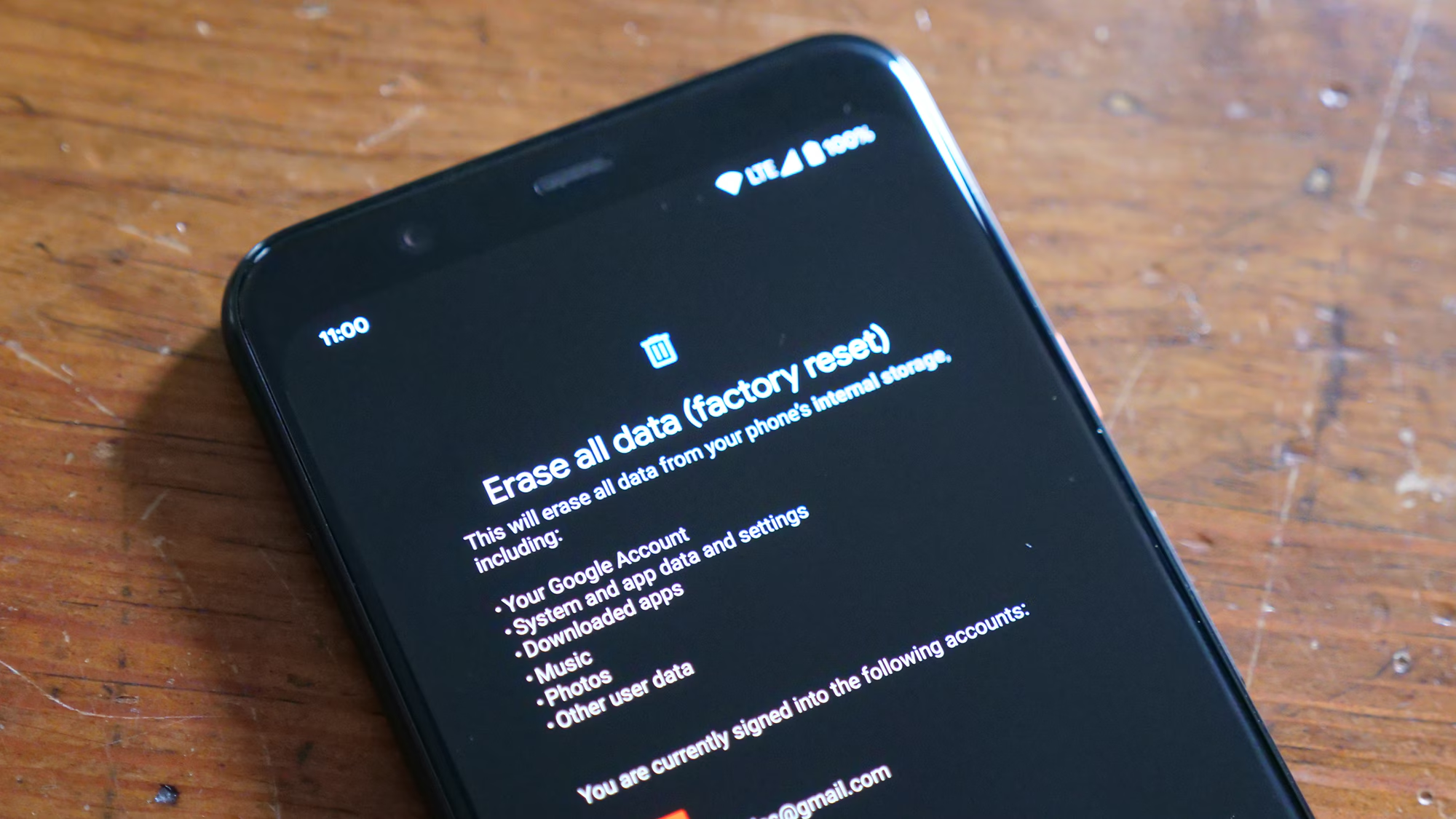
Recovering data after a factory reset without root access is extremely difficult and often impossible for internal storage. A factory reset typically encrypts the storage and deletes the encryption keys, rendering the remaining data unreadable. While some desktop recovery software claims to handle resets, success is rare on modern Android versions (Android 6.0 and later) due to full-disk encryption. If the data was on an SD card that was not formatted during the reset, recovery is highly likely using PC-based tools.
Why do mobile recovery apps ask for root access?
Mobile recovery apps require root access to bypass the Android sandbox and read the raw sectors of the internal flash memory where deleted files reside. Without root, an app is restricted to its own directory and public folders (like Downloads), meaning it cannot see the “deleted” space of other apps or the system gallery. Since rooting voids warranties and poses security risks, desktop-based solutions that utilize USB debugging are generally preferred for non-root recovery.
How long do deleted files stay on Android before they are permanently gone?
There is no fixed time limit. Deleted files remain on the storage medium indefinitely until the space they occupy is overwritten by new data. However, in active daily use, this overwriting can happen within minutes or hours. If the device is put into Airplane Mode immediately after deletion, the chances of recovery remain high for a longer period. The “30-day” rule often cited refers only to the automatic emptying of the software “Trash” bin, not the physical erasure of the data.
Is it safe to use third-party desktop recovery software?
Reputable desktop recovery software from established vendors is generally safe. These programs run on the computer, not the phone, and simply read data from the connected device. However, users should avoid downloading cracked or unknown software, as these can contain malware. Always download tools from the official vendor websites. Additionally, ensure the software does not require installing unknown drivers on the phone that could compromise security.
Can WhatsApp images be recovered without root?
Yes, WhatsApp images can often be recovered without root. WhatsApp maintains a local database and a “Media” folder. If an image is deleted from the chat but the local backup (which occurs daily at 2 AM) has not yet run or is from a prior date, uninstalling and reinstalling WhatsApp while restoring from the local or Google Drive backup can retrieve the media. Additionally, checking the “.Status” folder or the specific WhatsApp image directories via a file manager may reveal cached versions.
Does enabling USB Debugging compromise my phone’s security during recovery?
Enabling USB Debugging allows a computer to communicate more deeply with the Android OS, which is necessary for many desktop recovery tools to function effectively. While it does open a port for potential exploitation if the phone is connected to an untrusted computer, the risk is minimal when connecting to a personal, secure machine for the specific purpose of data recovery. It is best practice to disable USB Debugging immediately after the recovery process is complete.
What is the difference between “Soft Delete” and “Hard Delete” on Android?
“Soft Delete” refers to moving a file to a Trash or Recently Deleted folder, where it remains easily restorable by the user. “Hard Delete” occurs when a file is removed from the Trash or deleted via a method that bypasses the Trash (such as some file managers or shift-delete equivalents). In a Hard Delete scenario, the file is not immediately erased from the hardware but becomes invisible to the OS and is marked for overwriting. Recovery of Hard Deleted files requires scanning for data remnants rather than simple restoration.
Conclusion
The loss of digital files on an Android device triggers a universal sense of urgency, yet the path to recovery is clearer and more accessible than many realize. The myth that rooting is a prerequisite for data retrieval has been dispelled by the evolution of Android’s native safety features, the ubiquity of cloud synchronization, and the sophistication of desktop-based recovery tools. By understanding that deletion is merely a logical marker rather than immediate physical erasure, users can approach the situation with a strategic mindset. The immediate prioritization of stopping device usage, followed by a systematic check of native trash bins and cloud archives, resolves the majority of data loss incidents.
For the more challenging cases where local and cloud options fail, desktop recovery software and external card readers offer a powerful, non-invasive alternative to rooting. These tools leverage the processing power of computers to reconstruct data fragments, adhering to the principles of digital forensics without compromising the device’s security integrity. The comparison of methods reveals that the most successful recoveries often occur outside the immediate environment of the phone, emphasizing the importance of removing storage media or leveraging remote backups.
Ultimately, while recovery techniques are invaluable, they serve as a remedy rather than a cure. The true resilience of a digital life lies in proactive data hygiene. Automating backups, understanding the specific retention policies of one’s device, and exercising caution with file management create a robust defense against data loss. As Android continues to evolve, balancing enhanced security with user accessibility, the tools and methods for recovery will undoubtedly advance further. Until then, a calm, informed approach grounded in the realities of flash storage behavior offers the best chance of reclaiming those precious digital moments. The technology exists to save the data; the key lies in acting swiftly and wisely before the inevitable march of new data overwrites the past.