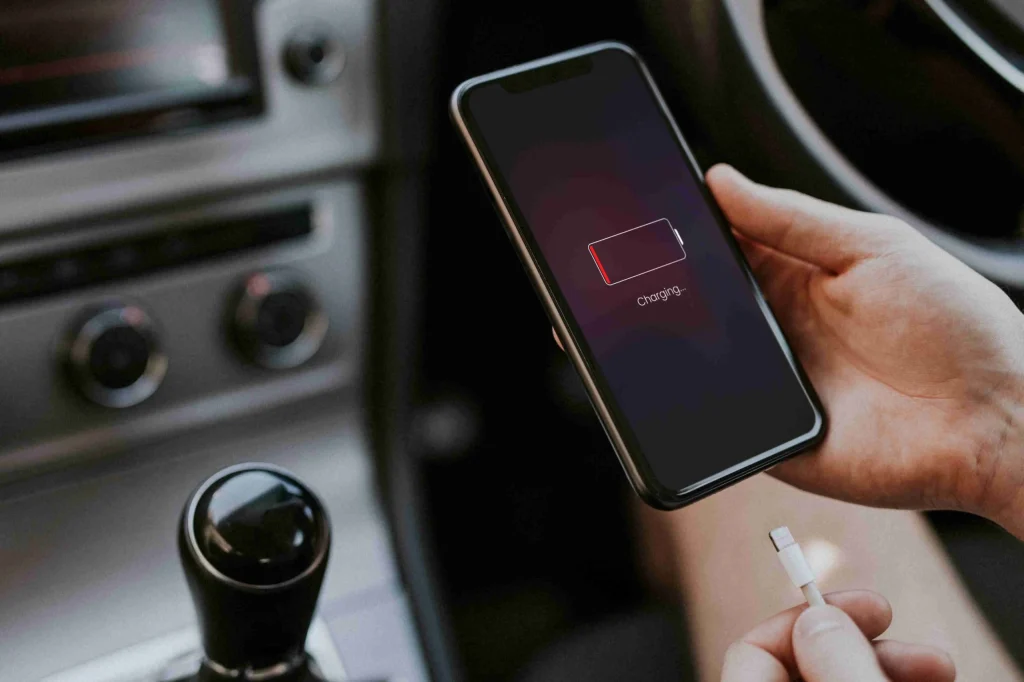
There is a distinct, unsettling sensation when a smartphone, an device designed to be a cool slab of glass and metal, suddenly becomes uncomfortably warm to the touch. It often happens at the most inconvenient moments: during a critical video call, while navigating through unfamiliar streets, or in the middle of capturing a fleeting memory. This warmth is frequently accompanied by a secondary crisis—the battery percentage plummeting at an alarming rate, defying the charge that was full only an hour prior. For millions of Android users, the dual plague of overheating and rapid battery depletion is not just a minor annoyance; it is a functional failure that disrupts daily life and raises concerns about the longevity of expensive hardware.
The relationship between heat and battery life is intrinsic to the physics of lithium-ion cells. When a phone overheats, the chemical reactions inside the battery accelerate uncontrollably, leading to inefficiency and rapid discharge. Conversely, a battery struggling to deliver power due to age or software mismanagement generates excess heat as a byproduct of resistance. Understanding this symbiotic dysfunction is the first step toward a solution. Fixing these issues requires a methodical approach that moves beyond simple restarts, diving deep into software diagnostics, usage patterns, environmental factors, and hardware health. By examining the root causes through the lens of technical operation and real-world usage data, users can reclaim the performance and reliability of their devices.
The Physics of Power: Why Phones Generate Heat
To effectively troubleshoot, one must first understand the engine room of the smartphone. Modern Android devices are essentially compact supercomputers, packing multi-core processors, high-resolution displays, and complex radio transceivers into a chassis with no active cooling fans. Heat generation is an inevitable byproduct of electrical resistance. When the System on Chip (SoC) processes data, electrons move through billions of transistors, creating friction that manifests as thermal energy. Under normal loads, this heat is dissipated passively through the phone’s frame and screen. However, when the demand exceeds the device’s ability to shed this heat, the temperature rises dangerously.
The primary culprit in most overheating scenarios is the Central Processing Unit (CPU) and Graphics Processing Unit (GPU). When these components are pushed to their limits—whether by graphically intensive gaming, 4K video rendering, or augmented reality applications—they draw significant current. This high current flow increases thermal output exponentially. If the device’s thermal throttling mechanisms fail to kick in quickly enough, or if the ambient temperature prevents effective dissipation, the phone enters a thermal spiral. In this state, the battery works harder to maintain voltage levels against the rising internal resistance caused by heat, leading to the simultaneous observation of a hot device and a draining battery.
Furthermore, the radio frequency components play a massive, often overlooked role. The modem, responsible for cellular connectivity, Wi-Fi, Bluetooth, and GPS, is a significant heat generator. When a device struggles to maintain a signal, such as in areas with spotty 5G coverage or weak Wi-Fi, the radio amplifier boosts its power output to search for a connection. This constant searching and boosting creates a sustained load on the battery and generates consistent heat, even when the screen is off. Users often notice their phones becoming warm in their pockets while commuting through tunnels or rural areas, a direct result of the modem working overtime to maintain a data link.
Software Culprits: The Invisible Drain
While hardware limitations set the baseline, software is frequently the variable that tips the scale from normal operation to critical overheating. The Android operating system is a complex ecosystem of background processes, services, and applications. Ideally, these elements work in harmony, sleeping when not in use and waking only when necessary. In reality, rogue applications and misconfigured settings can create “wake locks,” preventing the CPU from entering low-power sleep states. This forces the processor to run at higher clock speeds continuously, generating heat and consuming battery life even when the device appears idle.
Identifying these software offenders requires a forensic approach using the built-in diagnostic tools provided by Google and device manufacturers. The Battery Usage section in the Android settings menu offers a granular view of which applications are consuming the most power over specific timeframes. A red flag arises when an application with minimal user interaction shows disproportionately high battery usage. For instance, a social media app running in the background for ten hours while the phone was in a pocket suggests a process that has failed to suspend correctly. These runaway processes not only drain the battery but keep the CPU active, generating a steady stream of waste heat.
Background synchronization is another frequent source of thermal stress. Applications constantly syncing data—emails, cloud photos, location history, and messaging logs—create a cycle of network activity and processor wake-ups. If an app is stuck in a sync loop, perhaps due to a server error or a corrupted local database, it can trigger hundreds of micro-wakeups per minute. This “death by a thousand cuts” scenario prevents the device from ever cooling down. Clearing the cache and data for suspect applications, or restricting their background data usage, often provides immediate relief. The Android Developer documentation on background execution limits outlines how modern versions of Android attempt to curb this behavior, but poorly optimized apps can still bypass these safeguards.
Malware and adware represent a more malicious category of software-induced overheating. Unlike benign but poorly coded apps, malicious software is designed to operate covertly, often mining cryptocurrency or harvesting data in the background. These activities require intense computational power, driving the CPU to maximum utilization silently. Signs of such infection include the phone becoming hot while idle, unexplained data usage spikes, and the appearance of pop-up ads outside of browsers. Utilizing Google Play Protect to scan for harmful apps is a critical first line of defense, as it leverages Google’s vast database of known threats to identify and neutralize these hidden drains.
Environmental Factors and Usage Patterns
The physical environment in which a phone operates plays a decisive role in its thermal management. Lithium-ion batteries and semiconductor components have specific operating temperature ranges, typically between 0°C and 35°C (32°F to 95°F) for optimal performance. Exposing a device to direct sunlight is perhaps the most common cause of rapid overheating. The dark glass of the screen acts as a solar collector, absorbing radiant energy and transferring it directly to the internal components. In such scenarios, the phone’s internal heat combines with external solar heating, quickly pushing temperatures beyond safe thresholds. This not only triggers aggressive battery draining as the system attempts to cool itself by dimming the screen and slowing the processor but can also cause permanent degradation of the battery’s chemical structure.
Charging habits significantly influence thermal profiles. Fast charging technologies, while convenient, generate substantial heat due to the high amperage pushed into the battery. Using the device while it is fast-charging compounds this issue, as the heat from the charging circuit combines with the heat from the active processor and display. This “double load” scenario is a frequent cause of thermal throttling, where the phone deliberately slows down performance to prevent damage. Experts recommend avoiding heavy usage, such as gaming or video recording, while the device is plugged into a high-wattage charger. Instead, allowing the phone to charge while idle or in sleep mode ensures that the thermal energy generated is solely from the charging process, allowing the device to dissipate it more effectively.
The presence of protective cases also impacts thermal dynamics. Many rugged or thick silicone cases act as insulators, trapping heat inside the device rather than allowing it to escape through the chassis. While these cases offer excellent drop protection, they can exacerbate overheating issues during demanding tasks. Removing the case during intensive activities like navigation, gaming, or fast charging can lower internal temperatures by several degrees. Furthermore, the material of the surface on which the phone rests matters. Placing a warm phone on a soft surface like a bed, couch, or carpet blocks ventilation and traps heat. Hard, conductive surfaces like glass, metal, or stone tables facilitate better heat transfer away from the device.
Diagnostic Steps and Immediate Remediation
When faced with an overheating and draining device, a structured diagnostic protocol is essential to isolate the variable causing the failure. The first step is always a forced reboot. This action clears the RAM, terminates all running processes, and resets the radio modems. It is the digital equivalent of turning a car engine off and on again to clear a check-engine light. If the problem persists immediately after a reboot without launching any applications, the issue is likely systemic or hardware-related. If the phone remains cool until a specific app is opened, the culprit is software-based.
Monitoring the device’s thermal status can be achieved through various methods. While Android does not provide a native, user-friendly temperature gauge in the standard settings, engineering menus and third-party diagnostic tools can reveal core temperatures. Apps like CPU Throttling Test or system monitoring tools available via ADB (Android Debug Bridge) can provide real-time data on CPU frequency and temperature sensors. Observing these metrics while replicating the issue helps pinpoint whether the GPU, CPU, or battery itself is the primary heat source. A rapidly rising battery temperature specifically points to cell degradation or charging circuit faults, whereas a rising CPU temperature indicates processing load issues.
Safe Mode is a powerful troubleshooting tool inherent to the Android OS. Booting into Safe Mode disables all third-party applications, running the phone solely on its factory-installed software. If the overheating and battery drain cease while in Safe Mode, it confirms that a downloaded application is the root cause. The user can then systematically uninstall recent apps or those known for poor optimization until the stable state is identified. This method eliminates the need for guesswork and provides a definitive path to resolving software conflicts. Entering Safe Mode usually involves holding the power button, long-pressing the “Power Off” icon on the screen, and confirming the reboot into the restricted environment.
For issues related to network-induced heating, toggling the radio states can provide immediate relief. Switching between 5G and 4G/LTE can stabilize a modem that is struggling to maintain a next-generation connection in a weak signal area. Similarly, disabling GPS, Bluetooth, and Wi-Fi when not in use reduces the load on the radio frequency integrated circuits. In extreme cases where the phone is critically hot, powering the device down completely and removing it from any case is the safest course of action. Placing the device in a shaded, well-ventilated area allows it to return to ambient temperature naturally. It is crucial to avoid placing the phone in a refrigerator or freezer, as rapid cooling can cause condensation to form inside the device, leading to short circuits and permanent water damage.
Battery Health and Hardware Degradation
Over time, the physical components of a smartphone degrade, altering their thermal and electrical characteristics. The lithium-ion battery is a consumable component with a finite lifespan, typically measured in charge cycles. As a battery ages, its internal resistance increases. This phenomenon means that more energy is lost as heat during both charging and discharging phases. An old battery may show a sudden drop in voltage under load, causing the phone to shut down unexpectedly, or it may swell, pressing against the motherboard and other components, impeding heat dissipation. Checking the battery health is therefore a critical step in diagnosing persistent overheating.
While iOS provides a clear “Battery Health” percentage, Android’s approach varies by manufacturer. Some brands like Samsung and Pixel have integrated battery health diagnostics directly into the settings menu, offering insights into the battery’s condition and calibration. For devices lacking this feature, analyzing the battery’s discharge curve through usage logs can indicate degradation. A healthy battery discharges relatively linearly, whereas a degraded battery may hold a charge at 80% for a long time and then plummet to 20% in minutes. This non-linear discharge is often accompanied by noticeable heat generation during the rapid drop. If diagnostic tools suggest the battery capacity has fallen below 80% of its original design, replacement is the only viable solution to restore thermal stability and battery life.
Hardware faults beyond the battery can also manifest as overheating. A failing power management integrated circuit (PMIC) may deliver inconsistent voltage to the CPU, causing it to work inefficiently and generate excess heat. Similarly, a damaged thermal paste or pad between the processor and the heat spreader can reduce the efficiency of heat transfer. These issues are less common than software glitches but become more probable in devices that have suffered physical trauma or exposure to moisture. In such instances, professional repair is necessary. Attempting to open the device without proper tools and expertise can void warranties and cause further damage, especially given the complex adhesive structures of modern smartphones.
Optimization Strategies for Long-Term Stability
Preventing future occurrences of overheating and battery drain requires a proactive approach to device maintenance and usage habits. Keeping the Android operating system and all applications up to date is paramount. Developers frequently release patches that optimize code efficiency, fix memory leaks, and improve power management algorithms. The Google Play Store automates app updates, but ensuring the system software is current often requires manual checks in the settings menu. Manufacturers regularly push updates that refine the thermal throttling curves and improve battery calibration, directly addressing known issues for specific models.
Display settings offer another avenue for thermal control. The screen is one of the most power-hungry components, and high brightness levels generate significant heat. Utilizing adaptive brightness allows the device to adjust the backlight intensity based on ambient light, reducing unnecessary power consumption. Furthermore, lowering the screen refresh rate from 120Hz or 90Hz to the standard 60Hz can drastically reduce the workload on the GPU and the display driver, resulting in cooler operation and extended battery life. While high refresh rates provide smoother visuals, the trade-off in thermal performance is substantial, particularly on mid-range devices with less efficient cooling architectures.
Managing background activity through “Digital Wellbeing” and battery optimization settings empowers users to restrict aggressive apps. Android’s adaptive battery feature uses machine learning to learn usage patterns and restrict resources for apps that are rarely used. Enabling this feature ensures that dormant applications do not consume cycles in the background. Additionally, reviewing permission settings to revoke unnecessary access to location services can prevent apps from polling GPS coordinates constantly. Location services are notoriously power-intensive; setting apps to “Allow only while using the app” rather than “Allow all the time” can yield significant improvements in both temperature and battery endurance.
Comparison of Cooling and Power Saving Methods
| Method | Impact on Temperature | Impact on Battery Life | Performance Trade-off | Best Use Case |
|---|---|---|---|---|
| Safe Mode | High Reduction | High Extension | Third-party apps disabled | Diagnosing rogue apps |
| Lowering Refresh Rate | Moderate Reduction | Moderate Extension | Less smooth scrolling | Daily commuting, reading |
| Removing Case | Moderate Reduction | Neutral | None | Gaming, Fast Charging |
| Dark Mode | Low Reduction | High Extension (OLED) | None | Nighttime usage, OLED screens |
| Airplane Mode | High Reduction | High Extension | No connectivity | Weak signal areas, Sleep |
| Factory Reset | Maximum Reduction | Maximum Extension | Temporary data loss | Last resort for software bugs |
| Battery Replacement | High Reduction | Maximum Extension | None | Devices >2 years old |
| Limiting Background Data | Moderate Reduction | Moderate Extension | Delayed notifications | General daily usage |
Advanced Troubleshooting: When Standard Fixes Fail
If standard optimization and diagnostic steps fail to resolve the issue, more advanced interventions may be required. One such measure is wiping the cache partition. Unlike clearing app data, this process removes temporary system files that may have become corrupted during an update or a crash. Corrupted cache files can cause the system to enter loops or mismanage resources, leading to heat and drain. Accessing the recovery mode to wipe the cache partition is a safe procedure that does not delete personal data but can resolve deep-seated software anomalies. Instructions for entering recovery mode vary by manufacturer but generally involve a specific combination of button presses during boot.
For users comfortable with technical procedures, analyzing Logcat data can provide a microscopic view of system events. Logcat records every system message, warning, and error in real-time. By filtering these logs for terms like “thermal,” “battery,” “wakeup,” or “alarm,” one can identify the exact process triggering the issue. This level of analysis is typically reserved for developers or advanced enthusiasts but can be invaluable in identifying obscure bugs that standard settings menus do not reveal. It allows for a targeted approach, such as freezing a specific service or reporting a bug to the manufacturer with concrete evidence.
In scenarios where hardware degradation is confirmed, seeking authorized service is the only prudent path. Third-party repair shops may offer cheaper battery replacements, but they often use inferior cells that lack the safety features and thermal management properties of original equipment. Non-certified batteries can pose safety risks, including swelling and combustion, and may not communicate correctly with the phone’s power management system, leading to continued inaccurate battery readings and overheating. Authorized service centers ensure that genuine parts are used and that the device is resealed correctly to maintain water and dust resistance ratings.
Frequently Asked Questions
Why does my Android phone get hot only when charging?
Heat during charging is primarily caused by the chemical reaction within the battery as ions move between the cathode and anode. Fast charging technologies increase the current flow, which inherently generates more heat due to electrical resistance. Additionally, the power management circuitry converts voltage, a process that is not 100% efficient and releases waste heat. If the phone becomes excessively hot to the touch, it may indicate a faulty cable, a non-compliant charger, or a degrading battery that can no longer handle high-current inputs safely. Using the original charger and cable provided by the manufacturer is recommended to ensure proper voltage regulation.
Can a virus cause my phone to overheat and drain battery?
Yes, malware can cause severe overheating and battery drain. Malicious software often runs hidden processes in the background, such as cryptocurrency mining, data exfiltration, or botnet activities, which utilize the CPU and network radios at maximum capacity. This constant high-load operation generates significant heat and depletes the battery rapidly. Signs of malware include unexpected pop-ups, unknown apps appearing, and the phone remaining hot even when idle. Running a scan with Google Play Protect or a reputable mobile security suite can detect and remove these threats.
Does closing background apps actually save battery and reduce heat?
The answer is nuanced. Modern Android versions are designed to manage background apps efficiently, suspending them to minimize resource usage. Force-closing apps manually can sometimes be counterproductive; when the app is reopened, the system must reload all its data from scratch, requiring a burst of CPU power that consumes more energy than leaving it suspended. However, if a specific app is malfunctioning and stuck in a wake lock, force-stopping it is beneficial. Generally, relying on the system’s built-in battery optimization is more effective than habitually swiping away all apps.
How does ambient temperature affect Android battery performance?
Lithium-ion batteries are highly sensitive to ambient temperature. In cold environments, the chemical reactions slow down, increasing internal resistance and causing the battery to discharge faster and potentially shut down prematurely. In hot environments, the reactions accelerate, leading to rapid discharge and potential permanent damage to the battery’s capacity. Extreme heat can cause the electrolyte inside the battery to degrade or gas, leading to swelling. Keeping the device within the recommended operating range of 0°C to 35°C ensures optimal chemical efficiency and longevity.
Is it safe to use my phone if it feels slightly warm?
Slight warmth during intensive tasks like gaming, video recording, or fast charging is normal and expected. The device is designed to operate safely within certain thermal limits. However, if the phone becomes too hot to hold comfortably, displays a temperature warning, or the screen dims automatically, it indicates that the device is exceeding safe operating thresholds. Continued use in this state can accelerate battery degradation and damage internal components. It is advisable to stop using the device, remove the case, and let it cool down immediately.
Will factory resetting my phone fix overheating issues?
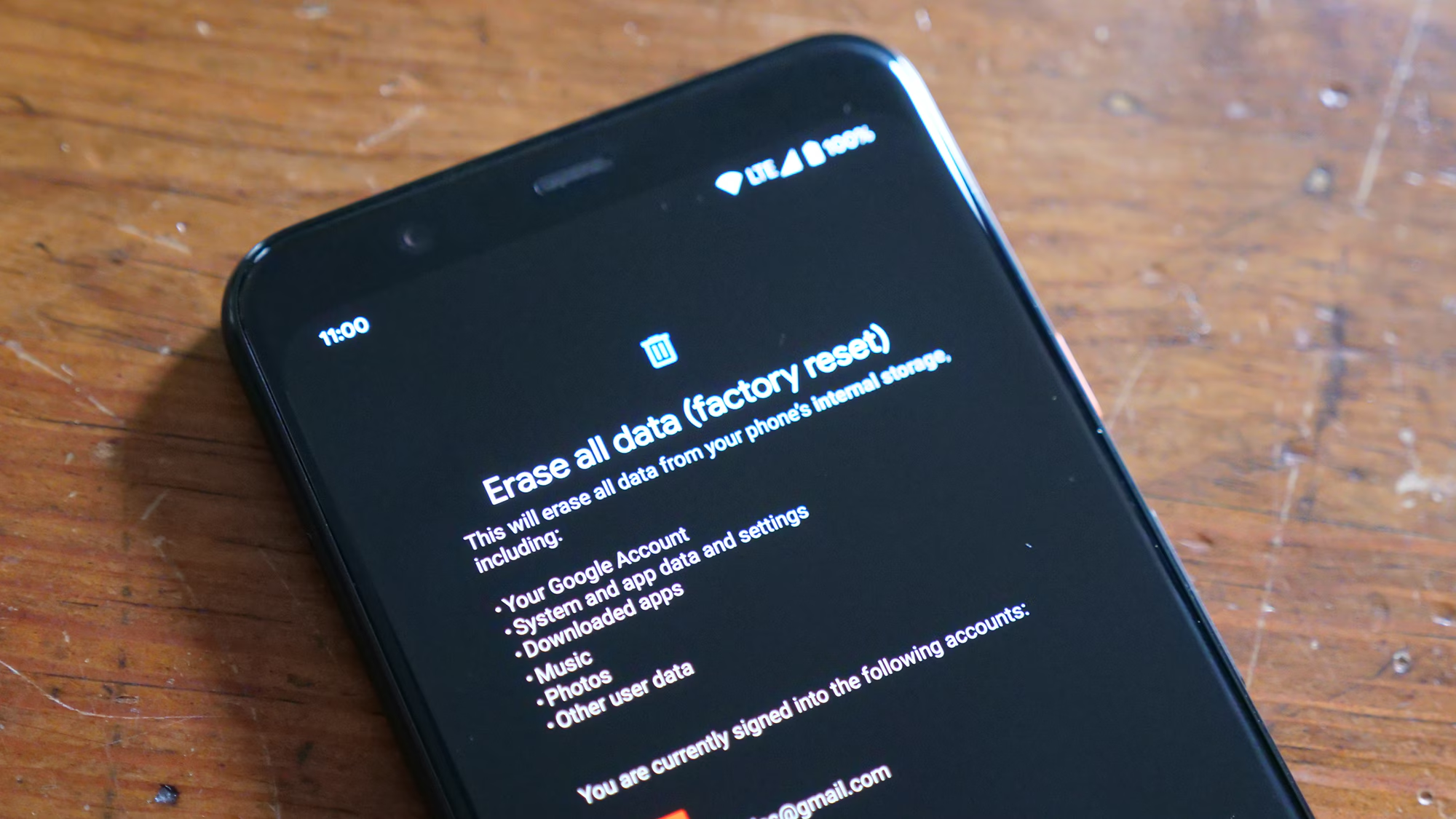
A factory reset can resolve overheating if the root cause is software-related, such as corrupted system files, conflicting app data, or a failed update. It returns the device to a clean state, eliminating rogue processes and misconfigurations. However, if the overheating is caused by hardware issues like a failing battery, damaged thermal pads, or a defective motherboard, a factory reset will have no effect. It should be considered a last resort for software troubleshooting after other methods like safe mode and app uninstallation have been exhausted.
How can I tell if my battery needs replacing?
Indicators that a battery needs replacement include the device shutting down unexpectedly despite showing remaining charge, the battery percentage jumping erratically (e.g., from 40% to 10%), the device swelling or the back panel lifting, and excessive heat generation during light usage. If the device is more than two to three years old and experiences significantly reduced battery life compared to when it was new, the battery has likely reached the end of its useful cycle. Diagnostic apps or manufacturer-specific battery health tools can provide a more precise assessment of the battery’s capacity relative to its original design.
Conclusion
The challenge of Android overheating and rapid battery drainage is a multifaceted issue rooted in the intersection of thermodynamics, electrochemistry, and software engineering. It is rarely the result of a single factor but rather a convergence of usage patterns, environmental conditions, and the natural aging of components. By understanding the underlying mechanisms—how the CPU generates heat under load, how rogue software prevents sleep states, and how environmental factors impede cooling—users can move beyond frustration to effective management. The solutions range from simple behavioral adjustments, such as removing cases during charging and managing screen brightness, to more technical interventions like diagnosing wake locks and replacing aged batteries.
Addressing these issues proactively not only restores the immediate usability of the device but also extends its overall lifespan. A battery that is not subjected to constant thermal stress retains its capacity longer, and a processor that operates within safe temperature margins maintains its performance peak for years. The ecosystem of Android provides robust tools for monitoring and controlling these variables, empowering users to take charge of their device’s health. Whether through the disciplined management of background applications, the strategic use of connectivity settings, or the timely replacement of hardware components, stability is achievable.
Ultimately, the goal is to maintain a balance between performance and preservation. Technology is designed to serve, not to dictate the rhythm of the day with anxiety over a dying battery or a burning pocket. With a methodical approach to troubleshooting and a commitment to best practices in device care, the dual threats of heat and drain can be mitigated effectively. The smartphone remains a vital tool for communication, productivity, and creativity, and ensuring its thermal and electrical health is fundamental to unlocking its full potential. By applying these insights, users can enjoy a cooler, longer-lasting device that performs reliably whenever it is needed.