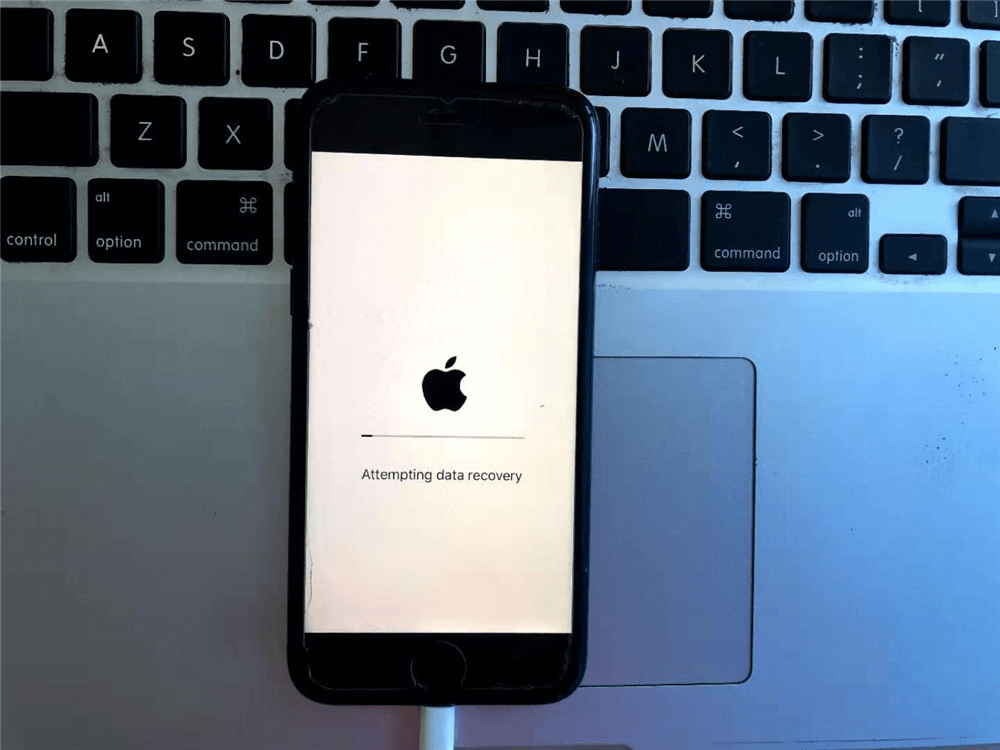
There is a specific kind of panic that sets in when an iPhone suddenly goes dark. The device feels warm in the hand, vibrations might still be felt when buttons are pressed, and the faint hum of background processes suggests life, yet the display remains an impenetrable void. This phenomenon, often described as the “black screen of death,” is a frequent occurrence in the iOS ecosystem. It creates a paradoxical state where the phone is technically operational but functionally useless. For many users, the immediate fear is not just the loss of the device’s utility, but the potential loss of irreplaceable data—photos, messages, and documents stored within. Fortunately, this scenario rarely indicates catastrophic hardware failure. In the vast majority of cases, it is a software glitch, a frozen process, or a display driver error that can be resolved through systematic troubleshooting steps designed to revive the screen while preserving every byte of user data.
Understanding the mechanics behind this issue is the first step toward a resolution. Modern iPhones are complex computers where the operating system, the display hardware, and the power management systems must communicate seamlessly. When the software encounters a critical error, it may fail to send the signal to the display panel to illuminate, even though the central processor continues to run. Apple has documented various scenarios where iOS updates, incompatible apps, or memory leaks can cause the user interface to freeze completely. Recognizing that the device is likely stuck in a logical loop rather than physically broken allows for a calm, methodical approach to recovery. The goal is to force the system to reboot without triggering a factory reset, which would wipe the device clean.
Diagnosing the State of the Device
Before attempting any repairs, it is crucial to confirm the actual status of the iPhone. A black screen can result from a completely drained battery, a broken display panel, or a software freeze. Distinguishing between these states prevents unnecessary actions that could complicate the situation. If the device is truly “on” but the screen is black, there are subtle indicators to look for. Connecting the iPhone to a computer via a USB cable often triggers a reaction; the computer may recognize the device and emit the standard connection sound, or iTunes (on Windows) or Finder (on macOS) may detect an iPhone in need of attention. This detection confirms that the logic board is active and communicating, isolating the issue to the display output or the operating system’s graphical interface.
Another diagnostic method involves checking for haptic feedback. Pressing the volume buttons or the side button should elicit a vibration if the haptic engine is functional. Similarly, calling the number associated with the locked iPhone from another phone can reveal its status. If the call goes straight to voicemail, the device might be off or disconnected from the network. However, if it rings, even silently, the cellular radio is active, and the phone is running. Siri can also be a useful diagnostic tool; holding the side button (or saying “Hey Siri” if enabled) might trigger an auditory response even if the visual interface is dead. These checks provide the confidence needed to proceed with software-based fixes, knowing that the core hardware remains intact. For more detailed technical specifications on how iPhone diagnostics work, resources like the Apple Support official guide offer comprehensive breakdowns of device behavior during faults.
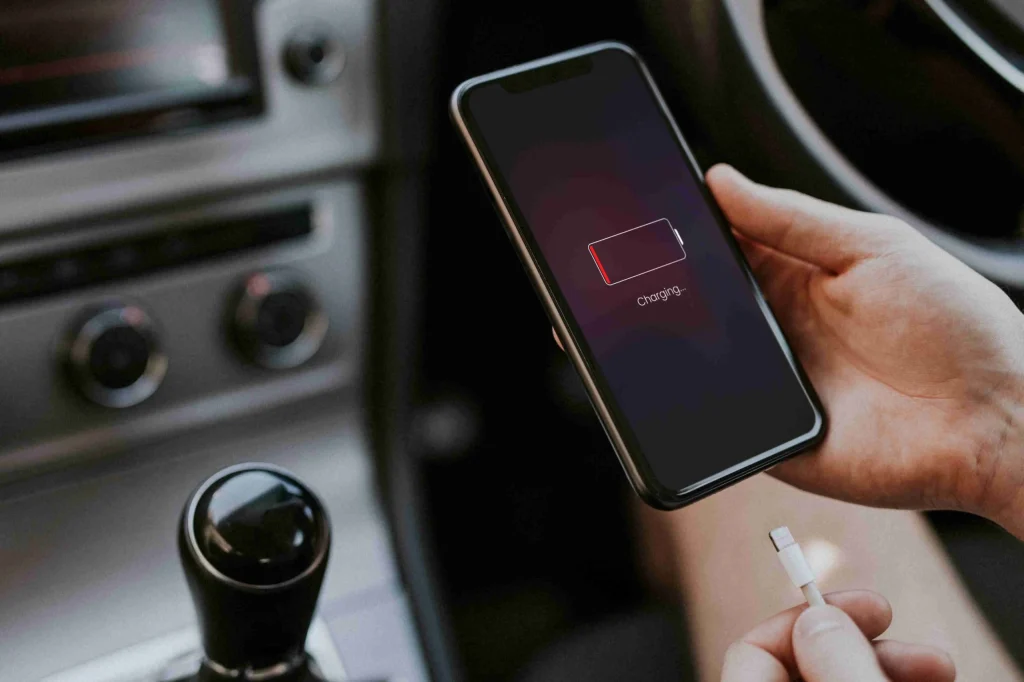
It is also important to rule out simple power issues. A deeply discharged battery can sometimes show a black screen even when connected to a charger for a few minutes. In such cases, the charging icon—a red battery or a lightning bolt—might take up to thirty minutes to appear. Leaving the device on a known working wireless charger or a high-wattage wired charger for an extended period is a safe first step. If the screen remains black after an hour of charging despite the device warming up or vibrating, the issue is almost certainly a software freeze. Understanding this distinction is vital because forcing a restart on a device with a dead battery will yield no results, whereas a forced restart is the primary cure for a software-induced black screen. Industry analysis from sites like Tom’s Guide often highlights how battery calibration issues can mimic more severe screen failures, emphasizing the need for patience during the charging phase.
The Forced Restart: The Primary Solution
The most effective and safest method to resolve a black screen on an iPhone without data loss is the forced restart, also known as a hard reset. Unlike a standard restart performed through the Settings menu or the slide-to-power-off screen, a forced restart cuts power to the hardware components momentarily and forces the operating system to reload from scratch. This process clears the temporary memory (RAM) and terminates any rogue processes that may be holding the display hostage. Crucially, a forced restart does not delete user data, settings, or installed applications. It is analogous to pulling the plug on a frozen desktop computer and turning it back on; the files on the hard drive remain untouched.
The procedure for a forced restart varies depending on the iPhone model, a detail that often causes confusion. For iPhone 8, iPhone X, iPhone 11, iPhone 12, iPhone 13, iPhone 14, iPhone 15, and all subsequent models including the SE (2nd and 3rd generation), the sequence is precise. First, press and quickly release the Volume Up button. Immediately follow this by pressing and quickly releasing the Volume Down button. Finally, press and hold the Side button (the power button on the right). The key here is persistence; the side button must be held down even when the “slide to power off” screen might theoretically appear (though it won’t be visible in this state). Continue holding until the Apple logo appears on the screen. This entire sequence must be performed fluidly; pausing too long between the volume buttons and the side button can trigger other modes, such as Emergency SOS or Siri.
For older models, specifically the iPhone 7 and iPhone 7 Plus, the method differs due to the physical design of the buttons. Users must press and hold both the Volume Down button and the Sleep/Wake button simultaneously. Both buttons need to be held for at least ten seconds until the Apple logo emerges. For the iPhone 6s, iPhone SE (1st generation), and earlier models, the combination involves holding the Home button and the Sleep/Wake button together. It is a common misconception that holding these buttons will erase data; however, Apple’s engineering ensures that data deletion only occurs through a specific “Erase All Content and Settings” command or a restore via recovery mode that explicitly chooses to wipe the device. The forced restart is a hardware-level interrupt designed solely to recover system stability. Detailed, model-specific instructions are always available and updated on the Apple Support website, ensuring users have the correct sequence for their specific hardware revision.
If the first attempt at a forced restart fails to produce the Apple logo, it is advisable to repeat the process. Sometimes, the timing of the button presses needs to be adjusted, or the device requires a second attempt to fully clear the stuck process. Ensuring the device has some charge before attempting this is also prudent, although the forced restart can often wake a device from a deep sleep state where the screen driver has failed. Tech experts often recommend connecting the phone to a computer during this process, not to restore it, but to monitor if the computer recognizes the device restarting. This external validation can confirm that the phone is cycling through its boot sequence even if the screen lags in lighting up. The success rate for this method is exceptionally high for software-related black screens, making it the definitive first line of defense.
Utilizing Recovery Mode Without Data Loss
When a forced restart fails to revive the display, the next tier of troubleshooting involves Recovery Mode. This state allows the iPhone to communicate with a computer to repair the operating system. There is a pervasive myth that entering Recovery Mode automatically erases data. This is incorrect. Recovery Mode offers two distinct options: “Update” and “Restore.” Selecting “Update” instructs the computer to reinstall the iOS firmware while attempting to preserve all user data and settings. This is the critical path for fixing a black screen without data loss. The “Restore” option, conversely, wipes the device clean and should be avoided unless all other avenues have been exhausted and data preservation is no longer a priority.
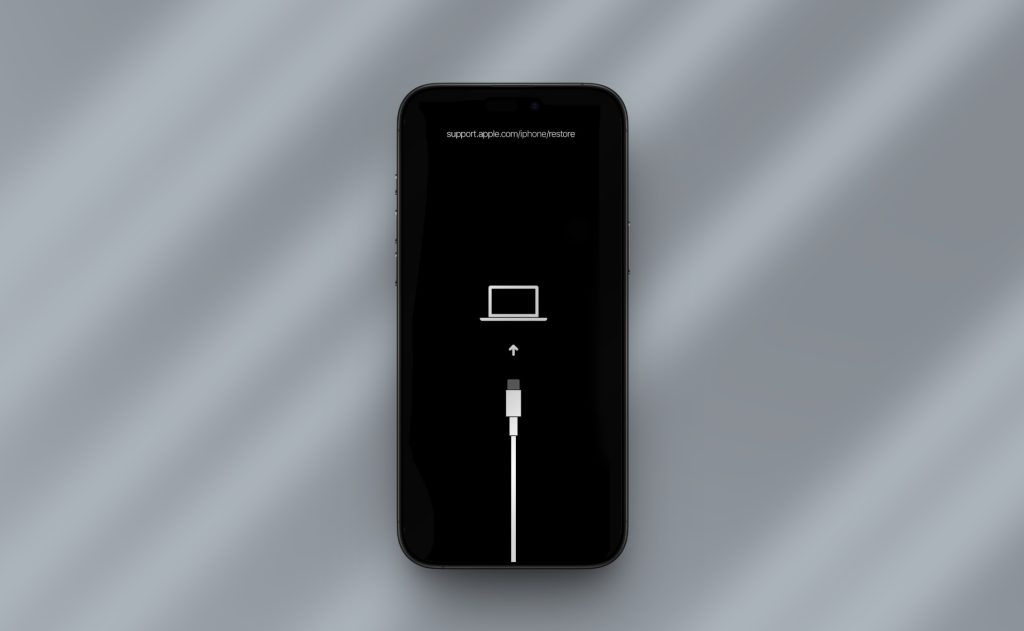
To enter Recovery Mode, the iPhone must be connected to a computer running the latest version of iTunes (for Windows or macOS Mojave and earlier) or Finder (for macOS Catalina and later). While the device is connected, the user must perform the button sequence similar to a forced restart but hold the buttons until the Recovery Mode screen appears. This screen typically displays an image of a cable pointing towards a computer icon. Once the computer detects the device in this mode, a prompt will appear offering the choice to Update or Restore. Choosing “Update” initiates a download of the latest iOS version compatible with the device. The computer then installs this fresh copy of the operating system over the existing one. Because this process replaces only the system files and not the user partition, photos, contacts, and apps remain intact.
This method is particularly effective when the black screen is caused by corrupted system files or a failed iOS update that left the device in a limbo state. During the update process, the screen may remain black for several minutes. It is imperative not to disconnect the cable or interrupt the process, as this could lead to a more severe software corruption. If the download takes longer than 15 minutes and the device exits the Recovery Mode screen, the user must wait for the download to finish on the computer and then repeat the button sequence to re-enter Recovery Mode. The robustness of this method lies in its ability to fix deep-seated software errors that a simple restart cannot address. Authoritative tech resources like CNET frequently highlight the “Update” function in Recovery Mode as the safest bridge between a bricked device and a fully functional one, emphasizing its role in data preservation.
It is worth noting that if the “Update” process fails repeatedly, it may indicate a deeper hardware issue or severe file system corruption. However, in many instances, a second or third attempt at the Update process succeeds. The computer acts as an external brain, bypassing the phone’s frozen interface to inject clean code. Users should ensure their computer has a stable internet connection and sufficient storage space for the iOS firmware file, which can be several gigabytes in size. Patience is essential here; rushing the process or switching to the “Restore” option prematurely is the most common cause of unnecessary data loss. By strictly adhering to the “Update” pathway, users maximize their chances of recovering the device with their digital lives intact.
The Role of Third-Party Repair Tools
In scenarios where Apple’s native tools do not resolve the black screen, third-party iOS repair software often presents a viable alternative. These tools are designed by specialized engineering firms to handle complex iOS system errors, including black screens, boot loops, and frozen states. Reputable software in this category operates similarly to iTunes’ Recovery Mode but often provides a more user-friendly interface and advanced algorithms to fix system glitches without touching user data. Programs such as Tenorshare ReiBoot, Dr.Fone, or iMyFone Fixppo have gained traction for their ability to enter and exit recovery modes automatically and perform “Standard Mode” repairs that promise zero data loss.
When using these tools, the process generally involves installing the software on a PC or Mac, connecting the black-screened iPhone, and selecting a “Standard Repair” or “Fix without Data Loss” mode. The software then downloads the appropriate firmware package for the specific device model and iOS version. It proceeds to flash the firmware onto the device, repairing the underlying system files responsible for the display failure. The advantage of these third-party solutions often lies in their automation; they handle the timing of button presses and the nuances of entering different diagnostic modes, which can be tricky for average users. Furthermore, they sometimes succeed in cases where iTunes or Finder gets stuck or fails to recognize the device properly.
However, caution is paramount when selecting third-party tools. The market is saturated with applications, and not all adhere to strict data privacy standards. It is essential to choose software from well-established developers with a proven track record and positive reviews from credible technology publications. Sites like PCMag regularly review and rank iOS repair tools based on their efficacy, safety, and ease of use, providing an objective basis for selection. Users should avoid obscure or free tools that lack transparency about their data handling practices. While these tools are powerful, they are essentially wrappers around the same fundamental repair mechanisms provided by Apple, packaged with better error handling and guidance. They should be viewed as a supplementary option when official channels stall, not a replacement for them.
The “Advanced Mode” or “Deep Repair” features found in some of these applications should be approached with skepticism if data preservation is the goal. These modes often involve a more thorough rewriting of the file system, which carries a higher risk of data loss, similar to a full restore. Sticking to the standard or “light” repair options is the safest bet for maintaining data integrity. Additionally, most reputable third-party tools offer a free trial that allows users to scan the device and see if it can be detected and fixed before requiring a purchase. This feature enables users to verify the software’s capability without financial commitment. When used correctly, these tools can be the deciding factor in reviving an iPhone that seems beyond hope, bridging the gap between a soft brick and a fully restored device.
Hardware Considerations and Display Diagnostics
While software glitches are the most common culprits behind a black screen with a functioning phone, hardware issues cannot be entirely dismissed. If a forced restart, recovery mode update, and third-party repair tools all fail to bring the display back to life, the probability of a hardware failure increases significantly. Potential hardware causes include a loose display connector, a damaged OLED or LCD panel, or a failure in the backlight circuit. In modern iPhones, the display connectors are sensitive; a significant drop or impact, even if the glass isn’t cracked, can dislodge the ribbon cables inside the chassis, severing the link between the logic board and the screen.
Diagnosing hardware issues at home is limited but possible. Shining a bright flashlight directly against the black screen while the phone is on can sometimes reveal a very faint image of the interface. If a ghostly image is visible, it indicates that the LCD/OLED panel is receiving data, but the backlight has failed. This is a specific hardware component failure that requires professional repair. Another test involves gently pressing around the edges of the screen or the top area near the earpiece. If the screen flickers or briefly lights up, it suggests a loose connection. However, users should exercise extreme care with this method, as applying too much pressure can cause further damage to the fragile internal components.
If hardware failure is suspected, seeking professional assistance is the only safe route to data recovery. Authorized Apple Service Providers or certified repair shops have the diagnostic equipment to test the display assembly and the logic board independently. In many cases, a technician can temporarily connect a known-good display to the iPhone to verify if the device boots up. If the phone works with the test display, the original screen needs replacement. Crucially, replacing the screen does not require wiping the data, as the storage is located on the logic board, not the display assembly. Resources like iFixit provide detailed teardown guides and repair manuals, illustrating the separation between the display module and the data-storing components, reassuring users that screen replacement is a data-safe procedure when performed correctly.
It is also worth considering the possibility of liquid damage, even if the phone was thought to be water-resistant. Moisture can corrode connectors over time, leading to intermittent or permanent display failure. In such cases, powering the device on repeatedly can exacerbate the corrosion. If liquid exposure is suspected, the device should be turned off (if possible) and taken immediately to a professional cleaning service. Attempting to charge or force-restart a wet device can cause short circuits that might damage the logic board itself, turning a repairable screen issue into a catastrophic data loss event. Professional technicians use ultrasonic cleaners and specialized solvents to remove corrosion, often saving both the device and the data within.
Preventive Measures and Data Backup Strategies
Once the iPhone is successfully revived, the focus should shift to preventing future occurrences and securing data against potential disasters. The black screen phenomenon, while often resolvable, serves as a stark reminder of the fragility of digital storage. Implementing a robust backup strategy is the single most effective way to ensure that a black screen never results in permanent data loss. iCloud Backup and local backups via iTunes or Finder are the two primary methods available to iOS users. iCloud offers the convenience of automatic, wireless backups whenever the device is connected to power and Wi-Fi. Enabling this feature ensures that the most recent data is always stored in the cloud, accessible from any device.
For users who prefer local control or have large amounts of data that exceed iCloud storage limits, encrypted local backups are highly recommended. Connecting the iPhone to a computer and selecting “Back Up Now” in Finder or iTunes creates a complete snapshot of the device. Choosing the “Encrypt local backup” option is critical, as it saves passwords, Health data, and Keychain information, which are excluded from unencrypted backups. This ensures that in the event of a total device failure requiring a restore, the recovery process is seamless and comprehensive. Regularly scheduled backups, perhaps weekly or monthly depending on usage, create multiple restore points, minimizing the amount of data lost between the last backup and a potential failure.
Beyond backups, keeping the iOS software up to date is a vital preventive measure. Apple frequently releases updates that patch bugs, improve system stability, and fix known issues that could lead to freezes or black screens. Ignoring these updates leaves the device vulnerable to known software glitches. Similarly, managing storage space is important; an iPhone with nearly full storage is more prone to performance issues and system crashes. Regularly reviewing and deleting unused apps, old photos, or large files can maintain the system’s health. Monitoring battery health is also advisable, as a degrading battery can cause unexpected shutdowns or voltage drops that might confuse the power management system, potentially leading to display issues.
Educating oneself on the proper way to handle the device also reduces risk. Using high-quality, MFi (Made for iPhone) certified charging cables and adapters prevents power surges that can damage internal components. Avoiding extreme temperatures, both hot and cold, protects the battery and the display electronics. While the iPhone is built to be durable, treating it with care minimizes the physical shocks that can loosen internal connectors. By combining regular backups with proactive maintenance and careful usage, users can significantly reduce the likelihood of encountering a black screen and ensure that if one does occur, the impact on their digital life is negligible. The Apple Support page on backing up provides step-by-step guides for setting up both iCloud and local backups, serving as an essential resource for every iPhone owner.
Comparison of Troubleshooting Methods
| Method | Complexity | Data Loss Risk | Success Rate for Software Glitches | Time Required | Best Use Case |
|---|---|---|---|---|---|
| Forced Restart | Low | None | High | 1–2 Minutes | First response to frozen screen; simple software hangs. |
| Recovery Mode (Update) | Medium | None (if “Update” selected) | Very High | 15–45 Minutes | Deep system errors; failed iOS updates; forced restart failure. |
| Third-Party Tools | Low/Medium | Low (in Standard Mode) | High | 10–30 Minutes | User-friendly alternative to Recovery Mode; automated fixing. |
| Hardware Repair | High | None (Screen replacement) | N/A (Fixes hardware) | 1–3 Hours | Physical damage; backlight failure; loose connectors. |
| Factory Restore | Medium | Total Data Loss | 100% (but wipes data) | 30+ Minutes | Last resort when data recovery is not possible or needed. |
Frequently Asked Questions
Q: Will forcing a restart delete my photos and messages?
A: No, a forced restart (hard reset) is designed solely to reboot the device’s operating system. It clears the RAM and stops frozen processes but does not access or modify the user data partition where photos, messages, contacts, and apps are stored. It is completely safe for data preservation.
Q: My iPhone screen is black, but I can hear sounds and feel vibrations. Is it broken?
A: This usually indicates that the device is functioning correctly, but the display driver or the operating system’s graphical interface has frozen. It is rarely a sign of a broken logic board. The methods outlined above, particularly the forced restart, are specifically designed to fix this state.
Q: What is the difference between “Update” and “Restore” in Recovery Mode?
A: In Recovery Mode, “Update” attempts to reinstall the iOS operating system while keeping all user data and settings intact. “Restore” erases the entire device, returning it to factory settings and deleting all content. To save data, always select “Update.”
Q: Can a black screen be caused by a bad battery?
A: Yes, a severely degraded or failing battery can cause voltage drops that lead to unexpected shutdowns or prevent the screen from turning on even if the phone appears to have charge. However, if the phone vibrates or makes sounds, the battery is likely providing enough power for the logic board, pointing more towards a software or display issue.
Q: How long should I wait for the Apple logo to appear during a forced restart?
A: Typically, the Apple logo should appear within 10 to 20 seconds of holding the buttons. If it does not appear after 30 seconds, release the buttons, wait a moment, and try the sequence again. Ensure the device has some charge before attempting.
Q: Is it safe to use third-party repair software?
A: Using reputable, well-reviewed third-party software from established developers is generally safe for fixing software glitches. These tools often use the same underlying mechanisms as Apple’s official tools but with a more guided interface. Always stick to “Standard” or “No Data Loss” modes and avoid unknown or free tools that lack credibility.
Q: What if none of the software fixes work?
A: If forced restarts, recovery mode updates, and third-party tools fail, the issue is likely hardware-related, such as a damaged display panel or a loose internal connector. In this case, visiting an Apple Store or an authorized service provider for a physical diagnosis is the necessary next step.
Q: Does replacing the iPhone screen delete my data?
A: No. The data on an iPhone is stored on the logic board (motherboard), not on the screen assembly. Replacing a broken or black screen involves swapping the display component, leaving the logic board and all stored data untouched.
Q: Can water damage cause a black screen?
A: Yes, liquid intrusion can corrode the display connectors or damage the backlight circuit, resulting in a black screen. If water damage is suspected, do not attempt to charge the device and seek professional cleaning services immediately to prevent further corrosion.
Q: How often should I back up my iPhone to prevent data loss?
A: It is recommended to enable automatic daily backups via iCloud or to perform a manual local backup at least once a week. Frequent backups ensure that in the event of any device failure, the amount of data lost is minimized to only the most recent changes.
Conclusion
Encountering a black screen on an iPhone while the device remains active is a disconcerting experience, yet it is predominantly a solvable software anomaly rather than a terminal hardware failure. The journey from a dark, unresponsive display to a fully functional screen is paved with systematic troubleshooting steps that prioritize data integrity. By understanding the distinction between a simple freeze and a hardware defect, users can confidently apply the forced restart technique, leverage the power of Recovery Mode’s “Update” function, or utilize trusted third-party repair tools to regain control of their devices. The key takeaway is that patience and the correct sequence of actions are far more effective than panic.
The resilience of the iOS architecture means that in most instances, the user’s digital footprint—memories, documents, and communications—remains secure throughout the repair process. However, the unpredictability of technology underscores the indispensable value of a disciplined backup regimen. Whether through the seamless integration of iCloud or the robust security of encrypted local backups, maintaining current copies of data transforms a potential catastrophe into a minor inconvenience. As mobile devices become increasingly central to daily life, mastering these recovery techniques and preventive measures empowers users to navigate technical hurdles with assurance. The black screen, once a source of dread, becomes merely a temporary pause in the digital narrative, easily resolved with the right knowledge and tools.