The sudden realization that critical data has vanished from a smartphone triggers a unique kind of panic. Whether it is a cherished family video, a crucial business document, or months of photographic memories, the digital void left by accidental deletion feels immediate and often irreversible. However, in the vast majority of cases, the data is not truly gone; it is merely marked as available space, waiting to be overwritten. Understanding the mechanics of how mobile operating systems handle file deletion is the first step toward successful recovery. Both iOS and Android employ sophisticated file management systems that prioritize speed and security, yet these same systems offer specific pathways for retrieval if acted upon quickly and correctly. This guide explores the most effective, technically sound methods for recovering deleted data, separating myth from reality while providing actionable strategies grounded in how modern smartphones actually function.
The Mechanics of Deletion: Why Data Isn’t Immediately Lost
To effectively recover data, one must first understand what happens when the “delete” button is pressed. On both iPhone and Android devices, deleting a file does not instantly erase the binary code representing that file from the flash storage. Instead, the operating system removes the pointer or index entry that tells the device where the file is located. The space occupied by the file is marked as “free” and available for new data. Until new information is written over that specific physical location on the storage chip, the original data remains intact and recoverable. This concept is fundamental to data recovery principles and explains why immediate action is critical.
On iOS devices, the file system is APFS (Apple File System), which handles deletion and space management with aggressive optimization. When a user deletes a photo or message, iOS moves it to a “Recently Deleted” album or folder, acting as a safety net for typically 30 days. During this window, the file is fully accessible and can be restored with a single tap. Once this period expires, or if the user empties the folder manually, the file system marks the sectors as writable. Similarly, Android devices, which typically use the F2FS (Flash-Friendly File System) or EXT4 depending on the manufacturer and version, operate on a similar logic but often lack a unified system-wide trash bin for all file types, though modern versions have introduced recycle bins in gallery and file manager apps.
The urgency in recovery scenarios stems from the risk of overwriting. Every new photo taken, every app installed, and every system update writes new data to the storage. If this new data occupies the physical sectors where the deleted file resides, recovery becomes impossible. Therefore, the golden rule of data recovery is to cease all unnecessary usage of the device immediately. Continuing to browse the web, stream music, or take new photos significantly reduces the probability of a successful restore. This technical reality underscores why stopping device usage is the most important first step in any recovery attempt.
Native Recovery Methods: The First Line of Defense
Before turning to third-party software or professional services, users should exhaust all native recovery options provided by the operating system. These built-in mechanisms are often the most reliable because they interact directly with the file system without the risk of introducing compatibility errors or further data corruption.
Leveraging the “Recently Deleted” Folders
Both major mobile platforms have integrated safety nets that catch accidentally deleted media and documents. On an iPhone, the Photos app maintains a “Recently Deleted” album where images and videos reside for 30 days before permanent erasure. Users can navigate to Albums > Recently Deleted, select the desired items, and tap Recover. This process instantly restores the file to its original location within the library. It is worth noting that this folder also exists for Notes, Files, and Voice Memos, each adhering to the same 30-day retention policy unless manually emptied. For messages, iOS offers an “Edit” filter in the main inbox to show “Recently Deleted” conversations, provided the deletion occurred within the last 30 days and the feature was enabled in settings.
Android users will find similar functionality, though the location varies slightly by manufacturer and Android version. In the Google Photos app, deleted items move to the Trash bin, where they are stored for 60 days if backed up, or 30 days if not. Samsung Galaxy devices, running One UI, include a Recycle Bin within the Gallery and My Files apps, retaining deleted content for 30 days. Accessing these bins is straightforward: open the respective app, locate the menu or settings icon, select Trash or Recycle Bin, and restore the selected files. These native tools are highly effective for recent deletions and should always be the primary troubleshooting step, as confirmed by official Android support guidelines.
Utilizing Cloud Backups and Sync Services
If the native trash bins have been emptied, the next most robust recovery vector is cloud synchronization. Modern smartphones are designed to sync data continuously with cloud ecosystems, often without the user explicitly realizing the extent of the backup. For iPhone users, iCloud is the central hub. If iCloud Photos was enabled, deleted photos might still exist in the cloud even if removed from the device, or they may be recoverable by restoring the device from a previous iCloud backup. It is crucial to check the date of the last backup; restoring from a backup will revert the entire device to that state, meaning any data created after the backup date will be lost. Users can verify backup dates and contents by navigating to Settings > [Name] > iCloud > Manage Account Storage > Backups. Detailed instructions on managing these backups are available through Apple’s iCloud support resources.
Android users benefit from the extensive integration of Google One and Google Drive. Photos and videos are often automatically backed up to Google Photos, while documents, contacts, and calendar events sync to the respective Google apps. If a file is deleted from the device but was synced, logging into the web version of Google Photos or Google Drive from a computer can reveal the file. From there, it can be downloaded and re-uploaded to the device. Additionally, many Android manufacturers like Samsung, Xiaomi, and OnePlus offer their own cloud services that may hold independent backups. Checking these manufacturer-specific clouds is a vital step, as they sometimes retain versions of files that the primary Google account does not. The Google One data recovery features provide a comprehensive interface for viewing and restoring backed-up data across the ecosystem.
Advanced Software Solutions: When Native Options Fail
When native folders are empty and cloud backups are outdated or non-existent, third-party data recovery software becomes the necessary next step. These tools scan the device’s storage at a deeper level, attempting to reconstruct file signatures from the raw data sectors that have not yet been overwritten. While no software can guarantee 100% recovery, reputable tools utilize advanced algorithms to identify fragmented files and piece them together.
Desktop-Based Recovery Tools
The most effective software solutions typically require connecting the smartphone to a desktop computer via USB. This setup allows the software to bypass some of the operating system’s restrictions and perform a more thorough scan. Programs like Dr. Fone, Tenorshare UltData, and EaseUS MobiSaver are industry standards that support both iOS and Android. These applications generally operate in two modes: “Quick Scan” for recently deleted files and “Deep Scan” for older data or formatted partitions.
For iOS devices, these tools often leverage iTunes backup files. Even if a user does not remember creating a backup, iTunes or Finder may have created an encrypted local backup automatically during previous syncs. Recovery software can extract specific data types (like messages or call logs) from these backups without needing to wipe and restore the entire phone, a significant advantage over the native restore method. When dealing with Android, the process can be more complex due to fragmentation across different manufacturers. Successful recovery often requires enabling “USB Debugging” in the Developer Options, which grants the software deeper access to the file system. Users should be cautious and only download software from verified vendor websites to avoid malware disguised as recovery tools.
Limitations and Realistic Expectations
It is essential to maintain realistic expectations when using third-party software. The success rate depends heavily on the file system type and the amount of new data written since deletion. On modern Android devices with encrypted storage by default, recovering data without a root access or a pre-existing backup is increasingly difficult. Encryption scrambles the data, and without the specific keys associated with the deleted file’s context, the recovered data may be unreadable. Similarly, iOS security measures have tightened over the years, making direct disk access nearly impossible without a backup. Consequently, software tools are most effective when they can parse existing backups or when the deletion was very recent. Users should look for tools that offer a free preview feature, allowing them to see if the files are recoverable before purchasing a license. This practice ensures transparency and prevents financial loss on unrecoverable data, aligning with consumer protection advice regarding software purchases.
Professional Data Recovery Services: The Last Resort
In scenarios where the data is of immense value—such as legal evidence, irreplaceable family history, or critical business intellectual property—and software tools have failed, professional data recovery services represent the final option. These services differ significantly from consumer software; they involve physical intervention, cleanroom environments, and specialized hardware capable of communicating directly with flash memory chips.
When to Seek Professional Help
Professional recovery is necessary when the device suffers from physical damage, such as water exposure, motherboard failure, or a broken storage controller. If a phone cannot power on or is not recognized by a computer, software solutions are useless. In these cases, technicians may need to desolder the NAND flash memory chip from the motherboard and read it using a specialized programmer. This process, known as “chip-off” recovery, is delicate and requires expertise to avoid destroying the data permanently. Furthermore, if the device is locked and the passcode is unknown, professionals may utilize advanced forensic tools to bypass certain security layers, although modern encryption makes this increasingly challenging.
Cost and Considerations
Engaging a professional service is a significant investment, often costing hundreds or even thousands of dollars depending on the complexity of the case. Reputable firms operate on a “no data, no charge” basis, meaning the client pays nothing if the data cannot be recovered. It is crucial to choose a certified provider with a track record of success and strict privacy policies. Organizations like the Data Recovery Association or those with ISO certifications provide a level of trust and standardization. Users should avoid local repair shops that lack specific data recovery credentials, as improper handling can lead to permanent data loss. The decision to proceed should weigh the value of the data against the cost and the slim possibility that even professional methods may fail due to advanced encryption or physical destruction of the storage medium.
Comparative Analysis of Recovery Methods
To clarify the best approach for different scenarios, the following table compares the efficacy, cost, and risk factors of the various recovery methods discussed.
| Recovery Method | Best Use Case | Success Probability | Cost | Risk Level | Technical Requirement |
|---|---|---|---|---|---|
| Native “Recently Deleted” | Accidental deletion within 30-60 days | Very High | Free | None | Low (Basic navigation) |
| Cloud Backup Restore | Device loss, reset, or old deletion | High (if backup exists) | Free / Subscription | Medium (Data loss post-backup) | Low (Account access) |
| Desktop Recovery Software | No backup, recent deletion, logical errors | Moderate | $50 – $100 | Low | Medium (USB debugging/PC) |
| Professional Services | Physical damage, encrypted/corrupted drives | Variable (Case dependent) | $300 – $2000+ | Low (if certified) | High (Specialized lab) |
| DIY Root/Jailbreak | Deep sector scanning on old devices | Low to Moderate | Free – $50 | High (Bricking/Warranty void) | Very High (Advanced skills) |
This comparison highlights that while software tools offer a middle ground, they cannot match the reliability of native features or the power of professional labs. The “Risk Level” column is particularly important; attempting to root an Android or jailbreak an iPhone solely for data recovery can introduce instability or security vulnerabilities that complicate the situation further. Therefore, the hierarchy of action should always flow from native options to software, and finally to professionals, skipping risky DIY modifications unless absolutely necessary and understood fully.
Preventive Strategies: Building a Resilient Data Ecosystem
Recovery is inherently reactive, but the most effective data strategy is proactive. Relying on the hope of recovery is a gamble that technology and human error often win. Establishing a robust backup regimen eliminates the stress of potential data loss. The “3-2-1” backup rule is the gold standard in data management: keep three copies of your data, on two different media types, with one copy offsite. For mobile users, this translates to keeping the original data on the phone, a local backup on a computer or external hard drive, and a synchronized copy in the cloud.
Automating this process is key to consistency. iPhone users should enable “iCloud Backup” and periodically sync with iTunes or Finder on a Mac/PC. Android users should ensure “Google One” backup is active and consider using manufacturer-specific cloud services as a secondary layer. Additionally, regularly exporting critical photos and documents to a physical external drive provides a safeguard against cloud account lockouts or service outages. Education on file management also plays a role; understanding how to organize files and regularly audit storage can prevent accidental deletions caused by clutter. Implementing these habits creates a safety net that renders complex recovery procedures unnecessary, ensuring that digital memories and critical information remain secure regardless of device failures or user errors. Resources on best practices for data backup emphasize that prevention is invariably less costly and more reliable than cure.
Frequently Asked Questions
Q: Can I recover data from an iPhone that has been factory reset?
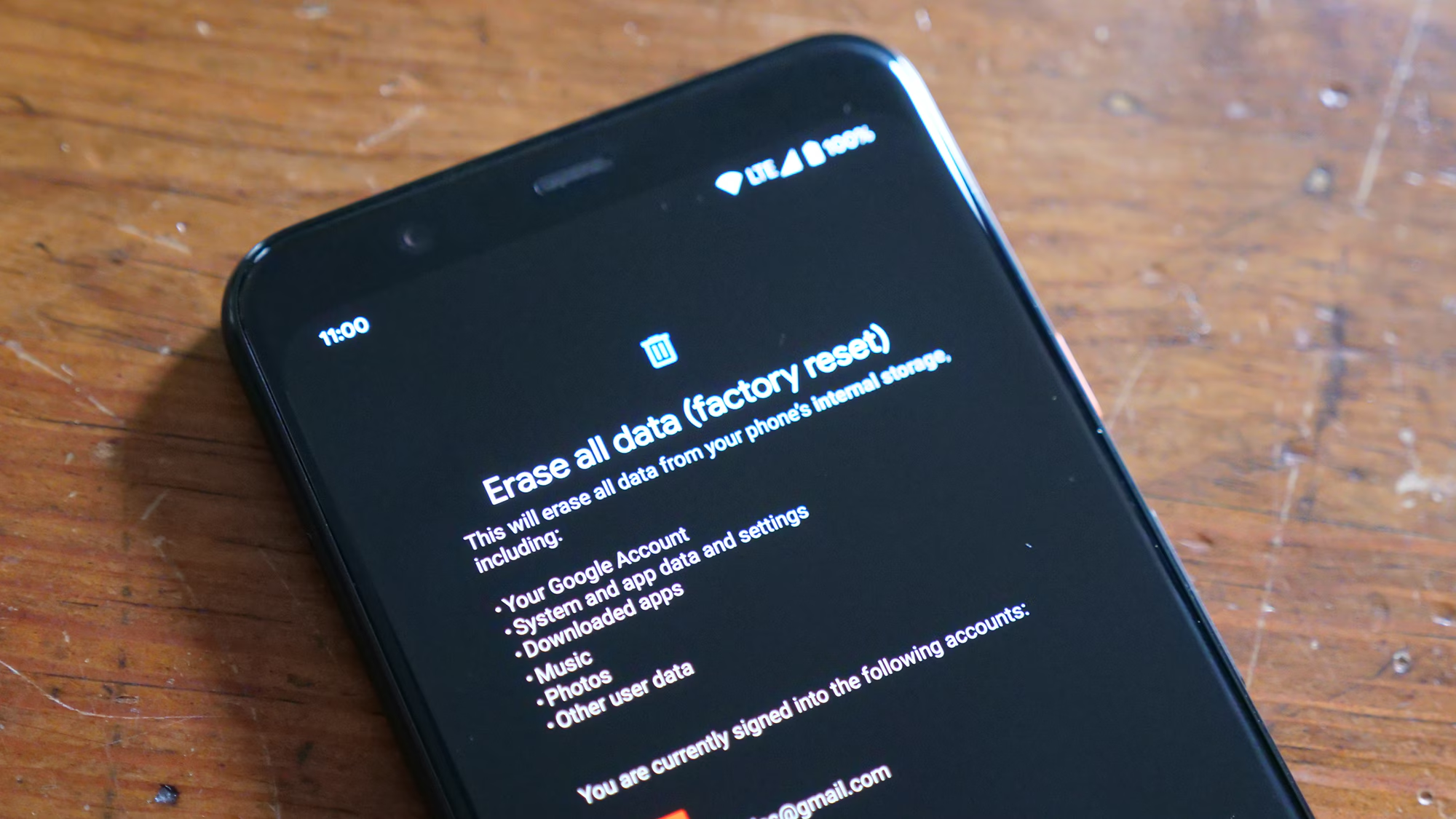
A: Recovering data after a factory reset is extremely difficult without a prior backup. A reset wipes the encryption keys associated with the user data, rendering the remaining binary data on the flash storage unreadable. If an iCloud or iTunes/Finder backup exists from before the reset, the data can be restored by setting up the phone as new and choosing “Restore from Backup.” Without a backup, third-party software has a near-zero success rate on modern iOS versions due to strong encryption protocols.
Q: Is it possible to recover deleted WhatsApp messages on Android without a backup?
A: If a local or Google Drive backup was not configured prior to the deletion, recovering WhatsApp messages is highly unlikely. WhatsApp stores messages locally in an encrypted database. When a message is deleted, it is removed from this database. Some recovery tools claim to scan the device’s internal memory for remnants of the database file, but success is rare on modern Android versions due to file system encryption and the overwriting of free space. Regularly configuring WhatsApp’s built-in chat backup feature is the only reliable method.
Q: Does putting my phone in “Airplane Mode” help with data recovery?
A: Yes, immediately switching to Airplane Mode is a recommended first step. This action disconnects the device from Wi-Fi and cellular networks, preventing background sync processes, app updates, and incoming messages from writing new data to the storage. By halting all write operations, the user preserves the integrity of the deleted data sectors, maximizing the chances of successful recovery via software or professional services.
Q: Are free data recovery apps on the Play Store or App Store effective?
A: Most free apps available directly on mobile stores have limited effectiveness due to operating system sandboxing. iOS and Android restrict apps from accessing the deep system files required for true recovery. Consequently, many mobile apps simply scan accessible folders (like the trash bin) which users can already check manually. Effective recovery usually requires desktop-based software that can interact with the device via USB and bypass certain OS restrictions, or professional intervention.
Q: How long does deleted data stay on a phone before it is permanently gone?
A: There is no fixed time limit; data remains until the specific physical sectors it occupied are overwritten by new data. This could happen in seconds if the user immediately starts downloading large files, or it could remain for months if the device is rarely used. However, modern operating systems actively manage free space for performance, meaning the window of opportunity closes faster than on older devices. Immediate cessation of device use is the only way to extend this window.
Q: Can water-damaged phones still have their data recovered?
A: Yes, in many cases. Water damage typically affects the logic board or battery, not necessarily the flash storage chip where data resides. Professional recovery services can clean the corrosion, replace damaged components temporarily to power the device, or perform a “chip-off” recovery to read the storage directly. It is critical not to attempt to charge or turn on a wet phone, as this can cause short circuits that destroy the storage chip permanently.
Q: Is rooting an Android phone necessary for data recovery?
A: For deep scanning of internal memory, many desktop recovery tools require root access to bypass system permissions. However, rooting a device after data loss is risky; the rooting process itself writes data to the storage, potentially overwriting the files you are trying to save. It is generally advised to attempt recovery on a non-rooted device first using tools that can scan accessible partitions or backups. Rooting should only be considered by advanced users who understand the risks of overwriting data during the process.
Q: What is the difference between “Soft Delete” and “Hard Delete”?
A: “Soft Delete” refers to moving a file to a trash or recently deleted folder where it remains intact and easily restorable. “Hard Delete” occurs when the file is removed from the trash or the retention period expires, causing the OS to mark the space as free. Hard deleted files are not immediately erased but require scanning of raw storage sectors for recovery. True erasure only happens when that marked space is overwritten by new data.
Conclusion
The loss of digital data is a disruptive event, but it is rarely a final one. The architecture of modern smartphones, designed for speed and security, inadvertently provides a grace period where deleted information lingers in the shadows of the file system. By understanding the distinction between logical deletion and physical erasure, users can navigate the recovery landscape with clarity and purpose. The journey from checking the native “Recently Deleted” folders to leveraging cloud ecosystems, and if necessary, employing sophisticated desktop software or professional laboratory services, offers a structured path to reclaiming lost digital assets.
Success in data recovery is dictated by speed and discipline. The moment deletion is realized, the clock starts ticking against the overwrite process. Halting device usage, avoiding the temptation to install unverified apps directly on the phone, and systematically working through the hierarchy of recovery options are the most effective actions one can take. While technology continues to evolve, bringing stronger encryption and more complex file systems that challenge recovery efforts, the fundamental principles of backup and immediate response remain unchanged.
Ultimately, the best recovery strategy is one that never needs to be used. Implementing a rigorous, automated backup routine transforms the potential tragedy of data loss into a minor inconvenience. Whether utilizing the seamless integration of iCloud and Google One or maintaining local archives on external drives, the peace of mind derived from knowing data is secure is invaluable. In an era where our digital lives contain our most precious memories and critical information, treating data with the same care as physical valuables is not just prudent—it is essential. By combining proactive prevention with the knowledge of how to react effectively, users can ensure that their digital narrative remains intact, regardless of the glitches, accidents, or failures that may occur along the way.