The sudden appearance of the “Android System UI isn’t responding” dialog box is one of the most disruptive experiences for mobile users. Unlike a standard app crash, which isolates the failure to a single program, this error indicates a breakdown in the core interface layer that manages navigation, status bars, notifications, and home screen interactions. When the System UI process halts, the device often becomes partially or entirely unusable, trapping the user in a loop of unresponsive taps and frozen screens. Understanding the architecture behind this error is the first step toward a permanent resolution. The System UI is not merely an application; it is a critical system process responsible for rendering the visual elements that sit on top of the Android operating system kernel. When this process consumes excessive resources or encounters a logical deadlock, the Android Watchdog mechanism triggers the error message to prevent a total system lockup. Addressing this issue requires a methodical approach, ranging from simple cache clearing to advanced debugging via the Android Debug Bridge (ADB).
Understanding the Architecture of System UI Failures
To effectively troubleshoot the “System UI isn’t responding” error, one must first appreciate the role the System UI plays within the Android ecosystem. This component acts as the bridge between the user and the underlying Linux kernel, handling everything from the lock screen to the notification shade. According to the Android Open Source Project (AOSP) documentation, the System UI is a privileged system app that runs with elevated permissions. When it fails, it is often due to resource contention, where the process cannot acquire the necessary CPU cycles or memory to complete its rendering tasks within the expected timeframe. This timeout triggers the Application Not Responding (ANR) dialog, specifically flagged for the System UI package.
The complexity of modern Android skins further complicates this issue. Manufacturers like Samsung, Xiaomi, and OnePlus overlay their custom interfaces (One UI, MIUI, OxygenOS) on top of the stock Android framework. These customizations introduce additional layers of code that interact with the base System UI. If a manufacturer’s update contains a bug in how it handles window management or input events, the result is frequently a non-responsive interface. Research from Android Developers highlights that ANRs are often caused by main thread blockages. In the context of System UI, this means the thread responsible for drawing the screen is stuck waiting for a resource, such as a database query, a network call, or a complex graphic computation, to complete.
Furthermore, the interaction between third-party launchers and the native System UI is a common friction point. Users who install alternative launchers to customize their home screens may inadvertently create conflicts if the launcher is not fully optimized for the specific version of Android running on the device. The Google Play Console guidelines emphasize the importance of compatibility, yet mismatches still occur, leading to instability. When the launcher attempts to draw an element that the System UI cannot process efficiently, the entire interface can grind to a halt. Recognizing whether the issue stems from the core OS, a manufacturer overlay, or a third-party modification is essential for selecting the correct troubleshooting path.
Immediate Mitigation Strategies: Soft Resets and Cache Management
When the error dialog appears, the immediate goal is to restore functionality without losing data. The most effective initial response is a soft reset, which forces the device to restart the Android runtime environment. Unlike a standard power cycle, a soft reset clears the volatile memory (RAM) and terminates all hanging processes, including the stalled System UI. For devices with removable batteries, physically removing and reinserting the battery remains the most definitive hard reset method. For modern sealed units, holding the power button and volume down key simultaneously for 10 to 15 seconds forces a reboot at the hardware level. This procedure is widely recommended by Samsung Support as a primary troubleshooting step for unresponsive devices, as it bypasses the software hang entirely.
Once the device reboots, the next critical step is clearing the cache partition. It is important to distinguish between app cache and the system cache partition. The system cache partition stores temporary files used by the operating system to speed up boot times and routine operations. Over time, these files can become corrupted, especially after an OS update, leading to conflicts that manifest as System UI errors. Accessing the recovery mode varies by manufacturer, but typically involves holding a specific combination of buttons during startup. Once in recovery mode, selecting “Wipe Cache Partition” removes these temporary files without affecting personal data. The XDA Developers forum provides extensive device-specific guides for entering recovery mode, noting that this step resolves a significant percentage of post-update stability issues.
In scenarios where the device is accessible but sluggish, clearing the cache and data for the System UI app itself can be performed directly through the settings menu. Navigating to Settings > Apps > Show System Apps > System UI allows users to access the storage options for this critical component. Selecting “Clear Cache” removes temporary rendering data, while “Clear Data” resets the UI configuration to default values. It is crucial to note that clearing data for System UI will reset wallpaper settings, widget arrangements, and some display preferences, but it will not delete photos, contacts, or installed applications. This distinction is vital for users concerned about data loss. The Google Support community often cites this method as a successful fix for persistent looping errors, as it forces the System UI to rebuild its configuration database from scratch upon the next launch.
Diagnosing Software Conflicts and Update Anomalies
Software updates are a double-edged sword; while they bring security patches and new features, they are also a frequent catalyst for System UI instability. An incomplete download or a corrupted installation file can leave the operating system in an inconsistent state. Verifying the integrity of the current software version is a necessary diagnostic step. Users should navigate to Settings > About Phone > Software Update to ensure the device is running the latest stable build. If the device is already on the latest version, checking the manufacturer’s official support page for known issues is advisable. Sometimes, a specific build is withdrawn due to bugs, and rolling back to a previous version or waiting for a hotfix is the only viable solution. The Android Authority technical analysis frequently covers how to identify and manage problematic OTA (Over-The-Air) updates that cause system-wide crashes.
Third-party applications, particularly those with overlay permissions, are another major source of conflict. Apps that draw over other apps, such as blue light filters, screen recorders, or floating chat heads, interact directly with the window manager service managed by System UI. If one of these apps behaves erratically, it can block the main thread of the System UI. To diagnose this, booting the device into Safe Mode is the industry-standard procedure. In Safe Mode, all third-party applications are disabled, allowing the System UI to run in a pristine environment. If the error disappears in Safe Mode, the culprit is undoubtedly a downloaded app. Users can then uninstall recent apps one by one to isolate the offender. Detailed instructions for entering Safe Mode on various devices are available through Motorola’s official support guide, which explains the nuanced button combinations required for different models.
Launcher applications deserve special attention in this diagnostic phase. Since the launcher is essentially the home screen interface, it has a deep integration with System UI. A buggy launcher update can cause the “not responding” error immediately upon boot. Switching back to the stock launcher temporarily can confirm if the third-party launcher is the root cause. Additionally, widgets placed on the home screen can be problematic. Widgets that constantly fetch data or use complex animations may overload the System UI process. Removing widgets, especially those from less reputable developers, can significantly improve stability. The Android Police troubleshooting section often highlights how disabling heavy widgets and transitioning to lightweight alternatives can resolve performance bottlenecks that lead to ANR errors.
Advanced Troubleshooting: ADB and Developer Options
For users who are comfortable with more technical interventions, the Android Debug Bridge (ADB) offers powerful tools to diagnose and fix System UI issues without performing a factory reset. ADB is a versatile command-line tool that allows a computer to communicate with an Android device. By connecting the phone to a PC via USB and enabling USB Debugging in the Developer Options, users can execute commands to restart the System UI process specifically, rather than rebooting the whole phone. The command adb shell am force-stop com.android.systemui instantly kills the System UI process, which the OS then automatically restarts. This technique is invaluable for testing whether the issue is transient or persistent. The Android Developers guide on ADB provides comprehensive documentation on setting up the environment and executing these commands safely.
Developer Options also contain settings that can help mitigate UI lag and responsiveness issues. Adjusting the animation scale settings (Window animation scale, Transition animation scale, and Animator duration scale) to “Animation off” or “0.5x” can reduce the graphical load on the System UI. While this changes the aesthetic feel of the device, it can stabilize units with aging hardware or struggling GPUs. Furthermore, enabling “Show GPU view updates” or “Profile HWUI rendering” can provide visual insights into whether the graphics pipeline is the bottleneck. If the bars indicating render time consistently exceed the 16ms threshold required for 60fps smoothness, it suggests a hardware limitation or a poorly optimized theme. Guides on How-To Geek explain how to safely navigate these menus and interpret the diagnostic data provided by the operating system.
Another advanced avenue involves examining the logcat logs, which record system messages and errors in real-time. By filtering the logcat output for “SystemUI” or “ANR,” technicians can pinpoint the exact line of code or resource request that caused the hang. This level of analysis is typically reserved for developers but can be accessed by enthusiasts using apps like “MatLog” or via the ADB command adb logcat. Identifying a specific package name in the error log can reveal if a background service from a seemingly unrelated app is triggering the System UI crash. The Stack Overflow community hosts numerous discussions where developers share log snippets and solutions for specific System UI exceptions, offering a repository of crowd-sourced technical knowledge for complex cases.
The Nuclear Option: Factory Reset and Firmware Reflashing
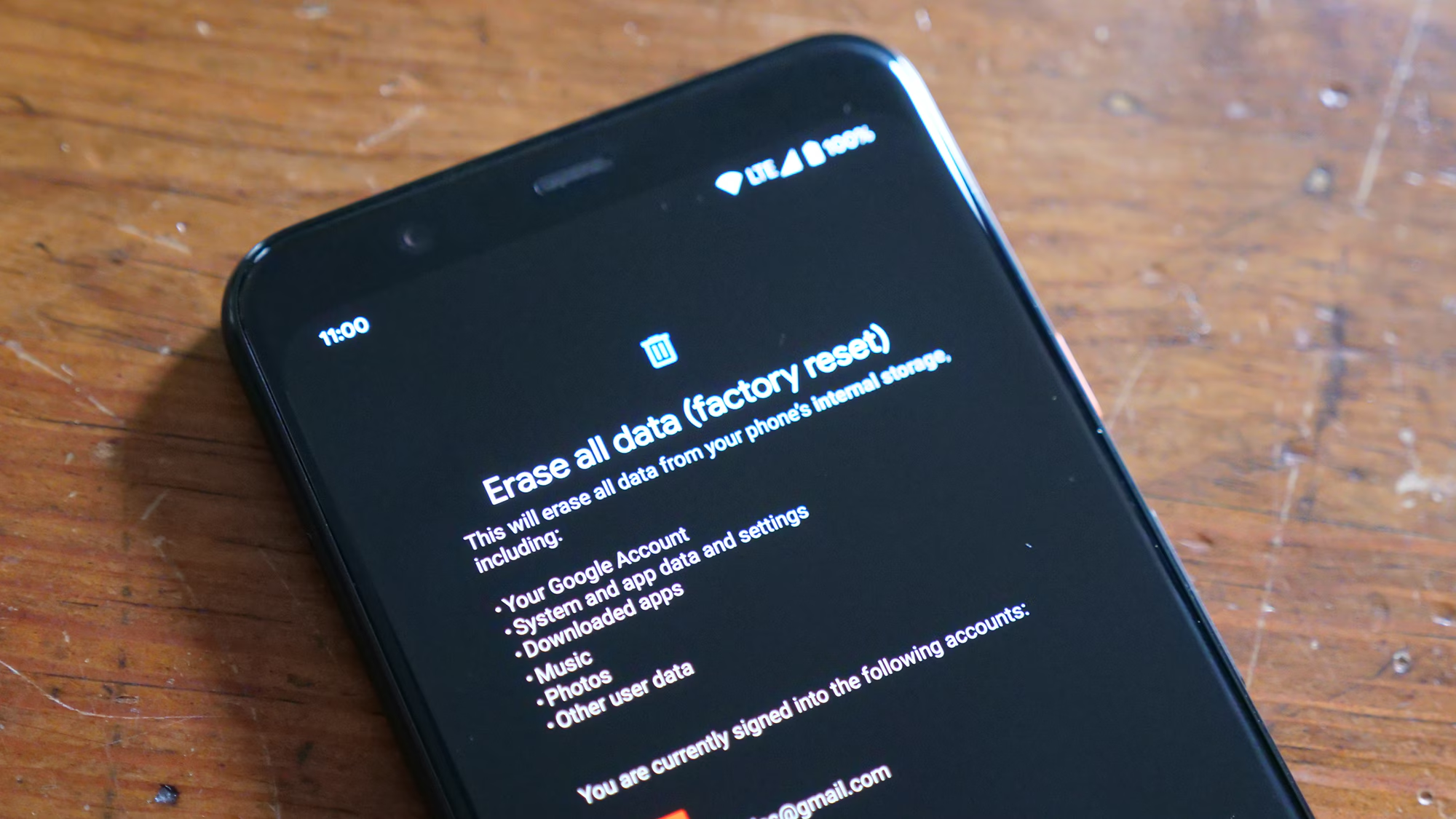
When all software-based troubleshooting methods fail to resolve the “System UI isn’t responding” error, a factory reset becomes the necessary course of action. This process wipes all user data and restores the device to its original out-of-the-box state, eliminating any corrupted configurations, rogue apps, or conflicting settings. Before proceeding, it is imperative to back up all critical data, as this step is irreversible. Most modern Android devices offer cloud backup solutions through Google One, which can save contacts, photos, and app data. The Google One backup guide details how to ensure a comprehensive backup before initiating a reset. Once the reset is complete, the user should set up the device as new rather than restoring from a backup immediately. Restoring a backup might reintroduce the corrupted data or settings that caused the issue in the first place. Testing the device in a clean state confirms whether the problem was software-related.
If a factory reset does not resolve the issue, the problem likely lies deeper within the firmware or the device’s partition table. In such cases, reflashing the stock firmware using manufacturer-specific tools is the final software remedy. Tools like Odin for Samsung devices, SP Flash Tool for MediaTek chipsets, or the Mi Flash Tool for Xiaomi phones allow users to overwrite the entire operating system partition with a fresh image. This process repairs corrupted system files that a standard reset cannot touch. However, it carries higher risks, including the potential to brick the device if the wrong firmware is used. Official forums and support pages, such as the Samsung Firmware Update Portal, provide the necessary files and strict instructions for safe flashing. This step should only be attempted by users who have thoroughly researched the procedure for their specific model.
It is also worth considering that persistent System UI errors after a firmware reflash may indicate a failing storage component. eMMC or UFS storage chips in smartphones have a limited lifespan and can develop bad sectors. If the System UI tries to read a critical file from a damaged sector, it will hang indefinitely, triggering the ANR error. Diagnostic apps available on the Play Store can test storage health, but often, the symptom of random freezes and UI non-responsiveness despite a clean OS install points to hardware degradation. In these instances, professional repair or device replacement is the only remaining option. The iFixit repair guides offer insights into hardware diagnostics and component replacement for those inclined to open the device, though storage replacement is often beyond the scope of typical DIY repairs.
Comparative Analysis of Troubleshooting Methods
To assist in selecting the appropriate intervention, the following table compares the efficacy, risk, and data impact of the primary troubleshooting methods discussed.
| Method | Complexity Level | Data Loss Risk | Success Probability | Best Use Case |
|---|---|---|---|---|
| Soft Reset | Low | None | Moderate | Temporary glitches, minor freezes |
| Clear System UI Cache | Low | None (Settings reset) | High | Post-update lag, configuration errors |
| Safe Mode Diagnosis | Medium | None | High (for identification) | Isolating third-party app conflicts |
| ADB Command Restart | High | None | Moderate | Recurring loops without full reboot |
| Factory Reset | Medium | Total (without backup) | Very High | Persistent software corruption |
| Firmware Reflash | Very High | Total | Extreme | Deep system partition corruption |
This comparison illustrates that while high-complexity methods like firmware reflashing offer near-certain resolution for software rot, they come with significant effort and risk. Conversely, low-complexity methods like cache clearing address the majority of common scenarios with minimal downside. A strategic approach involves ascending this ladder of complexity only as needed, ensuring that the least invasive solution is attempted first.
Frequently Asked Questions
What exactly causes the “Android System UI isn’t responding” error?
This error occurs when the System UI process, which manages the visual interface of the Android operating system, fails to respond to the system’s input within a specific timeframe (usually five seconds). Common causes include insufficient RAM, corrupted cache files, incompatible third-party launchers, buggy software updates, or conflicts with apps that have overlay permissions. The Android Watchdog mechanism detects this unresponsiveness and triggers the dialog to prevent the entire device from freezing permanently.
Will clearing the data for System UI delete my photos and contacts?
No, clearing the data for the System UI app does not delete personal media files, contacts, messages, or installed applications. However, it will reset interface configurations to their default states. This means custom wallpapers, widget placements, home screen layouts, and certain display settings (like navigation bar style) will be reverted to the factory defaults. It is a safe operation regarding personal data preservation but requires time to re-customize the device’s appearance.
How do I enter Safe Mode if the screen is unresponsive?
If the touchscreen is completely unresponsive, entering Safe Mode via the standard long-press method may be impossible. In such cases, a forced reboot is required first. Hold the Power and Volume Down buttons simultaneously until the device vibrates or the logo appears. Immediately upon seeing the manufacturer’s logo, release the Power button but continue holding the Volume Down button until the device finishes booting. Some devices may require pressing the Volume Down button repeatedly during the boot sequence. If the screen remains totally black or frozen, the device may need to be connected to a charger or a computer to wake the bootloader before attempting button combinations.
Can a virus or malware cause System UI errors?
Yes, malicious software can cause System UI instability. Malware often runs background services that consume excessive resources or attempt to inject overlays for ad fraud or data theft, interfering with the legitimate System UI process. If the error began shortly after installing an app from an unknown source or clicking a suspicious link, malware is a strong possibility. Running a scan with a reputable mobile security solution like Malwarebytes for Android can detect and remove such threats. In severe cases, a factory reset is required to ensure complete removal of deeply embedded malware.
Is this error a sign that my phone is broken?
Not necessarily. While it can indicate hardware failure, such as a degrading storage chip or faulty RAM, the vast majority of System UI errors are software-related. Corrupted updates, full storage, or app conflicts are far more common culprits. If the error persists after a factory reset and a fresh firmware flash, only then should hardware failure be strongly suspected. Before concluding the device is broken, exhausting all software troubleshooting steps is essential.
Does updating the Android OS fix this issue?
Updating the OS can fix the issue if the error is caused by a known bug in the current version that has been patched in a newer release. However, if the device is already on the latest version, the update itself might be the cause if it introduced a new bug. In some cases, waiting for a subsequent patch or rolling back to a previous stable version is necessary. Checking the manufacturer’s release notes and user forums for reports of similar issues on the specific build number is a prudent step before updating or after an update causes problems.
Conclusion and Path Forward
The “Android System UI isn’t responding” error is a formidable obstacle that disrupts the fundamental utility of a smartphone, yet it is rarely an insurmountable one. By understanding the hierarchical nature of the Android operating system and the specific role of the System UI process, users can move beyond panic-induced random tapping and apply targeted, logical solutions. The journey from a simple soft reset to the complexities of ADB debugging and firmware reflashing represents a spectrum of technical intervention, each with its own place in the troubleshooting hierarchy. The key lies in systematic isolation: ruling out temporary glitches, identifying conflicting applications, and finally addressing deep-seated system corruption.
Adopting a proactive maintenance strategy can significantly reduce the likelihood of encountering this error in the future. Regularly clearing cache partitions after major OS updates, avoiding the installation of unverified third-party launchers, and monitoring app permissions—particularly those related to drawing over other apps—creates a more stable digital environment. Furthermore, keeping the device’s storage well below capacity ensures that the System UI has the necessary space to write temporary files and operate without resource contention. As mobile operating systems become increasingly sophisticated, the interplay between hardware limitations and software demands grows tighter, making informed user management more critical than ever.
Ultimately, while the error message suggests a catastrophic failure, it is often a protective mechanism designed to preserve the device’s operability. With the right knowledge and a structured approach, the System UI can be restored to full functionality, returning the device to its role as a reliable hub for communication and productivity. Whether through the simplicity of a cache clear or the precision of a command-line intervention, the power to resolve these issues rests in the user’s ability to diagnose and act with technical confidence. By leveraging authoritative resources and adhering to proven troubleshooting protocols, the frustration of a frozen interface can be transformed into a manageable technical challenge with a clear resolution path.