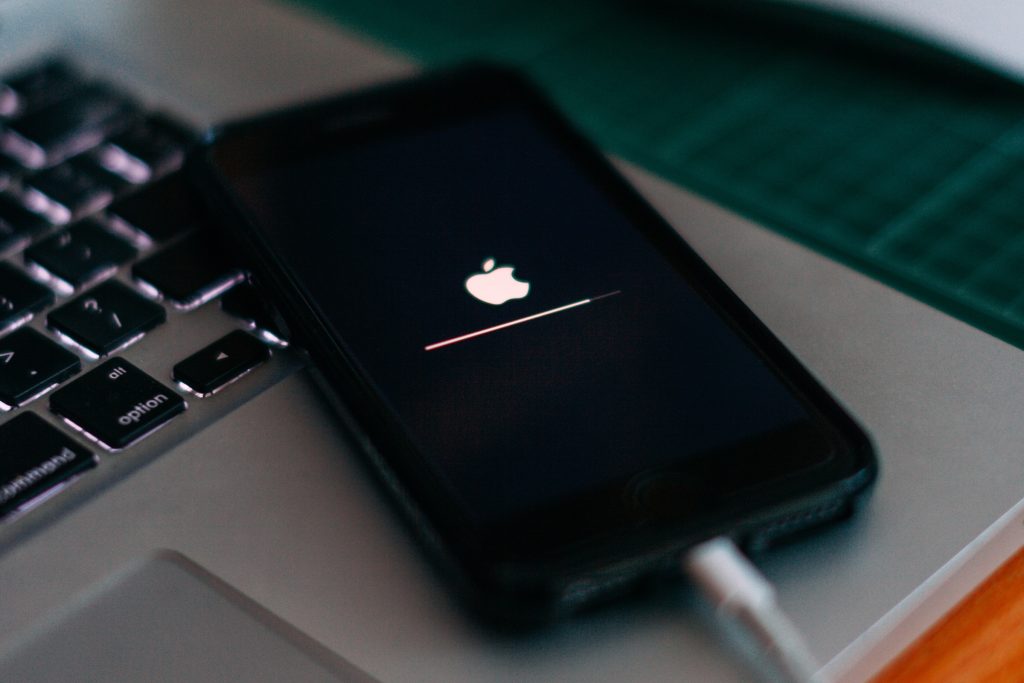
Every iPhone and iPad owner eventually encounters that moment of panic: the screen goes black, the device becomes unresponsive, or a stubborn software update leaves the gadget stuck in an endless reboot loop. For many, this scenario signals a trip to the repair shop or a costly replacement. However, Apple devices come equipped with a powerful, built-in diagnostic and restoration tool known as Recovery Mode. This specialized state allows users to communicate directly with iTunes or Finder to reinstall the operating system, bypassing corrupted software that prevents normal booting. Understanding how to leverage this feature is not just a technical skill; it is a fundamental aspect of responsible device ownership that can save hours of downtime and significant expense.
Demystifying Recovery Mode: What It Is and Why It Exists
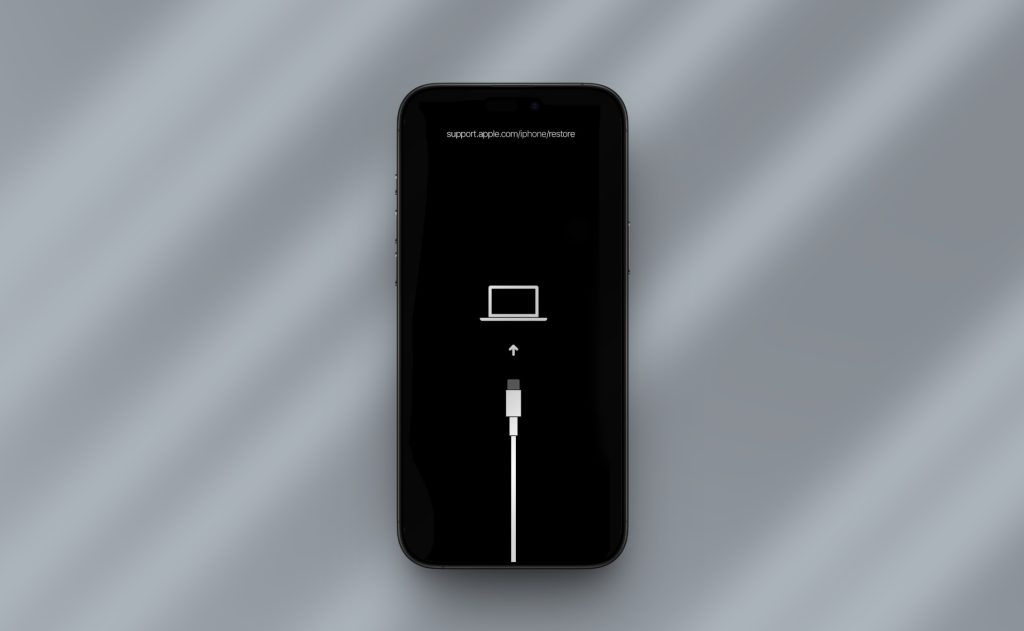
Recovery Mode is a failsafe mechanism embedded deep within the firmware of iOS and iPadOS devices. Unlike the standard operating environment where apps run and settings are adjusted, Recovery Mode loads a minimalistic interface designed solely for communication with a host computer. When an iPhone enters this state, it displays a graphic of a computer and a cable, indicating that it is waiting for instructions from iTunes (on Windows or older macOS) or Finder (on macOS Catalina and later). This mode is distinct from DFU (Device Firmware Update) Mode, which is a deeper level of restoration that bypasses the bootloader entirely. Recovery Mode strikes a balance between accessibility and power, offering a solution for most software-related crises without requiring the complex timing needed for DFU mode.
The primary purpose of Recovery Mode is to resolve situations where the operating system is too damaged to load normally but the hardware remains functional. Common triggers include interrupted software updates, failed jailbreak attempts, or corruption in the file system caused by sudden power loss during critical writes. According to Apple’s official support documentation, this mode is the recommended first step for resolving persistent startup issues before considering hardware repairs. By isolating the software layer, technicians and users alike can determine if the problem lies within the code or the physical components of the device. This distinction is crucial for diagnosing whether a device needs a simple restore or a component-level repair.
When a device is placed in Recovery Mode, the computer recognizes it as a unit requiring immediate attention. The connected software will present options to either “Update” or “Restore.” The “Update” option attempts to reinstall the operating system while preserving user data, making it the preferred choice for those hoping to salvage photos, messages, and app data. Conversely, the “Restore” option wipes the device clean, returning it to factory settings and installing the latest available version of iOS. This binary choice provides a clear path forward, allowing users to attempt a non-destructive fix before resorting to a complete erasure. The existence of this tiered approach underscores Apple’s design philosophy of providing graduated solutions for troubleshooting.
For users unfamiliar with the backend processes of mobile operating systems, Recovery Mode serves as a bridge between the user and the device’s low-level firmware. It essentially forces the device to listen to external commands, overriding any internal loops or errors that might be preventing normal operation. This capability is particularly valuable when a device is stuck on the Apple logo or displays a “connect to iTunes” screen spontaneously. In these instances, the device has already detected a critical failure and has automatically attempted to enter a recovery state, or it requires manual intervention to do so. Understanding the mechanics behind this process empowers users to take control of the situation rather than feeling helpless in the face of a frozen screen.
Preparing for the Procedure: Essential Steps Before Entering Recovery Mode
Before initiating the recovery process, thorough preparation is vital to ensure a smooth experience and minimize the risk of data loss. The most critical step is verifying that a recent backup exists. Since the “Restore” option in Recovery Mode erases all content on the device, having a backup in iCloud or on a local computer is the only safety net for personal data. Users should navigate to the Settings app, tap their name, select iCloud, and then iCloud Backup to confirm the date and time of the last successful backup. If the device is unresponsive and cannot be backed up via settings, checking the last backup date in iTunes or Finder on a previously synced computer is the next best course of action. Without a backup, proceeding with a restore means accepting the permanent loss of photos, contacts, and app data.
Ensuring the host computer is ready is equally important. The computer used for the restoration must have the latest version of iTunes installed if running Windows or macOS Mojave and earlier. For macOS Catalina and newer, the Finder application handles device management natively, but the system software must be up to date to recognize the latest iOS versions. Outdated software can lead to recognition errors or compatibility issues that halt the restoration process mid-way, potentially leaving the device in a worse state than before. Apple frequently updates its desktop software to support new device drivers and encryption protocols, so skipping this step is a common pitfall for beginners. Verifying the software version and installing any pending updates creates a stable environment for the heavy data transfer involved in restoring an operating system.
Power stability is another non-negotiable factor. Both the computer and the iPhone or iPad must have sufficient battery charge or be connected to a reliable power source throughout the entire procedure. A restoration process can take anywhere from fifteen minutes to over an hour, depending on the device model and internet connection speed. If the computer loses power or the USB connection is interrupted due to a dying laptop battery, the firmware installation could fail, leading to a “bricked” device that requires more advanced intervention. Plugging the computer into a wall outlet and using a high-quality, certified Lightning or USB-C cable ensures a consistent data stream. Cheap, third-party cables often lack the necessary shielding and pin configuration to sustain the high-bandwidth communication required for firmware restoration.
Disabling security software temporarily can also prevent interference. Aggressive antivirus programs or firewalls on Windows PCs sometimes mistake the large data packets sent during an iOS restore for malicious activity, blocking the connection between the computer and the device. While this is less common on modern systems, it remains a documented issue in various troubleshooting forums. Pausing real-time protection for the duration of the restore, and ensuring the computer has a stable internet connection, helps avoid timeouts or verification errors. Additionally, closing unnecessary applications on the computer frees up system resources, allowing the restoration software to prioritize the device communication without lag or stuttering.
Finally, users should mentally prepare for the outcome. Even with the “Update” option selected, there is no guarantee that data will be preserved if the file system corruption is severe. Setting expectations correctly helps manage the stress of the situation. If the device was already unusable, the goal is functionality; if data recovery is the priority, professional data retrieval services might be a consideration before wiping the device, though success is never guaranteed in cases of software corruption. Having a clear understanding of the risks and the necessary preparations transforms a chaotic emergency into a structured, manageable procedure.
Step-by-Step: How to Enter Recovery Mode Across Different Devices
Entering Recovery Mode varies slightly depending on the specific model of the iPhone or iPad, primarily due to changes in button configurations over the years. For devices with Face ID, such as the iPhone X and newer models, as well as iPad Pro models released after 2018, the process involves a specific sequence of volume and side button presses. First, connect the device to the computer using a USB cable. Then, quickly press and release the Volume Up button, followed immediately by a quick press and release of the Volume Down button. Finally, press and hold the Side button (the power button on the right side) until the Recovery Mode screen appears. It is crucial to continue holding the button even after seeing the Apple logo; releasing it too early will simply restart the device normally. The target image is the cable connecting to a computer icon, which indicates success.
For iPhones with a Home Button, including the iPhone 8, iPhone 7, and earlier generations, the method differs. On the iPhone 8 and iPhone SE (2nd and 3rd generation), the procedure mirrors the Face ID models: quick press of Volume Up, quick press of Volume Down, then hold the Side button. However, for the iPhone 7 and iPhone 7 Plus, the combination involves holding both the Side button and the Volume Down button simultaneously until the recovery screen appears. This distinction is often a source of confusion, as the iPhone 8 introduced the new button logic despite looking similar to the 7. Older devices like the iPhone 6s and earlier, along with iPads that feature a physical Home button, require connecting to the computer and holding the Home button while the device is off or restarting. The button must be held continuously until the cable-and-computer graphic displays.
Timing is the most critical element in these sequences. If the device boots into the normal home screen or shows only the Apple logo, the buttons were likely released too soon or pressed in the wrong order. In such cases, the user must wait for the device to finish its current boot attempt, turn it off again if possible, and retry the sequence. Patience is key; the window to trigger Recovery Mode is specific, and rushing the button presses often results in failure. If the device is completely unresponsive and won’t turn off, a force restart may be necessary first to get it into a state where the Recovery Mode sequence can be initiated. For example, on an iPhone 8 or newer, a force restart involves the same Volume Up, Volume Down, and Hold Side button sequence, but the hold continues until the Apple logo appears, at which point the user releases. To hit Recovery Mode instead, the hold continues past the logo.
Once the device displays the Recovery Mode screen, the computer should detect it almost immediately. On a Mac, a Finder window will pop up stating, “There is a problem with the iPhone that requires it to be updated or restored.” On Windows, iTunes will display a similar dialog box. If the computer does not recognize the device despite the correct screen being shown, troubleshooting the USB connection is the next step. Trying a different USB port, preferably a direct port on the motherboard rather than a hub, can resolve connectivity issues. Swapping the cable is also advisable, as damaged wires can transmit power for charging but fail to carry the data signals needed for recovery. Ensuring the computer trusts the device is generally not required in Recovery Mode, as the low-level connection bypasses some of the standard handshake protocols, but driver issues on Windows can still impede recognition.
It is worth noting that if a user accidentally enters Recovery Mode and wishes to exit without making changes, they can simply force restart the device. For Face ID models, this means pressing Volume Up, Volume Down, and holding the Side button until the Apple logo appears. For Home Button models, holding the Home and Power buttons (or just the Power button on very old models) until the logo appears will reboot the phone normally. This safety valve ensures that entering Recovery Mode is not a point of no return; the decision to update or restore is only made once the user clicks the corresponding button in the computer software. This flexibility allows users to verify their backups or reconsider their strategy before committing to a potentially destructive action.
Navigating the Restore vs. Update Dilemma
When iTunes or Finder detects a device in Recovery Mode, it presents two distinct options: Update and Restore. Choosing the correct path is pivotal, as the consequences of each differ significantly regarding data retention and system integrity. The Update option is the less invasive choice. It attempts to reinstall the iOS software while keeping the user’s personal data, settings, and media intact. The software downloads the latest firmware package compatible with the device and installs it over the existing system files, repairing corrupted components without touching the user partition. This is the ideal first step for anyone who has not recently backed up their device, as it offers a chance to resolve the software glitch without the heartbreak of data loss. However, if the corruption extends into the user data partition or if the update process fails midway, the device may revert to Recovery Mode, necessitating a second attempt or a switch to the Restore option.
The Restore option is the nuclear option. It completely erases the device, wiping all content and settings, and installs a fresh copy of the latest iOS version. This process returns the iPhone or iPad to its factory state, exactly as it was when it left the assembly line, minus the activation lock which remains tied to the Apple ID. This option is necessary when the “Update” fails repeatedly, or when the user suspects deep-seated software issues that a simple overlay install cannot fix. It is also the standard procedure for preparing a device for resale or when handing it down to another user. While the data loss is total, the reliability of the resulting system is generally higher, as there is no residual code from the previous, potentially corrupted installation. For users with a verified backup, “Restore” is often the faster and more definitive route to a fully functional device.
A common misconception is that “Update” always works if the hardware is fine. In reality, if the file system is severely fragmented or if critical boot files are missing, the Update process may error out. Apple’s software is designed to try the non-destructive path first, but it has limits. If the error message “An unknown error occurred” appears during an Update, it often indicates that the damage is too extensive for a patch-style repair. In such scenarios, switching to “Restore” is the only viable path forward. Users should view the Update attempt as a low-risk trial; if it fails, they haven’t lost anything they wouldn’t have lost with a Restore, provided they accept that the device was already malfunctioning.
The time investment for both options varies. An Update typically takes less time because it does not need to wipe the storage blocks before writing new data, though the download time for the firmware remains the same. A Restore involves a formatting phase, which can add several minutes to the process, especially on devices with large storage capacities like 512GB or 1TB models. During either process, the device will display a progress bar. It is imperative not to disconnect the cable or interrupt the computer during this phase. Interruption can corrupt the firmware installation, potentially rendering the device unable to enter Recovery Mode again without specialized hardware tools. Consistency and patience are the primary requirements during this waiting period.
After a successful Restore, the device will restart and present the “Hello” setup screen. At this point, the user can choose to set up the device as new or restore from a backup. If the backup was made prior to the issue occurring, selecting “Restore from iCloud Backup” or “Restore from Mac or PC” will reinstate apps, photos, and settings. It is important to note that restoring from a backup created while the device was experiencing software glitches could theoretically reintroduce the problem, though this is rare. Usually, the backup contains user data which is separate from the system files that caused the crash. If the issue persists after a full Restore and Backup restoration, it may indicate a hardware fault rather than a software one, prompting a need for physical inspection.
| Feature | Update Option | Restore Option |
|---|---|---|
| Data Retention | Attempts to keep all user data, photos, and settings. | Erases all content and settings; device returns to factory state. |
| Best Use Case | First attempt for unbacked-up devices; minor software glitches. | Failed updates; severe corruption; preparing device for resale. |
| Success Rate | High for minor errors; lower for deep system corruption. | Very high; resolves almost all software-based boot issues. |
| Time Required | Generally faster (no wipe phase). | Slower due to formatting and full re-installation. |
| Risk Level | Low risk to data; potential to fail and require retry. | High risk to data (if no backup); low risk of failure. |
| Post-Process State | Device boots to home screen (if successful). | Device boots to “Hello” setup screen. |
Post-Recovery: Restoring Data and Optimizing Performance
Once the device has successfully exited Recovery Mode and booted into the operating system, the focus shifts to data restoration and system optimization. If the “Restore” option was used, the device will be in a pristine, factory-fresh state. The setup assistant will guide the user through language selection, Wi-Fi connection, and Apple ID authentication. At the “Apps & Data” screen, the option to restore from a backup becomes available. Selecting the most recent backup ensures that the user’s digital life is reinstated. It is advisable to stay connected to Wi-Fi and power during this phase, as restoring large amounts of data, particularly photos and videos, can take a considerable amount of time. Interrupting this process can lead to incomplete restores, requiring the setup to be restarted.
For users who chose the “Update” path and retained their data, the immediate post-recovery period is a time for observation. While the device may function normally, it is prudent to monitor battery usage and app performance for a few days. Occasionally, background indexing processes triggered by the OS reinstallation can cause temporary battery drain or sluggishness. This is normal behavior as the system re-catalogs files and optimizes databases. Keeping the device plugged in overnight for the first few nights allows these processes to complete without impacting daily usage. If performance issues persist beyond a week, it may indicate that the underlying issue was not fully resolved, or that a specific app is conflicting with the new OS version.
Updating all applications via the App Store is a critical step often overlooked after a major system change. Apps compiled for previous iOS versions might exhibit instability on a freshly installed or updated OS. Developers frequently release patches to ensure compatibility with the latest system frameworks. Visiting the App Store and updating all pending applications ensures that the software ecosystem on the device is harmonized with the newly installed iOS. This simple step can resolve many minor bugs and crashes that users might mistakenly attribute to the restoration process itself. Furthermore, checking for any subsequent iOS updates is wise, as Apple occasionally releases point updates (e.g., 17.1.1) shortly after a major version to address specific bugs discovered during initial rollout.
Security settings should also be reviewed. A factory reset clears certain trusted device lists and may require re-authentication for two-factor authentication methods. Users should verify that their trusted phone numbers are up to date in their Apple ID settings to ensure they can receive verification codes. Additionally, features like Find My iPhone should be confirmed as active. This security layer is essential for protecting the device against theft and is automatically re-enabled during the setup process if the user signs in with their Apple ID, but verifying its status provides peace of mind. For those who use Apple Pay, cards will need to be re-verified with the issuing bank, a standard security measure after a device wipe.
Finally, this is an opportune moment to evaluate backup habits. Experiencing a crisis that requires Recovery Mode often highlights the fragility of digital data. Users who struggled with outdated or missing backups should consider automating the process. Enabling daily iCloud backups ensures that data loss is minimized to a single day’s worth of activity in the worst-case scenario. Alternatively, establishing a routine of weekly local backups to a computer provides a redundant copy that is not dependent on internet bandwidth or cloud storage limits. Building a robust backup strategy is the most effective way to mitigate the stress of future technical issues, turning a potential disaster into a minor inconvenience.
Frequently Asked Questions
Q: Will entering Recovery Mode delete my photos and messages?
A: Entering Recovery Mode itself does not delete data; it simply puts the device in a state waiting for instructions. Data loss only occurs if you select the “Restore” option in iTunes or Finder. If you choose the “Update” option, the system attempts to reinstall iOS without erasing your personal data. However, if the update fails and you are forced to choose “Restore,” all data will be wiped unless you have a backup.
Q: What is the difference between Recovery Mode and DFU Mode?
A: Recovery Mode is a user-friendly state that displays a visual prompt on the screen and allows the computer to update or restore the device using the standard bootloader. DFU (Device Firmware Update) Mode is a deeper state that bypasses the bootloader entirely, allowing for a more comprehensive restoration of the firmware. DFU is typically used when Recovery Mode fails to resolve the issue or when downgrading iOS versions, but it is more complex to enter and does not display anything on the device screen.
Q: My computer doesn’t recognize my iPhone in Recovery Mode. What should I do?
A: If the computer fails to detect the device, try the following steps: use a different USB cable, preferably an original Apple one; plug the cable into a different USB port, ideally directly into the computer rather than a hub; restart both the computer and the iPhone; and ensure iTunes or macOS is updated to the latest version. On Windows, checking the Device Manager for driver issues under “Portable Devices” or “Universal Serial Bus controllers” can also help identify recognition problems.
Q: Can I exit Recovery Mode without restoring or updating?
A: Yes, you can exit Recovery Mode without making any changes by performing a force restart. For iPhone 8 and later, press and release Volume Up, press and release Volume Down, then hold the Side button until the Apple logo appears. For iPhone 7, hold the Side and Volume Down buttons. For iPhone 6s and earlier, hold the Home and Top/Side buttons. Once the Apple logo appears, release the buttons, and the device will attempt to boot normally.
Q: How long does the restore process take?
A: The duration depends on the device model, the speed of the internet connection (for downloading the firmware), and the amount of data being erased. Typically, the process ranges from 15 to 45 minutes. Larger capacity devices (e.g., 512GB or 1TB) may take longer due to the time required to format the storage. It is crucial not to disconnect the device during this time, as interruptions can cause serious software errors.
Q: Is it safe to use Recovery Mode on a jailbroken device?
A: Using Recovery Mode on a jailbroken device will remove the jailbreak. The “Update” or “Restore” process installs a stock, signed version of iOS, which patches the exploits used for jailbreaking. If the goal is to return the device to a standard, supported state, Recovery Mode is the correct method. However, users wishing to preserve a jailbreak should avoid using Recovery Mode unless absolutely necessary to fix a boot loop, understanding that the jailbreak environment will be lost.
Q: What does “Error 4013” or “Error 9” mean during restoration?
A: These error codes typically indicate a hardware connection issue or a hardware failure. Error 4013 often relates to a problem with the USB connection, the cable, or the port, but it can also signal a logic board issue. Error 9 usually suggests that the device disconnected unexpectedly during the restore, which can be caused by a faulty cable or a failing component on the device’s motherboard. If changing cables and ports does not resolve these errors, professional hardware diagnostics are likely required.
Q: Can I restore an iPhone to an older version of iOS using Recovery Mode?
A: Generally, no. Apple only allows the installation of currently “signed” iOS versions. Once Apple stops signing an older version (usually a few weeks after a new release), iTunes or Finder will refuse to install it, even if you have the firmware file downloaded. Recovery Mode will default to installing the latest available version of iOS that Apple is currently authorizing. Attempting to install unsigned firmware will result in an error message.
Conclusion
Mastering the use of iOS Recovery Mode transforms a potentially devastating technical failure into a manageable, solvable event. This powerful tool, built into every iPhone and iPad, serves as a critical lifeline when software corruption threatens to render a device useless. By understanding the distinctions between updating and restoring, preparing adequately with backups and reliable hardware, and executing the precise button sequences for specific device models, users can reclaim control over their technology. The process, while initially intimidating, follows a logical structure designed to maximize the chances of data recovery while ensuring the device returns to a stable, functional state.
The journey through Recovery Mode highlights the importance of proactive device management. Regular backups, updated computer software, and the use of high-quality accessories are not merely suggestions but essential practices that safeguard digital livelihoods. When the unexpected occurs, these preparations pay dividends, reducing downtime and anxiety. Furthermore, the ability to troubleshoot at this level fosters a deeper understanding of how mobile devices operate, demystifying the “black box” nature of modern technology. It empowers users to rely less on external repair services for software issues and more on their own capability to resolve problems efficiently.
Ultimately, Recovery Mode is a testament to the resilience of Apple’s ecosystem. It provides a structured path back from the brink of failure, ensuring that a software glitch does not equate to the end of a device’s life. Whether preserving precious memories through a careful update or starting fresh with a complete restore, the tools are accessible to everyone. With patience, attention to detail, and the guidance provided by authoritative resources, any user can navigate this process successfully. The next time a screen goes black or an update stalls, the knowledge of Recovery Mode stands ready to turn a moment of panic into a routine maintenance task, keeping the digital world spinning smoothly.