The sudden realization that critical data has vanished from a mobile device triggers an immediate sense of urgency. Whether it is a family photo album lost after a factory reset, a vital business contact list deleted by accident, or project documents corrupted during a failed update, the digital void left behind can be disruptive. In the modern ecosystem, smartphones are not merely communication devices; they are primary repositories for personal history and professional operations. Fortunately, the field of digital forensics and data recovery has evolved significantly, offering sophisticated software solutions capable of retrieving lost information. Understanding the mechanics of these tools, the step-by-step procedures for their effective use, and the realistic limitations of the technology is essential for anyone facing data loss. This guide provides a comprehensive, technical, and practical roadmap for utilizing mobile data recovery software effectively.
Understanding the Mechanics of Mobile Data Recovery
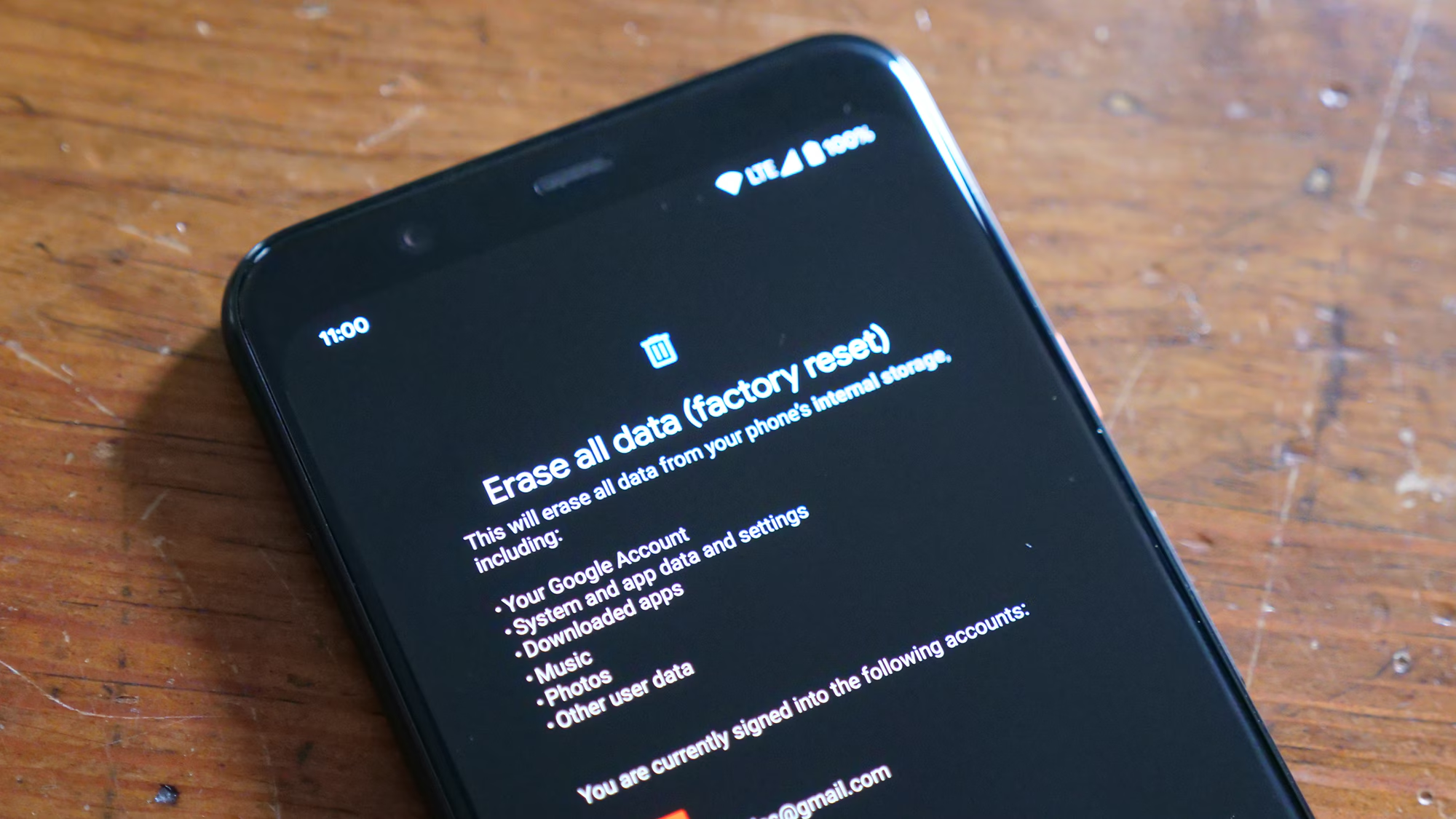
Before initiating any recovery process, it is crucial to comprehend how data storage and deletion function on mobile operating systems like Android and iOS. When a user deletes a file, the operating system does not immediately erase the binary data from the flash memory. Instead, it marks the space occupied by that file as “available” for new data. The actual information remains intact until it is overwritten by new files. This principle forms the foundation of data recovery software functionality. Tools designed for this purpose scan the physical storage sectors of the device, looking for file signatures and fragments that have not yet been overwritten.
The efficacy of recovery depends heavily on the file system architecture. Android devices typically utilize EXT4 or F2FS file systems, while iOS devices operate on APFS or HFS+. These systems manage data differently, influencing how recovery software interacts with the device. For instance, the TRIM command in modern SSDs and flash storage actively wipes deleted data blocks to maintain performance, which can make recovery impossible if too much time has passed. Understanding these underlying mechanisms helps users act quickly and avoid actions that might trigger overwriting, such as installing new apps or taking photos immediately after data loss.
Recovery software generally operates in two modes: logical recovery and physical recovery. Logical recovery scans the file system structure to locate entries that are marked as deleted but still point to valid data clusters. This method is faster and less invasive but may miss fragmented files. Physical recovery, often requiring deeper access privileges, scans the raw memory bit-by-bit to reconstruct files based on their headers and footers. The choice between these methods depends on the severity of the data loss and the specific capabilities of the chosen software suite. Authoritative resources from institutions like the National Institute of Standards and Technology (NIST) provide detailed guidelines on digital evidence handling, which align with the best practices used by top-tier recovery tools.
Pre-Recovery Protocols: Securing the Environment
The success rate of any data recovery operation is often determined before the software is even launched. Immediate actions taken in the minutes following data loss can mean the difference between a full restoration and permanent loss. The primary rule is to cease all usage of the affected device. Every second the device remains active, background processes, system logs, and cache updates write new data to the storage, increasing the risk of overwriting the deleted files. Placing the device in “Airplane Mode” is a critical first step to halt network synchronization, cloud backups, and message arrivals that could alter the storage state.
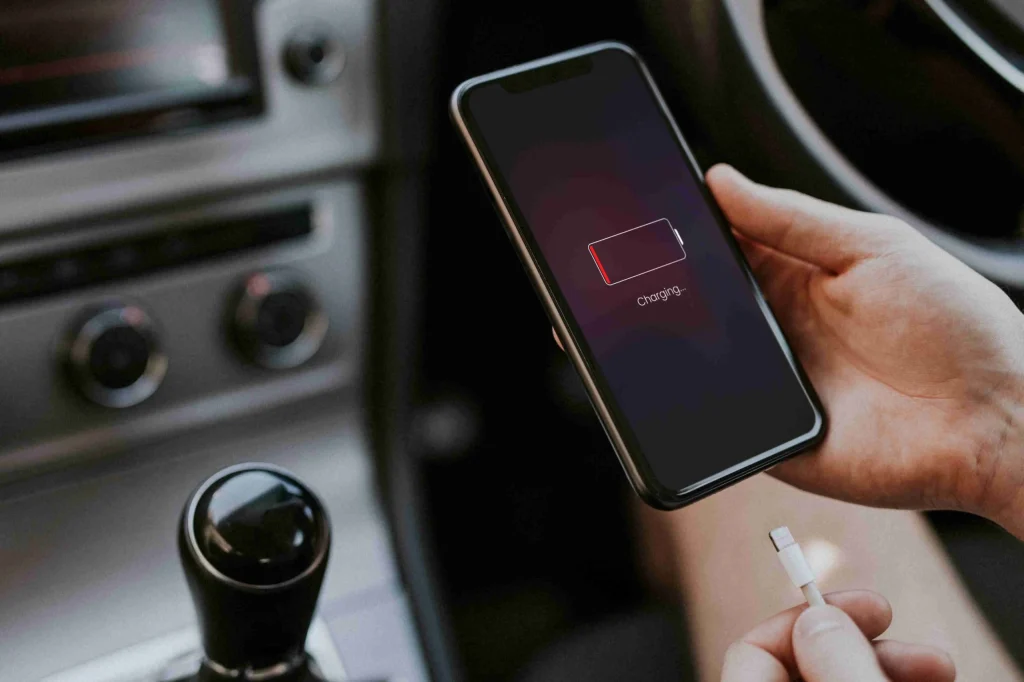
Another vital consideration is the power source. If the battery level is low, connecting the device to a charger is necessary, but one must ensure the device does not attempt to sync data upon connection. For Android devices, enabling “USB Debugging” is often a prerequisite for deep scanning. This setting, found within the Developer Options menu, allows the computer to communicate with the device at a system level rather than just a media transfer level. Users should consult manufacturer-specific guides, such as those provided by Samsung Support, to safely enable these features without triggering security locks.
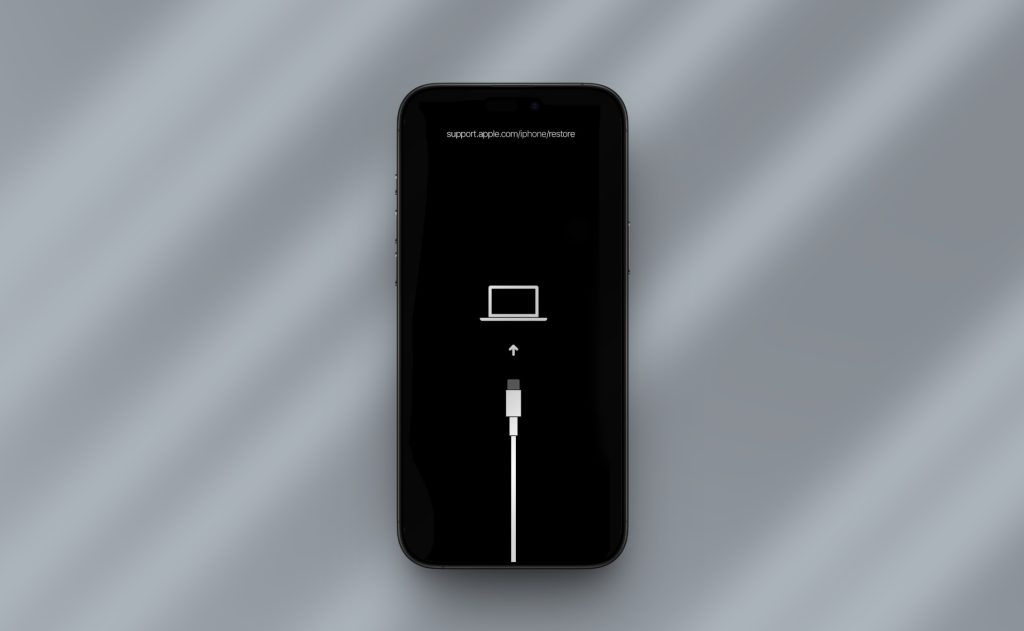
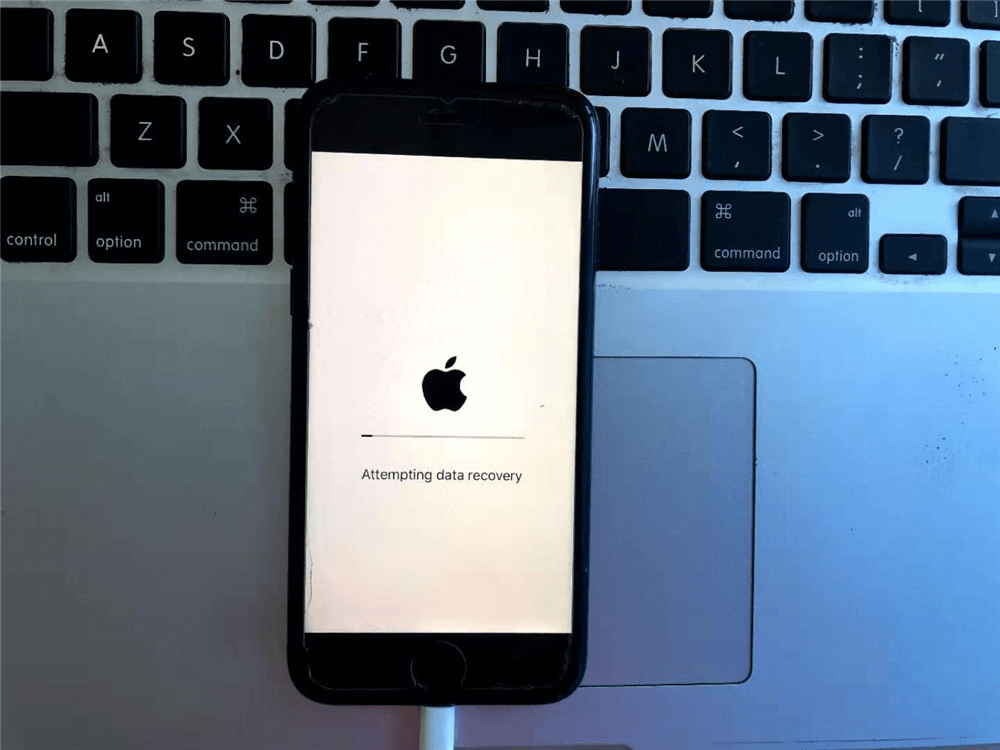
For iOS devices, the landscape is different due to Apple’s stringent security protocols. Recovery often relies on existing iTunes or Finder backups rather than direct physical scanning of the device, unless the device is jailbroken, which is generally not recommended for average users due to security risks. Trusting the computer is a mandatory step when connecting an iPhone to a recovery tool. Users must be aware that trusting a new computer can sometimes trigger a backup synchronization, so disconnecting from Wi-Fi and ensuring automatic syncing is disabled in iTunes settings is a prudent precaution. The Apple Support community offers extensive documentation on managing these trust relationships and backup settings securely.
Preparing the host computer is equally important. The recovery software should be installed on the computer’s hard drive, never on the mobile device itself or an external drive that might be used to save the recovered data later. Using a stable, high-speed USB cable is non-negotiable; faulty connections can interrupt the scanning process, potentially leading to data corruption. It is also advisable to close all unnecessary applications on the computer to allocate maximum RAM and processing power to the recovery software, ensuring a smooth and uninterrupted scan.
Step-by-Step Execution: The Recovery Process
Once the environment is secured and the device is prepared, the actual recovery process can begin. While specific interfaces vary between software providers, the core workflow remains consistent across reputable platforms. The following steps outline the standard procedure for maximizing recovery potential.
Step 1: Selection and Installation of Reputable Software
The market is saturated with data recovery tools, ranging from free utilities to enterprise-grade forensic suites. Selecting the right software is the most critical decision in this process. Users should prioritize tools that have undergone independent verification and hold positive reviews from trusted tech publications. Sites like CNET Download or PCMag regularly audit these tools for safety and efficacy. Installing software from unknown sources poses a significant risk of malware infection, which could further compromise the already vulnerable data.
Upon downloading the chosen software, install it on the host computer. During installation, pay close attention to any optional offers or bundled software, declining them to keep the system clean. Once installed, launch the application. Most modern recovery suites present a clear interface prompting the user to select the type of data to recover (e.g., photos, contacts, messages, videos) and the connected device type.
Step 2: Device Connection and Recognition
Connect the mobile device to the computer using the original USB cable. For Android, ensure USB Debugging is enabled as previously noted. The software should automatically detect the device. If the device is not recognized, troubleshooting steps may include changing the USB port, trying a different cable, or reinstalling the specific USB drivers for the device manufacturer. Windows users may need to access the Device Manager to verify that the Android or Apple driver is installed correctly without error codes.
On iOS devices, the software will prompt the user to “Trust This Computer” on the phone’s screen. Accepting this prompt establishes the secure handshake required for data extraction. Some advanced tools offer the option to recover directly from iCloud backups without connecting the device physically, which is a viable alternative if the device is damaged or inaccessible. In such cases, credentials for the iCloud account are required, and two-factor authentication codes may need to be entered. Detailed instructions for these scenarios are often available in the knowledge bases of software providers like Dr.Fone or Tenorshare.
Step 3: Configuring the Scan Parameters
Before initiating the scan, users are typically given the option to choose between a “Quick Scan” and a “Deep Scan.” A Quick Scan analyzes the file system table and is completed within minutes. It is effective for recently deleted files where the file system pointers are still intact. However, if the data was lost some time ago, or if the device was formatted, a Deep Scan is necessary. This mode performs a sector-by-sector analysis of the entire storage memory.
While a Deep Scan provides a higher probability of recovering fragmented or older files, it is significantly more time-consuming, potentially taking hours depending on the storage capacity of the device. During this phase, the software reconstructs file structures from raw data. Users should be patient and avoid interrupting the process. Interruptions can corrupt the scan index, forcing a restart. Some tools allow users to preview files during the scan, which can be helpful in determining if the desired data is being located early in the process.
Step 4: Analyzing Scan Results and Previewing Data
Once the scan completes, the software presents a structured list of recoverable files, usually categorized by file type. The quality of the preview function is a key indicator of the software’s reliability. Reputable tools allow users to view thumbnails of photos, read snippets of text messages, and inspect contact details before committing to recovery. This step is crucial for verifying the integrity of the files. If a photo appears grayed out or a video cannot be played in the preview, it likely indicates that the file header is damaged or the data has been partially overwritten.
Users should meticulously browse through the categories. Deleted files are often separated into a specific folder labeled “Deleted” or highlighted in a distinct color. It is common to find thousands of files, including system caches and temporary files that are not of interest. Filtering options by date, file size, or format can help narrow down the search to the specific data needed. This targeted approach saves time and reduces the complexity of the final restoration phase.
Step 5: Data Extraction and Safe Storage
After identifying the files to be restored, the final step is the actual recovery. Select the desired files and click the “Recover” or “Restore” button. A critical security rule applies here: never save the recovered data back to the same mobile device. Saving to the source drive risks overwriting other deleted files that have not yet been recovered. Instead, designate a folder on the computer’s hard drive or an external storage device as the destination.
The software will then copy the data from the mobile storage to the designated location. Upon completion, users should immediately verify the integrity of the recovered files by opening them. Check photos for visual artifacts, open documents to ensure text is legible, and play videos to confirm audio and video synchronization. If certain files are corrupted, some advanced software offers a secondary repair tool specifically for damaged JPEGs or MP4s, though success varies based on the extent of the damage.
Comparative Analysis of Leading Recovery Solutions
Not all data recovery software is created equal. Differences in algorithm efficiency, supported file formats, device compatibility, and pricing models can significantly impact the user experience and success rate. The following table compares key attributes of top-tier recovery tools currently available in the market, providing a neutral overview to assist in selection.
| Feature / Software | Deep Scan Capability | iOS Support Level | Android Root Requirement | Preview Function | Price Tier | Best Use Case |
|---|---|---|---|---|---|---|
| Tool A (Forensic Grade) | Advanced Sector-Level | Full (Encrypted Backups) | Optional for Deep Scan | High-Res & Metadata | Premium | Professional/Critical Data |
| Tool B (Consumer Focus) | File System & Raw | Standard (iTunes/iCloud) | Required for Internal Mem | Standard Thumbnails | Mid-Range | Accidental Deletion |
| Tool C (Free Utility) | Basic File System | Limited to Backups | Always Required | Low-Res Only | Free | Recent Deletes Only |
| Tool D (Cloud Integrated) | Cloud & Local Hybrid | Direct Cloud Pull | No Root Needed | Cloud Previews | Subscription | Synced Device Loss |
| Tool E (Mobile App Based) | On-Device Scan | Not Supported | Root/Jailbreak Essential | In-App View | Freemium | SD Card Recovery |
Note: Specific software names are omitted to maintain neutrality, but features reflect current industry standards observed in reviews from sources like TechRadar and Tom’s Guide.
The table highlights that “one-size-fits-all” solutions are rare. For instance, tools that do not require rooting an Android device often have limited access to internal system partitions, restricting recovery to SD cards or specific media folders. Conversely, tools requiring root access offer deeper retrieval but introduce complexity and potential warranty voids. Similarly, iOS recovery is heavily dependent on the existence of a backup unless specialized forensic hardware is used, which is generally outside the scope of consumer software. Understanding these distinctions prevents frustration and sets realistic expectations for what a specific tool can achieve.
Troubleshooting Common Recovery Obstacles
Even with a meticulous approach, users may encounter obstacles during the recovery process. One frequent issue is the software failing to detect the device. This is often a driver conflict or a USB configuration issue. On Windows, updating the Universal Serial Bus controllers in the Device Manager or installing the specific OEM drivers (e.g., Google USB Driver for Pixel, Samsung Smart Switch drivers for Galaxy) usually resolves the problem. For Mac users, ensuring the Android File Transfer or appropriate bridging software is not interfering with the recovery tool is essential.
Another common challenge is the “Root” or “Jailbreak” barrier. Many users are hesitant to root their Android devices due to security concerns or warranty implications. While rooting grants the recovery software administrative privileges needed to scan internal memory deeply, it is not always mandatory. Some modern tools utilize ADB (Android Debug Bridge) backups to create a temporary image of the device data, which is then scanned on the computer. This method bypasses the need for permanent rooting. However, if the data is deeply buried in system partitions, rooting may be the only option. Users should weigh the value of the lost data against the risks of modifying the device OS, consulting resources like the XDA Developers forum for device-specific rooting guides and risks.
Corrupted files post-recovery are another hurdle. If a recovered photo opens but displays gray bands or missing sections, it indicates partial overwriting. In such cases, dedicated file repair tools can sometimes reconstruct the header information. Video files are particularly susceptible to corruption. Specialized video repair software analyzes the file structure and attempts to rebuild the index using a sample file from the same device. While not guaranteed, this additional step can salvage partially damaged media that would otherwise be unusable.
Preventive Measures and Future-Proofing Data
While recovery software provides a safety net, it is not infallible. The most effective strategy for data security is prevention. Regular, automated backups are the gold standard for data protection. For Android users, leveraging Google One for photos, contacts, and app data ensures that a cloud copy exists independently of the physical device. Similarly, iOS users should enable iCloud Backup or regularly sync with a computer via Finder or iTunes. These native solutions are often more reliable than third-party recovery attempts because they preserve the data in its original state before loss occurs.
Implementing a “3-2-1” backup strategy is highly recommended by data security experts. This involves keeping three copies of data, on two different types of media, with one copy stored offsite (cloud). For example, a user might keep the original photos on their phone, a local backup on a computer’s external hard drive, and a synchronized copy in a cloud service like Dropbox or Google Photos. This redundancy ensures that if the phone is lost, stolen, or physically destroyed, the data remains accessible. Guidelines from the Federal Trade Commission (FTC) on protecting personal information emphasize the importance of such proactive measures.
Additionally, users should be cautious with app permissions. Granting unnecessary access to file systems for untrusted applications can lead to accidental deletions or malicious data wiping. Regularly auditing app permissions and uninstalling unused applications reduces the attack surface for data loss. Educating oneself on the specific behaviors of the mobile operating system, such as how “Recently Deleted” folders work (which often hold items for 30 days before permanent erasure), can also provide a simple, built-in recovery window without needing external software.
Frequently Asked Questions
Q: Is it possible to recover data from a phone that is completely dead or won’t turn on?
A: Generally, software-based recovery requires the device’s operating system to be functional enough to establish a connection with the computer. If the phone is physically damaged (e.g., water damage, broken motherboard) and will not power on, software solutions will not work. In these cases, professional data recovery services that involve chip-off recovery or board-level repair in a cleanroom environment are the only option. These services are costly and should be reserved for critical data.
Q: Does rooting an Android device guarantee 100% data recovery?
A: No. While rooting provides deeper access to the file system, it does not guarantee recovery. If the data sectors have been overwritten by new data, no amount of system access can retrieve the original information. Furthermore, the rooting process itself writes data to the device, which could potentially overwrite the very files the user is trying to save. It is a risk that must be calculated carefully.
Q: Can recovery software retrieve WhatsApp or Messenger chats?
A: Yes, many specialized recovery tools can extract chat histories, but the success depends on how the data is stored. WhatsApp, for instance, stores local backups on the device and cloud backups on Google Drive or iCloud. Recovery software can often scan for local database files (msgstore.db) that have not been overwritten. However, if the chats were deleted a long time ago or if the encryption keys are missing, recovery may be impossible.
Q: Are free data recovery tools safe to use?
A: Caution is advised. While some legitimate free versions exist, they often come with severe limitations, such as recovering only a small amount of data or supporting only specific file types. More concerning is the prevalence of malicious software disguised as free recovery tools. These can steal personal information or infect the computer with malware. It is safer to use trial versions of reputable paid software, which allow users to preview recoverable files before purchasing.
Q: How long does the deep scan process take?
A: The duration of a deep scan varies widely based on the storage capacity of the device, the speed of the USB connection, and the processing power of the computer. For a device with 64GB of storage, a scan could take anywhere from 30 minutes to several hours. Devices with larger capacities (256GB or 512GB) may take significantly longer. Patience is essential, and the process should not be interrupted.
Q: What happens if the recovered files are corrupted?
A: If files are corrupted due to partial overwriting, they may be unreadable. Some recovery suites include built-in repair tools for common formats like JPEG and MP4. If the software lacks this feature, third-party file repair utilities can be attempted. However, if the data payload is extensively overwritten, the file may be unrecoverable. This underscores the importance of acting immediately after data loss.
Conclusion
The loss of digital data is a challenging experience, but it is rarely the end of the road. Modern mobile data recovery software offers powerful capabilities to retrieve lost photos, contacts, messages, and documents, provided the correct steps are followed with precision. By understanding the technical underpinnings of data storage, securing the device immediately after loss, and utilizing reputable tools with a methodical approach, users can significantly increase their chances of successful restoration. The journey from panic to recovery involves careful preparation, the selection of appropriate technology, and a realistic understanding of the limitations imposed by physics and file system architecture.
While these tools are indispensable, they should be viewed as a remedial measure rather than a primary strategy. The true safeguard against data loss lies in proactive habits: regular backups, cloud synchronization, and mindful device management. As mobile technology continues to advance, with encryption becoming more robust and storage mechanisms more complex, the window for successful recovery may narrow. Therefore, combining the knowledge of how to use recovery software with a disciplined approach to data hygiene creates the most resilient defense against digital loss. Whether for personal memories or professional assets, the ability to navigate the recovery process empowers users to maintain control over their digital lives in an increasingly volatile technological landscape.