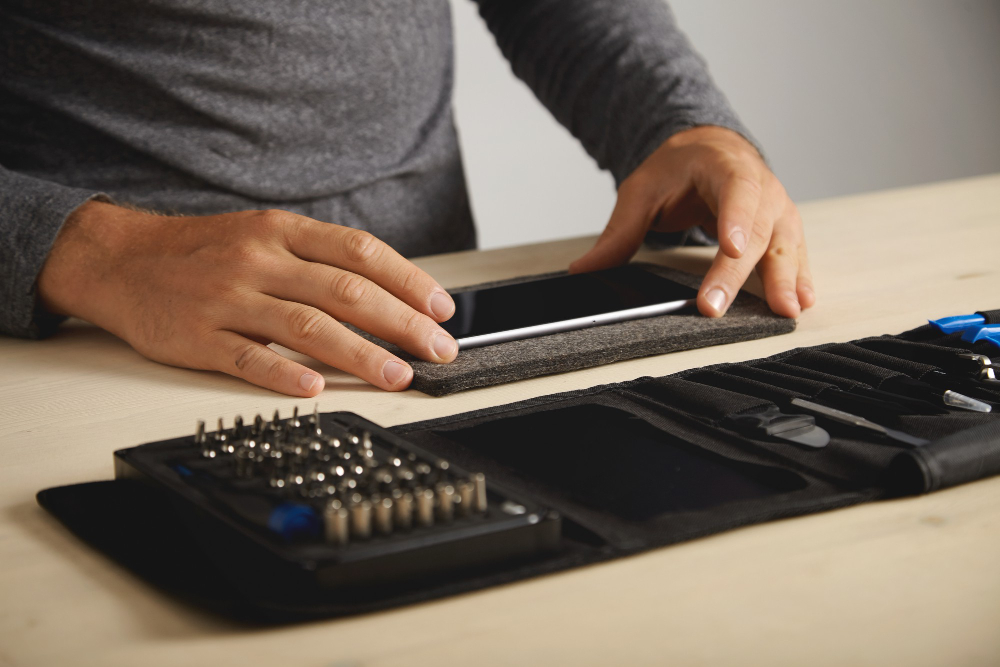
In the modern digital landscape, a malfunctioning smartphone is more than a minor inconvenience; it is a disruption to communication, productivity, and daily life. When a device begins to exhibit signs of failure—whether it is a frozen screen, unresponsive touch interface, or a boot loop—the immediate instinct for many users is to seek professional repair services. However, a significant portion of smartphone issues are software-related rather than hardware failures. These glitches can often be resolved using specialized repair software, saving both time and money. For beginners navigating this technical terrain, understanding the ecosystem of repair tools for iOS and Android is essential. This guide provides a comprehensive, objective analysis of the most effective software solutions, explaining their functionalities, limitations, and proper usage without relying on anecdotal fluff or fictional scenarios.
Understanding the Nature of Software Glitches
Before diving into specific tools, it is crucial to categorize the types of issues these programs address. Smartphone operating systems, whether Apple’s iOS or Google’s Android, are complex environments where code interacts with hardware drivers. Over time, corrupted system files, failed updates, or incompatible applications can cause the operating system to destabilize. Common symptoms include the device getting stuck on the manufacturer’s logo (boot loop), the screen remaining black despite the device being on, or the system becoming completely unresponsive to touch inputs.
Hardware diagnostics are distinct from software repairs. If a screen is physically cracked or a battery has swollen, no software tool can rectify the physical damage. However, when the hardware is intact but the software logic is compromised, repair utilities act as a bridge to reinstall or fix the operating system. These tools often leverage recovery modes built into the devices, such as DFU (Device Firmware Update) mode for iPhones or Download Mode for Samsung devices, to bypass the corrupted OS and inject fresh system files. Understanding this distinction prevents users from attempting software fixes on broken hardware, a common mistake that leads to unnecessary frustration. For a deeper technical understanding of how mobile operating systems handle boot processes, resources like the Android Open Source Project documentation provide invaluable insights into the underlying architecture.
The Landscape of iOS Repair Solutions
Apple’s iOS is known for its “walled garden” approach, which prioritizes security and stability but restricts third-party access to low-level system functions. Consequently, iOS repair software operates within specific boundaries defined by Apple’s protocols. These tools generally do not “hack” the device but rather utilize official Apple interfaces to restore firmware. The primary function of iOS repair software is to download the correct firmware version for a specific device model and reinstall it, often with an option to preserve user data.
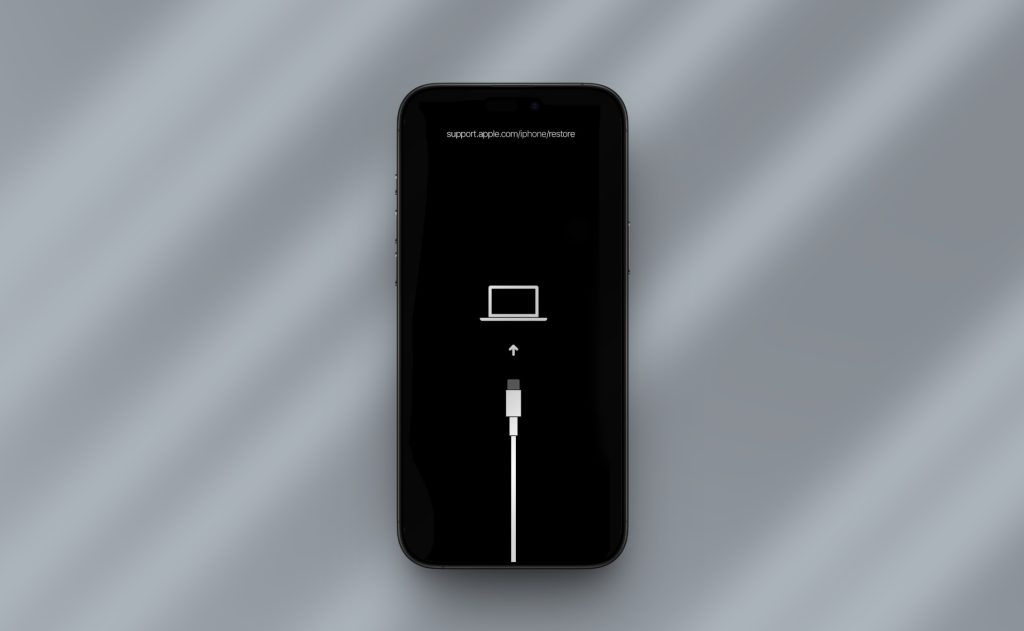
One of the most critical aspects of using iOS repair tools is identifying the correct firmware. Installing the wrong version can lead to further complications, including permanent device locking. Reputable software automatically detects the device model and suggests the appropriate signed firmware. Apple regularly stops “signing” older versions of iOS, meaning users cannot downgrade to previous versions once Apple closes the window. This mechanism ensures security but limits flexibility. Users must rely on tools that stay updated with Apple’s signing status. The Apple Support page on restoring iPhone, iPad, or iPod outlines the official methodology, which third-party tools aim to simplify for the average user.
Key Features to Look for in iOS Tools
When evaluating iOS repair software, several features distinguish high-quality tools from ineffective ones. First, the ability to enter and exit recovery modes with a single click is vital. Manually entering DFU mode requires precise button combinations that vary by model; a software error during this process can leave the device in a limbo state. Second, data preservation modes are essential. While a standard restore wipes all data, advanced tools offer “Standard Mode” repairs that attempt to fix the OS without deleting photos, messages, and apps. Finally, compatibility with the latest iOS versions is non-negotiable. As Apple releases updates, repair tools must quickly adapt to support new encryption methods and file structures.
Navigating Android Repair Ecosystems
The Android ecosystem presents a different set of challenges due to its fragmentation. Unlike iOS, which runs exclusively on Apple hardware, Android operates on thousands of device models from manufacturers like Samsung, Google, OnePlus, Xiaomi, and Motorola. Each manufacturer often implements custom user interfaces (such as One UI or MIUI) and unique bootloader protocols. Therefore, universal Android repair software must maintain an extensive database of device-specific drivers and firmware packages.
Android repair tools typically function by communicating with the device’s bootloader or download mode. For Samsung devices, this often involves the Odin protocol, a proprietary downloading tool originally intended for internal use but widely adopted by the repair community. For other brands, tools may utilize Fastboot or ADB (Android Debug Bridge) commands to flash system images. The complexity here lies in driver compatibility. If a computer does not recognize the specific USB drivers for a device, the repair software cannot establish a connection. This is a frequent point of failure for beginners. Ensuring that the correct USB drivers are installed is a prerequisite step often highlighted in technical guides from sources like the XDA Developers forums, a central hub for Android modification and repair knowledge.
The Role of Manufacturer-Specific Tools
While third-party universal tools offer convenience, manufacturer-specific utilities often provide more reliable results for their respective brands. Samsung’s Smart Switch, for instance, includes a feature specifically designed to recover devices that fail to start. Similarly, Google’s Pixel devices can often be repaired using the Android Flash Tool, a web-based utility provided directly by Google. These official tools are generally safer as they are endorsed by the manufacturers, reducing the risk of bricking the device. However, they may lack the broad compatibility of third-party suites that support dozens of brands in a single interface. For users with devices from less common manufacturers, third-party tools with extensive library support become necessary. Detailed information on using official manufacturer tools can often be found on the respective support pages, such as Samsung’s Smart Switch guide.
Top Software Solutions for Beginners
Selecting the right software depends on the specific device, the nature of the problem, and the user’s comfort level with technology. Several established tools have gained reputations for reliability, ease of use, and success rates. It is important to note that while many tools offer free scans or trials, the actual repair function usually requires a paid license. This business model allows users to verify that the software can detect their device before committing financially.
Comprehensive Multi-Platform Suites
Tools like Tenorshare ReiBoot, Dr.Fone – System Repair, and iMyFone Fixppo are prominent examples of multi-platform suites. These applications are designed with user-friendly interfaces that guide the user through the process step-by-step. They typically automate the detection of the device, the download of the firmware, and the installation process.
- Tenorshare ReiBoot is particularly noted for its ability to resolve various iOS stuck situations, such as recovery mode loops, with a high success rate. It supports both standard and deep repair modes.
- Dr.Fone – System Repair offers a broad range of services beyond just system repair, including data recovery and screen unlocking, making it a versatile toolkit. Its Android support covers a wide array of brands, though success varies by model.
- iMyFone Fixppo focuses heavily on preserving data during the repair process, a critical feature for users who have not maintained regular backups.
These tools simplify the technical complexities of flashing firmware. Instead of manually downloading firmware files from obscure sources and using command-line interfaces, the software handles the hashing, verification, and transmission of data. For users unfamiliar with technical jargon, this automation is invaluable. Reviews and comparisons of these tools are frequently updated on tech authority sites like Tom’s Guide, which provides independent testing and analysis of software capabilities.
Specialized Tools for Advanced Scenarios
For scenarios where general suites fail, specialized tools may be required. For Android users, tools like Odin (specifically for Samsung) or SP Flash Tool (for MediaTek-based devices) offer granular control. These tools are more complex and carry higher risks if used incorrectly, but they are often the only solution for deeply corrupted systems. Using SP Flash Tool, for example, requires loading a “scatter file” that maps the memory partitions of the device. An error in this process can overwrite critical bootloaders, rendering the device unusable. Therefore, these tools are recommended only for users who have thoroughly researched their specific device model. Documentation for such tools is often community-driven, with detailed tutorials available on platforms like GSM Forum, where technicians share specific configurations and troubleshooting steps.
Step-by-Step Tutorial: Executing a Software Repair
Executing a repair follows a logical sequence that applies to most software tools. Adhering to this workflow minimizes the risk of errors and maximizes the chance of a successful recovery.
Step 1: Preparation and Backup
Before initiating any repair, it is imperative to attempt a backup if the device is still partially accessible. If the device is completely unresponsive, this step may be skipped, but users should be aware that “Deep Repair” or “Advanced Mode” options will erase all data. Ensure the computer has a stable internet connection, as firmware files can range from 2GB to 6GB in size. Additionally, use a high-quality original USB cable; cheap third-party cables often lack the data transfer lines required for communication, leading to connection failures.
Step 2: Installation and Device Detection
Download the chosen repair software from its official website to avoid malware-infected counterfeit versions. Install the software and launch it. Connect the device to the computer. If the device is unresponsive, the software will usually prompt the user to enter a specific mode (Recovery, DFU, or Download Mode). The software interface typically provides visual instructions on which buttons to press. Once the device is in the correct mode, the software should detect it and display the model number and current OS version.
Step 3: Firmware Selection and Download
The software will present a list of available firmware versions compatible with the device. It is generally advisable to select the latest version unless there is a specific reason to downgrade (which may not be possible if Apple or the manufacturer has stopped signing older versions). Verify the device model carefully; selecting firmware for a similar but different model can brick the device. Initiate the download. This process may take time depending on internet speed. Reputable tools verify the integrity of the downloaded file using checksums to ensure it is not corrupted.
Step 4: The Repair Process
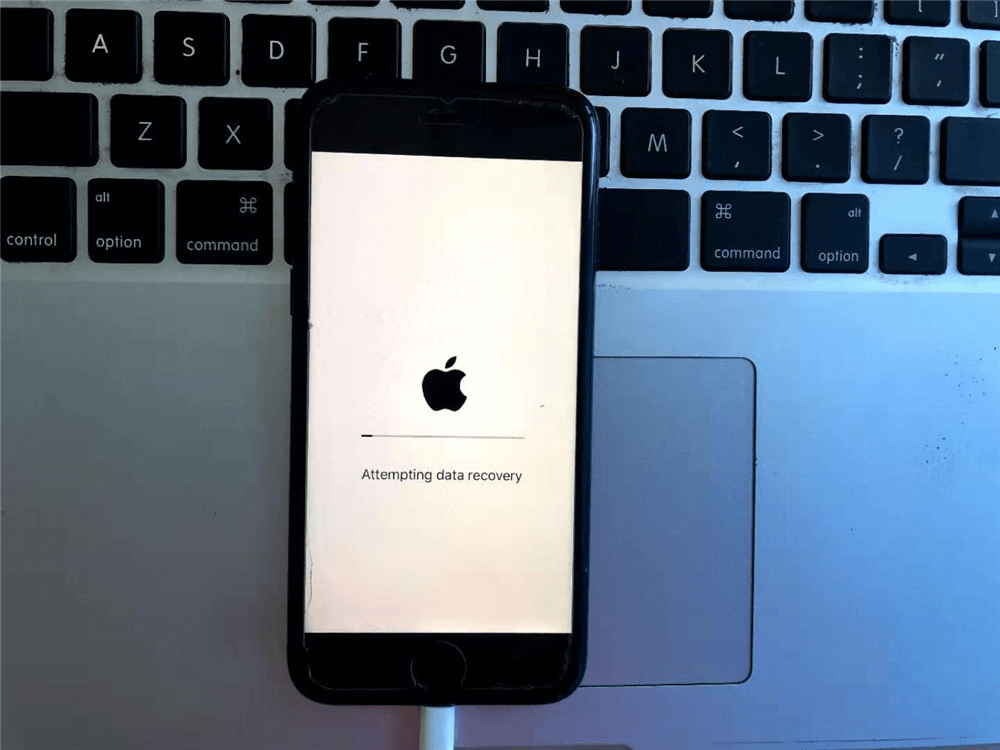
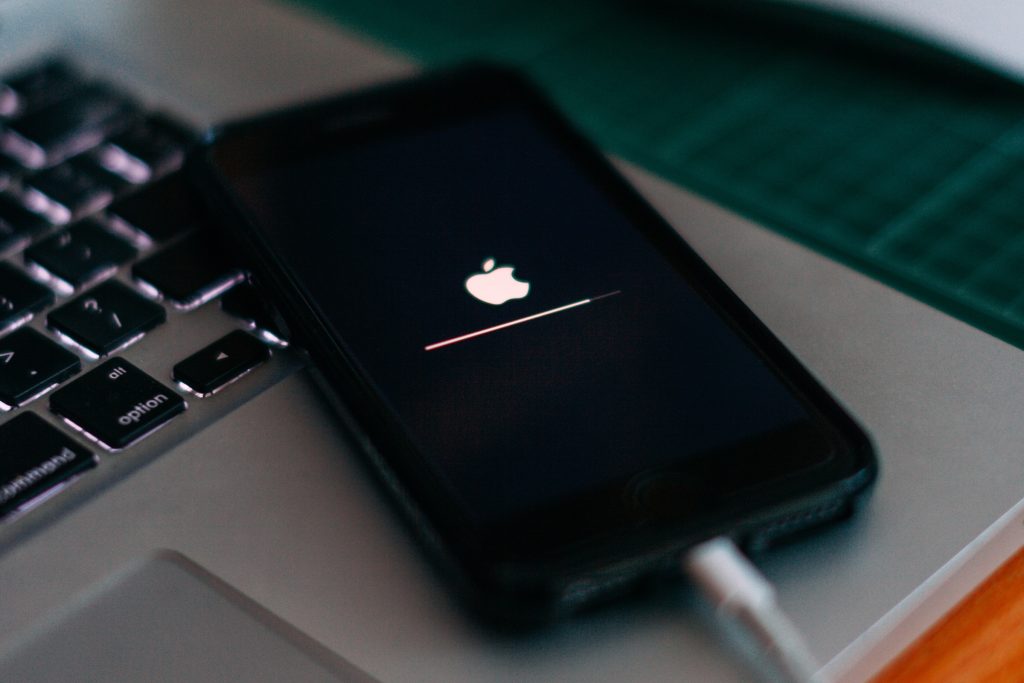
Once the firmware is downloaded, click the “Repair” or “Start” button. The software will begin flashing the new system files onto the device. During this phase, the progress bar on the computer screen will advance, and the device screen may show logos or progress indicators. Crucially, do not disconnect the USB cable or interrupt the computer during this process. An interruption can corrupt the write process, potentially causing permanent hardware-level damage. The process typically takes 5 to 10 minutes.
Step 5: Completion and Verification
Upon completion, the software will notify the user, and the device will reboot automatically. The first boot after a repair may take longer than usual as the system optimizes applications and rebuilds caches. Once the device reaches the home screen or the initial setup wizard, the repair is considered successful. Users should then verify core functions such as calling, Wi-Fi connectivity, and touch responsiveness. For post-repair optimization tips, articles from CNET often provide checklists to ensure the device is running smoothly.
Comparative Analysis of Repair Tools
To assist in decision-making, the following table compares key attributes of popular repair solutions. This comparison highlights the trade-offs between ease of use, platform support, and data preservation capabilities.
| Feature | Tenorshare ReiBoot | Dr.Fone – System Repair | iMyFone Fixppo | Official Manufacturer Tools (e.g., Smart Switch) |
|---|---|---|---|---|
| Primary Platform | iOS & Android | iOS & Android | iOS & Android | Brand Specific (iOS or Android) |
| Ease of Use | High (One-click solutions) | High (Guided wizard) | High (Simplified interface) | Moderate (Requires manual setup) |
| Data Preservation | Yes (Standard Mode) | Yes (Standard Mode) | Yes (Standard Mode) | Limited (Often requires wipe) |
| Device Coverage | Broad (Major brands) | Very Broad (Includes older models) | Focused on popular models | Exclusive to brand devices |
| Cost | Paid License | Paid License | Paid License | Free |
| Success Rate | High for iOS loops | High for varied issues | High for iOS updates | Very High for supported devices |
| Technical Requirement | Low | Low | Low | Moderate to High |
This table illustrates that while third-party tools offer convenience and cross-platform support, official manufacturer tools remain the gold standard for safety and cost, provided the user’s device is supported. For mixed households or repair shops dealing with various brands, a licensed third-party suite often provides better overall value. Further comparative analysis and user reviews can be explored on trusted tech review sites like PCMag, which rigorously test software performance under different conditions.
Risk Management and Safety Precautions
Despite the effectiveness of repair software, risks exist. The most significant risk is “bricking” the device, rendering it permanently unusable. This usually occurs due to interrupted power, incorrect firmware selection, or using unreliable software. To mitigate these risks, users should always verify the source of the software. Downloading cracked or pirated versions from unofficial forums increases the likelihood of malware infection and software instability.
Another consideration is data privacy. When using third-party software, users entrust their device connection to an external application. While reputable companies adhere to strict privacy policies, it is prudent to review the terms of service. Avoid tools that request unnecessary permissions or upload personal data to cloud servers without consent. Trustworthy software providers are transparent about their data handling practices. For guidelines on digital safety and software verification, the Electronic Frontier Foundation (EFF) offers resources on maintaining privacy and security when using third-party tools.
Furthermore, users must recognize the limits of software repair. If a device has suffered water damage, physical impact, or component failure, software tools will not work. Persisting with software fixes in these scenarios wastes time and may exacerbate hardware issues. In cases where software repair fails repeatedly, seeking professional hardware diagnostics is the logical next step.
Maximizing Success Rates: Expert Tips
Experience in device repair suggests several best practices that increase the likelihood of a successful outcome. First, always use a direct USB connection to the computer’s motherboard ports (typically rear ports on desktops) rather than USB hubs or front panel ports, which may not provide sufficient power or stable data transfer rates. Second, disable antivirus software temporarily during the repair process. While counterintuitive, aggressive antivirus programs sometimes flag the low-level drivers used by repair tools as suspicious, interrupting the flashing process. Remember to re-enable protection immediately after the repair is complete.
Keeping the computer’s operating system updated is also beneficial. Outdated USB drivers or OS conflicts on the host computer can prevent the repair software from communicating effectively with the mobile device. For Windows users, ensuring the latest chipset drivers are installed from the motherboard manufacturer’s website can resolve many connection issues. Additionally, closing unnecessary background applications on the computer frees up system resources, ensuring the repair process runs without interruption. For troubleshooting connection issues, Microsoft’s support documentation on USB troubleshooting provides foundational steps that apply to mobile device connections as well.
Frequently Asked Questions (FAQ)
Q1: Will using repair software void my warranty?
Generally, using software to restore the operating system to its factory state does not void the warranty, as it returns the device to a standard configuration. However, if the repair process involves jailbreaking (iOS) or rooting (Android), this will almost certainly void the warranty. Most standard repair modes in reputable software do not perform these actions; they simply reinstall the official firmware. It is always advisable to check the specific warranty terms of the device manufacturer.
Q2: Can I recover my data after using the “Advanced” or “Deep” repair mode?
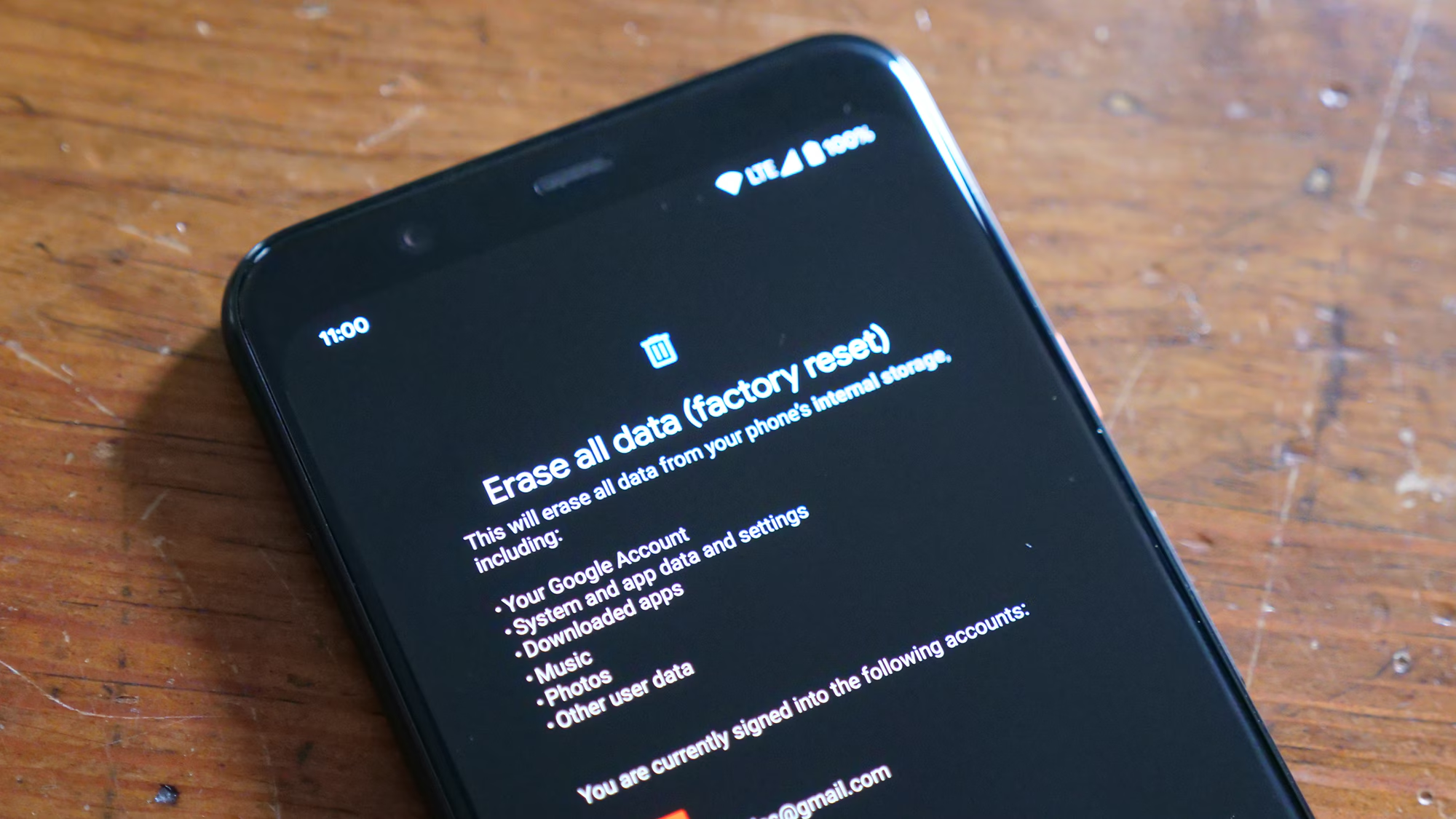
No. Advanced or Deep repair modes are designed to completely wipe the device and reinstall the operating system from scratch to resolve deep-seated corruption. This process erases all user data, including photos, contacts, and apps. Data recovery is only possible if a backup exists (via iCloud, Google Drive, or local computer backups) or if the “Standard” repair mode was successful.
Q3: What should I do if the software gets stuck during the firmware download?
If the download stalls, check the internet connection and firewall settings. Sometimes, switching to a different network or disabling a VPN can resolve the issue. Most tools allow resuming the download. If the problem persists, try clearing the software’s cache or reinstalling the application. Ensure there is sufficient storage space on the computer for the firmware file.
Q4: Is it safe to use free versions of these repair tools?
Most “free” versions of repair software are limited to scanning the device or fixing very minor issues. They often require payment to execute the actual repair. Be cautious of completely free tools found on unofficial sites, as they may contain malware or adware. Stick to well-known vendors that offer a free trial to detect the issue before purchasing.
Q5: My device is stuck in a boot loop after an update. Which mode should I use?
For a boot loop caused by an update, start with the “Standard” or “Normal” repair mode. This attempts to fix the system files without erasing data. If the standard mode fails to resolve the loop, the “Advanced” mode becomes necessary, though this will result in data loss. Always attempt the non-destructive method first.
Q6: Can these tools fix hardware issues like a broken screen or battery?
No. Repair software is strictly for software-related issues such as OS corruption, boot loops, and frozen screens. Physical hardware damage requires component replacement by a qualified technician. Attempting to fix hardware issues with software will yield no results.
Q7: How long does the repair process typically take?
The duration depends on the internet speed (for firmware download) and the device model. The download can take anywhere from 10 minutes to an hour. The actual flashing and repair process usually takes between 5 to 15 minutes. The total time rarely exceeds 90 minutes under normal conditions.
Q8: What if the software doesn’t recognize my device?
This is commonly a driver issue. Try using a different USB cable, connecting to a different USB port, or restarting both the computer and the device. Ensure the correct drivers for the specific device brand are installed on the computer. On Windows, checking the Device Manager for unrecognized devices can help diagnose driver failures.
Conclusion
Navigating the world of iOS and Android repair software requires a blend of caution, preparation, and the right tools. While the prospect of fixing a malfunctioning smartphone independently may seem daunting to a beginner, modern software solutions have significantly democratized this process. By automating complex tasks like firmware matching and mode entry, these tools empower users to resolve common software glitches that previously necessitated expensive professional intervention.
The key to success lies in understanding the distinction between hardware and software failures, selecting reputable tools that align with the specific device ecosystem, and adhering to a disciplined workflow. Whether utilizing a comprehensive third-party suite for its versatility or relying on official manufacturer utilities for their safety, users can effectively restore their devices to full functionality. The integration of data preservation modes in many modern tools further reduces the stakes, offering a safety net for valuable personal information.
As mobile technology continues to evolve, so too will the methods for diagnosing and repairing these devices. Staying informed through authoritative sources and approaching the repair process with a methodical mindset ensures that users can maintain their digital lifelines with confidence. Ultimately, the ability to troubleshoot and repair software issues is a valuable skill in the digital age, fostering self-reliance and extending the lifespan of essential technology. By leveraging the resources and strategies outlined in this guide, beginners can transform a moment of technological crisis into a manageable, solvable challenge.