Losing access to a smartphone due to a forgotten pattern lock is a frequent and stressful scenario for Android users. The pattern lock, designed as a convenient yet secure alternative to PINs and passwords, relies on muscle memory. When that memory fails, the device becomes a locked vault. Historically, the only guaranteed solution was a factory reset, a process that wipes all user data, including photos, contacts, messages, and app data. However, the landscape of Android security and recovery has evolved. While modern security protocols have tightened to prevent unauthorized access, specific scenarios still exist where a user can regain entry without erasing their digital life. Understanding the nuances of Android versions, manufacturer-specific features, and cloud-based recovery options is essential for navigating this challenge effectively.
The Evolution of Android Lock Screen Security
To understand why unlocking a phone without a reset is difficult today, one must look at how Android security has matured over the last decade. Early versions of Android relied on less rigorous encryption standards, allowing third-party tools and specific ADB (Android Debug Bridge) commands to bypass lock screens with relative ease. As mobile devices became the primary repository for sensitive personal and financial information, Google implemented Full Disk Encryption (FDE) and later File-Based Encryption (FBE). These technologies tie the decryption key directly to the user’s lock screen credential. Without the correct pattern, PIN, or password, the data remains mathematically inaccessible, not just hidden. This shift means that any method claiming to “bypass” the lock on modern devices without the credential is often misleading unless it leverages a specific backdoor provided by the manufacturer or a cloud service.
The Android Security Bulletin published monthly by Google details the patches and enhancements made to close these loopholes. For the average user, this evolution means that the “one-size-fits-all” software solutions found in older tutorials are largely obsolete for devices running Android 10 and above. The operating system is designed to resist brute-force attacks and unauthorized flashing of recovery partitions. Consequently, legitimate recovery methods now rely heavily on pre-established trust relationships between the device, the user’s Google account, or the device manufacturer’s ecosystem. Recognizing which tier of security a specific device operates under is the first step in determining the viability of a non-destructive unlock.
Leveraging Google’s Find My Device Ecosystem
For many users, the most reliable path to regaining access without data loss lies within the native integration of Google services. Historically, the “Find My Device” network allowed users to remotely set a new password or PIN for a locked device, effectively overriding the forgotten pattern. While Google has refined this feature over time, its functionality depends heavily on the device’s state prior to being locked. For the remote command to work, the phone must be powered on, connected to the internet (via mobile data or Wi-Fi), and have location services enabled. Furthermore, the user must be signed into the Google account that is currently active on the device.
When these conditions are met, visiting the Google Find My Device portal from a computer or another mobile device provides a dashboard of options. The interface typically displays the device’s location, along with actions such as “Play Sound,” “Secure Device,” and “Erase Device.” In previous iterations of Android, the “Secure Device” function explicitly allowed the setting of a new temporary password. On newer versions, while the direct pattern override has been restricted for security reasons, the feature sometimes allows the display of a recovery message or phone number on the lock screen, which can be crucial if the device is in the possession of a finder rather than simply misplaced. However, in specific enterprise-managed environments or on devices with certain legacy configurations, the remote credential reset may still function. It is imperative to check the specific capabilities listed on the support page for the current version of Android running on the target device, as documented in the Google Account Help center.
It is also worth noting that the efficacy of this method varies by manufacturer skin. Some OEMs (Original Equipment Manufacturers) integrate deeper with Google’s APIs, while others prioritize their own proprietary solutions. If the standard Google portal does not offer a credential reset option, it indicates that the device’s security policy, aligned with the latest Android Enterprise recommendations, prevents remote overrides to protect against theft. In such cases, the user must pivot to manufacturer-specific ecosystems or local recovery methods.
Manufacturer-Specific Cloud Solutions: Samsung and Beyond
While Google provides the baseline security framework, several major manufacturers have built robust, proprietary ecosystems that offer more flexible recovery options. Samsung, the largest Android manufacturer, is a prime example of this enhanced functionality through its “Find My Mobile” service. Unlike the generic Google solution, Samsung’s implementation is deeply integrated into the device’s firmware, allowing for granular control even when the screen is locked. Users who have previously set up a Samsung Account on their Galaxy device and enabled the “Remote Unlock” feature possess a significant advantage.
By accessing the Samsung Find My Mobile portal, a user can log in with their Samsung credentials. Once authenticated, the dashboard presents a suite of tools that often surpass Google’s native offerings. The “Unlock” feature here is designed specifically to remove the screen lock type—be it a pattern, PIN, password, or fingerprint—without triggering a factory reset. This process works by pushing a command to the device that clears the lock screen configuration file, provided the device is online. This capability is particularly valuable because it bypasses the encryption barrier that usually necessitates a wipe, as the authentication is handled via the trusted Samsung server handshake. Detailed instructions and compatibility lists are maintained on the Samsung Members site, which outlines which Galaxy models and One UI versions support this feature.
Other manufacturers have attempted similar solutions, though with varying degrees of success and availability. Xiaomi’s “Mi Cloud,” Huawei’s “Cloud” services (prior to US trade restrictions affecting Google Mobile Services), and Oppo’s “HeyTap Cloud” all offer variations of remote locking and unlocking. However, the reliability of these services often depends on regional availability and the specific version of the custom Android skin (MIUI, EMUI, ColorOS). Users should consult their specific manufacturer’s support documentation, such as the Xiaomi Support or Oppo Support portals, to verify if remote unlock is a supported feature for their specific model. It is critical to emphasize that these services only work if the user had the foresight to create an account and enable the feature before the lockout occurred. There is no post-hoc method to enable these services on a locked device.
The Role of Smart Lock and Trusted Environments
Another avenue for regaining access without a reset involves features designed for convenience rather than recovery: Smart Lock. Introduced to reduce the friction of constantly entering a pattern, Smart Lock allows a device to remain unlocked in specific, trusted scenarios. While this feature cannot retroactively unlock a phone that is currently secured, it provides a potential workaround if the device can be maneuvered into a trusted state. Smart Lock categories include “On-body detection,” “Trusted places,” “Trusted devices,” and “Face recognition” (on older models).
If a user previously configured a “Trusted place” (such as their home address) or a “Trusted device” (like a smartwatch, Bluetooth headset, or car audio system), bringing the locked phone into that environment or connecting it to that device might automatically disable the lock screen requirement. For instance, if a smartwatch is paired and recognized as a trusted device, keeping the watch nearby while restarting the phone or waking the screen could allow the user to swipe past the lock screen without entering the pattern. This behavior is documented in the Android Safety and Security guidelines. It is a passive recovery method that relies entirely on pre-configured settings.
However, reliance on Smart Lock carries inherent risks. Security researchers have demonstrated vulnerabilities in on-body detection and trusted face recognition in the past, leading Google to deprecate some of these options in newer Android versions. The Android Developers Blog has noted shifts in how biometric and proximity-based unlocking is handled to prevent spoofing. Consequently, while checking for a connected Bluetooth device or moving to a trusted location is a harmless troubleshooting step, it is not a guaranteed solution for modern devices running the latest security patches. Users should view this as a low-probability, high-reward attempt rather than a primary recovery strategy.
Analyzing Third-Party Software Claims and Risks
A search for “unlock Android without reset” yields countless results promoting third-party desktop software. These tools often claim to use advanced algorithms to bypass lock screens across all major brands. It is vital to approach these claims with extreme skepticism and a clear understanding of the technical limitations imposed by modern encryption. Most legitimate software in this category functions by exploiting specific bugs in older Android versions or by leveraging manufacturer engineering modes that were left accessible. For devices running recent versions of Android with up-to-date security patches, these tools frequently fail to bypass the lock and instead default to performing a factory reset, contradicting their marketing promises.
Reputable technology analysis sites like Android Authority and XDA Developers regularly test and review these utilities. Their consensus generally indicates that while some tools work on legacy devices (Android 6.0 through 9.0), their success rate drops precipitously on Android 10 and newer. The fundamental issue is the encryption key derivation; without the user’s pattern, the key cannot be generated, and no external software can mathematically derive it without brute-forcing, which is computationally infeasible. Furthermore, downloading and running unknown executables to interact with a mobile device poses significant security risks, including malware infection and data theft.
There are exceptions where specialized forensic tools used by law enforcement can bypass locks, but these are not available to the general public and often require physical hardware interfaces. For the consumer market, the “magic button” software is largely a myth for modern hardware. Users should verify any software claims against independent reviews on trusted tech journalism platforms like CNET or Tom’s Guide before attempting to use them. In many cases, the “unlock” achieved by these programs is actually a removal of the lock screen file on unencrypted or lightly encrypted systems, a vulnerability that has been systematically patched out. Relying on such tools can waste valuable time during which the device might run out of battery, rendering even cloud-based recovery impossible.
The Reality of Factory Reset as a Last Resort
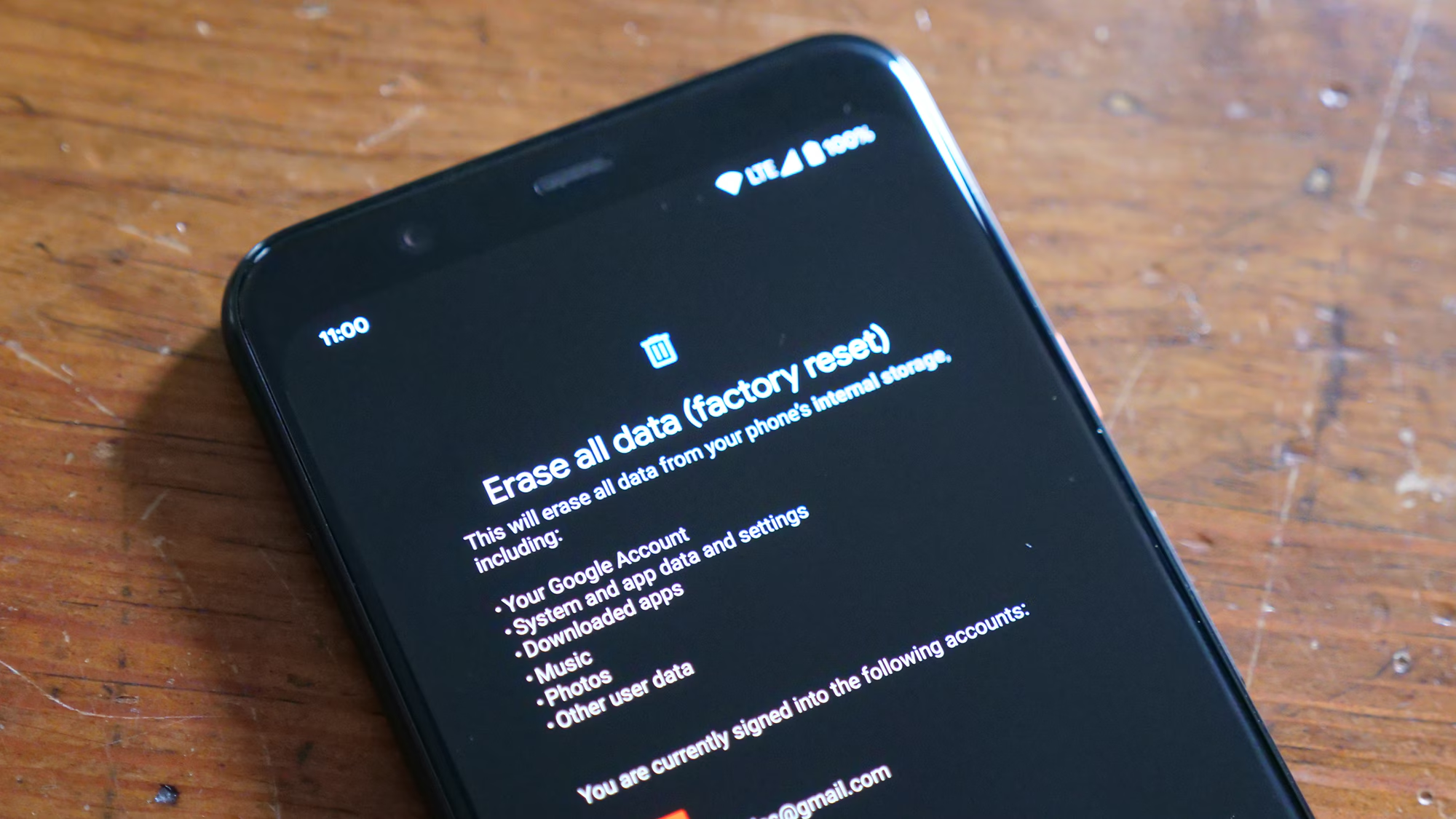
Despite the various methods explored, there remains a significant probability that a forgotten pattern cannot be removed without erasing data. This is not a failure of the user or the tools, but a deliberate design choice to ensure that a stolen phone remains useless to the thief. If the device is offline, lacks a pre-configured manufacturer account, and runs a modern, encrypted version of Android, the data inside is effectively lost without the credential. In these instances, performing a factory reset is the only way to regain usability of the hardware.
A factory reset can typically be initiated via the Recovery Mode, accessed by pressing a specific combination of hardware buttons (usually Power and Volume Up/Down) during boot. This process wipes the /data partition, removing the lock screen configuration and all user files. While this restores the phone to a usable state, it underscores the critical importance of regular backups. Google’s native backup system, which saves app data, call history, contacts, and settings to the cloud, can mitigate the loss significantly. Photos and videos, if synced to Google Photos, remain safe regardless of the device’s status. Users are encouraged to verify their backup status regularly in the device settings under the “System” or “Google” menu, ensuring that the “Backup by Google One” feature is active.
The decision to reset should be weighed against the value of the data on the device versus the cost of the hardware. If the data is irreplaceable and no cloud backup exists, some users opt to seek professional data recovery services. However, due to the strength of modern encryption, even professional services often cannot retrieve data from a locked, encrypted Android device without the key. The National Institute of Standards and Technology (NIST) guidelines on mobile device security reinforce that strong encryption is intended to make data unrecoverable without authentication. Therefore, prevention through backup and password management is the only true safeguard against permanent data loss.
Comparative Analysis of Unlock Methods
To provide a clear overview of the available options, the following table compares the efficacy, requirements, and data safety of the primary methods discussed. This comparison helps users quickly identify which path is viable based on their specific device configuration and circumstances.
| Method | Data Preservation | Prerequisites | Compatibility | Success Probability |
|---|---|---|---|---|
| Google Find My Device | High (if reset not triggered) | Internet connection, Google Account login, Location enabled | All Android devices with Google Play Services | Low to Medium (Dependent on Android version) |
| Samsung Find My Mobile | 100% | Internet connection, Samsung Account, “Remote Unlock” enabled | Samsung Galaxy devices only | Very High (If pre-configured) |
| Smart Lock (Trusted Env.) | 100% | Pre-configured Trusted Place/Device, Bluetooth/Wi-Fi active | Devices running Android 5.0 – 14 (Feature varies) | Low ( situational) |
| Third-Party Software | Variable (Often Low) | USB Debugging (sometimes), Specific OS bugs | Mostly Legacy Android (Pre-Android 10) | Very Low (Modern Devices) |
| Factory Reset (Recovery) | 0% (Total Loss) | Physical access to device buttons | All Android devices | 100% (Restores Access, Loses Data) |
This table illustrates that the preservation of data is inextricably linked to pre-event preparation. Methods that guarantee data retention, such as Samsung’s remote unlock, require active setup before the lockout occurs. Conversely, methods that require no prior setup, like a factory reset, guarantee access but result in total data loss. The middle ground, occupied by Google’s native tools and Smart Lock, offers potential data retention but relies on specific environmental factors and OS versions that are increasingly restrictive.
Preventive Measures and Best Practices for the Future
The frustration of a locked device serves as a potent reminder of the importance of proactive security management. To avoid facing this dilemma in the future, users should adopt a multi-layered approach to credential management and data protection. First and foremost, enabling cloud-based recovery services is non-negotiable. Whether it is a Google Account or a manufacturer-specific account like Samsung or Xiaomi, ensuring that “Find My Device” and “Remote Unlock” features are toggled on provides a safety net that costs nothing but offers immense value in a crisis.
Secondly, the practice of recording backup codes or writing down patterns and PINs in a secure location cannot be overstated. Password managers, such as those integrated into Chrome or standalone applications like Bitwarden or 1Password, can securely store these credentials alongside other sensitive data. These tools often have auto-fill capabilities that can sync across devices, ensuring that if a phone is locked, the credential is accessible from a laptop or tablet. Additionally, users should regularly test their backup integrity. Restoring a photo or contact from the cloud to a different device verifies that the synchronization process is functioning correctly.
Biometric authentication, while convenient, should not be the sole method of entry. Fingerprint and face unlock sensors can fail due to injury, dirt, or lighting conditions, forcing a fallback to the pattern or PIN. If that secondary credential is forgotten, the biometric setup offers no recovery path. Therefore, maintaining a memorable yet complex alphanumeric password as a backup to the pattern is a prudent strategy. Finally, keeping the device’s operating system updated ensures that the latest security patches and recovery features are available, although users should remain aware that updates can sometimes close older bypass loopholes.
Frequently Asked Questions
Q: Can I unlock my Android phone without losing data if I didn’t set up a Samsung or Google account?
A: Unfortunately, if no cloud account was associated with the device and features like “Find My Mobile” or “Remote Unlock” were not enabled prior to the lockout, the options for unlocking without data loss are extremely limited. Modern Android encryption prevents unauthorized access to the data partition. Without a pre-established trust relationship with a cloud service, the only remaining method to regain access to the device is a factory reset, which will erase all user data.
Q: Does removing the SIM card help in unlocking the pattern?
A: No, removing the SIM card has no effect on the screen lock mechanism. The pattern lock is stored locally on the device’s internal storage and is tied to the device’s encryption keys, not the cellular network or the SIM card. While removing the SIM might prevent the phone from using mobile data (which could hinder remote unlock attempts via Find My Device), it does not facilitate bypassing the lock itself.
Q: Are there any universal codes or dialer secrets to reset the pattern?
A: There are no universal dialer codes that can reset a forgotten pattern lock on modern Android devices. Codes that circulated in the early days of Android (such as *#*#7780#*#*) generally performed factory resets or required the existing lock screen credential to authorize the action. Relying on such codes found on unofficial forums can lead to accidental data loss or device instability.
Q: Will waiting for the battery to die unlock the phone?
A: No, allowing the battery to drain completely will not unlock the phone. When the device is recharged and powered on, it will return to the locked state. In fact, letting the battery die can be counterproductive if the user intends to use cloud-based recovery methods like Find My Device, which require the phone to be powered on and connected to the internet to receive the unlock command.
Q: Can ADB (Android Debug Bridge) be used to delete the gesture.key file?
A: This method only works if “USB Debugging” was explicitly enabled in the Developer Options before the phone was locked. If USB Debugging was off, the computer cannot establish an authorized connection with the device to execute commands. Furthermore, on devices with Full Disk Encryption or File-Based Encryption, deleting the gesture.key file may not be sufficient to bypass the lock, as the encryption key is derived from the pattern itself.
Q: Is it possible to unlock a phone if the screen is broken and I forgot the pattern?
A: If the screen is broken but the touch digitizer still partially functions, connecting a USB OTG (On-The-Go) mouse might allow the user to draw the pattern blindly. However, if the pattern is forgotten, this does not help. If the screen is completely black or unresponsive, and USB Debugging was not enabled, recovering data or unlocking the device is nearly impossible without professional intervention, and even then, data recovery is unlikely due to encryption.
Q: Do factory reset protection (FRP) locks appear after resetting the phone?
A: Yes. After performing a factory reset to remove a forgotten pattern, the device will trigger Factory Reset Protection (FRP). This security feature requires the user to sign in with the last Google account that was synced to the device before the reset. This prevents thieves from wiping and reselling stolen phones. Users must remember their Google email and password to complete the setup after a reset.
Q: How often should I back up my Android device to prevent data loss?
A: It is recommended to enable automatic daily or weekly backups for critical data like contacts, messages, and app data via Google One. Media files such as photos and videos should be set to sync instantly or daily with Google Photos or a similar cloud service. Regularly verifying these backups ensures that in the event of a forced factory reset, the restoration process is seamless and minimal data is lost.
Conclusion
Navigating the predicament of a forgotten Android pattern lock reveals the intricate balance between user convenience and robust security. The journey to unlock a device without a factory reset is not a linear path but a series of conditional possibilities dependent on prior preparation, device manufacturer, and software version. While the dream of a universal “master key” persists in popular culture, the reality of modern mobile security dictates that access is granted only through verified identity—either via the correct pattern, a trusted cloud account, or a pre-authorized manufacturer service.
The methods that successfully preserve data, such as Samsung’s Find My Mobile or specific Google account interventions, highlight the importance of an interconnected digital ecosystem. They serve not just as convenience features but as critical lifelines in moments of access loss. Conversely, the limitations of these tools on unconfigured or legacy-free devices underscore the unforgiving nature of encryption designed to protect user privacy. For the vast majority of users, the inability to bypass the lock without a reset is a feature, not a bug; it ensures that a lost or stolen device remains a brick to anyone lacking the proper credentials.
Moving forward, the lesson is clear: security configurations must be proactive, not reactive. Enabling remote management features, maintaining up-to-date cloud backups, and utilizing password managers are essential habits for any smartphone owner. These steps transform a potential catastrophe of data loss into a manageable inconvenience. While the technology continues to evolve, with biometrics and behavioral analysis potentially reshaping how we authenticate in the future, the fundamental principle remains unchanged. Access to our digital lives is guarded by keys we must keep safe, and in the absence of those keys, the fortress is designed to hold firm. By understanding the capabilities and limitations of current recovery methods, users can better prepare themselves, ensuring that their data remains secure yet recoverable in the face of human error.