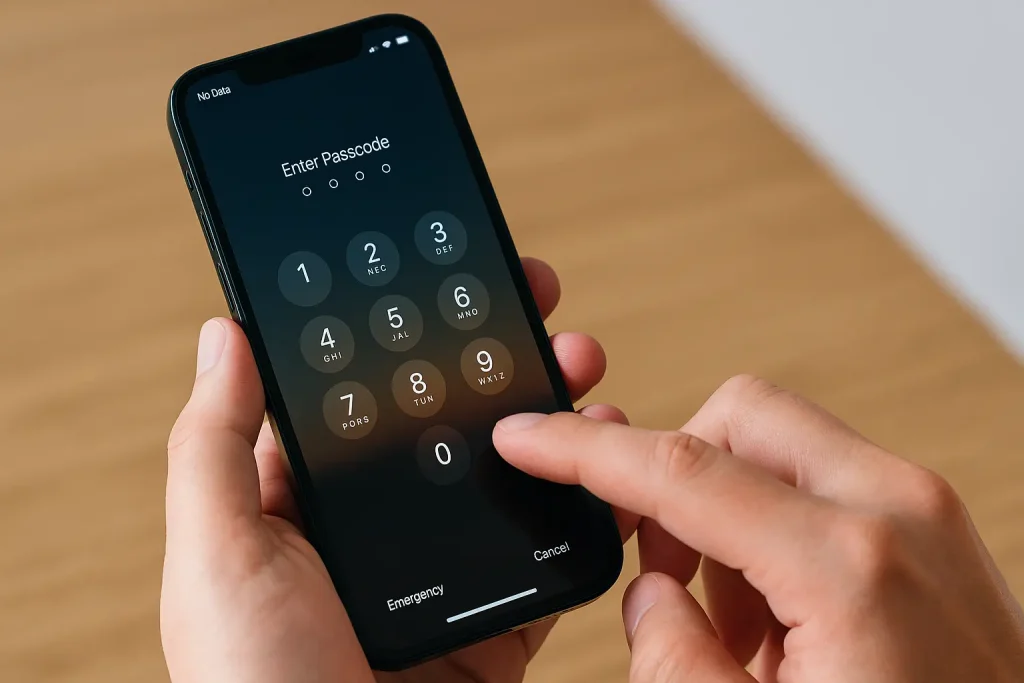
Losing access to an iPhone due to a forgotten passcode is a scenario that induces immediate frustration for users across the globe. The device, designed to be a vault of personal data, communication, and financial tools, suddenly becomes an inaccessible brick. For years, the standard solution involved connecting the device to a computer with iTunes installed, a process that often proved cumbersome for those without immediate access to a Mac or PC, or for users whose computers did not recognize the disabled device. However, the landscape of device recovery has shifted significantly. Apple has integrated robust recovery mechanisms directly into the iOS ecosystem, allowing users to reset their devices without a computer in many scenarios. Furthermore, third-party enterprise solutions and specialized forensic tools have emerged to address edge cases where standard protocols fail. Understanding the hierarchy of these methods—from the native iCloud reset to advanced software interventions—is essential for anyone facing a locked screen.
The fundamental reality of iPhone security is that there is no “backdoor” to bypass a passcode while retaining data. The encryption architecture employed by Apple, specifically the hardware-based Data Protection class, ties the decryption key directly to the user’s passcode. When a passcode is entered incorrectly too many times, the device enters a disabled state to prevent brute-force attacks. Consequently, any method used to unlock the iPhone without the passcode will invariably result in a factory reset, erasing all content and settings. The primary goal, therefore, shifts from “bypassing” the code to “resetting” the device efficiently and then restoring data from a available backup. This distinction is critical for managing expectations and ensuring that users approach the problem with a clear understanding of the outcome: regaining use of the hardware is possible, but data recovery depends entirely on prior backup habits.
The Native Solution: Resetting via iCloud and Find My
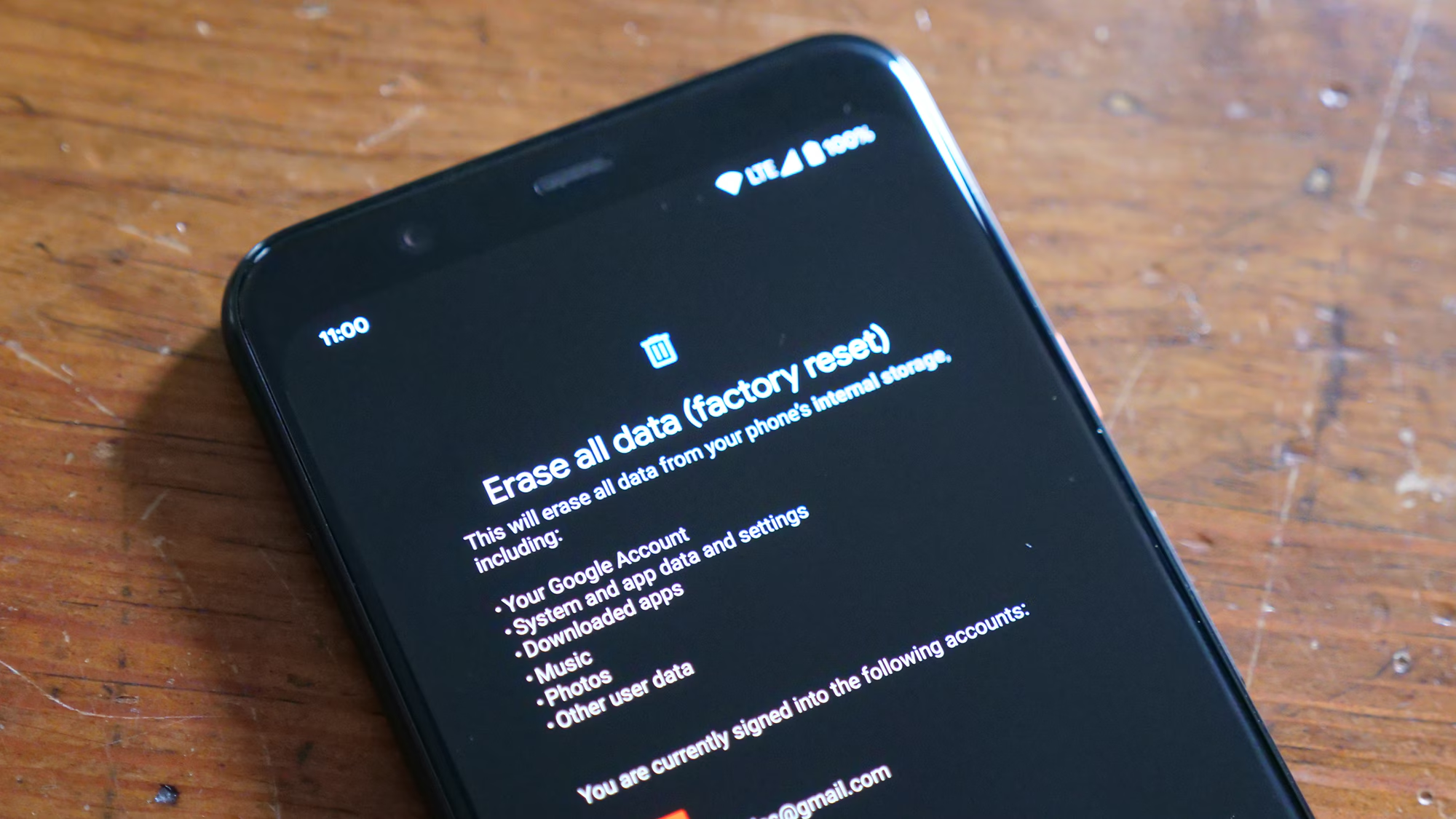
The most reliable and officially supported method for unlocking an iPhone without a passcode or a computer relies on the “Find My” network. Introduced as a feature to locate lost devices, this system has evolved into a comprehensive recovery tool. If the locked iPhone is connected to Wi-Fi or cellular data and has “Find My iPhone” enabled, it can be erased remotely, which simultaneously removes the passcode. This process does not require physical interaction with the device beyond confirming the erase command from another interface.
To initiate this, a user must access iCloud.com/find from a different smartphone, tablet, or computer. After logging in with the Apple ID associated with the locked device, the interface displays a map and a list of all devices linked to that account. Selecting the disabled iPhone reveals a menu of options, including “Play Sound,” “Lost Mode,” and “Erase iPhone.” Choosing the erase option sends a remote command to the device. Once the device receives this signal, it wipes all data, including the passcode, and reboots to the initial setup screen. It is important to note that this method requires the device to have an active internet connection; if the phone is offline, the command queues and executes the moment the device reconnects.
For users running iOS 15.2 or later, Apple introduced an even more direct on-device method that eliminates the need for a second device entirely. When an iPhone is disabled, a small “Erase iPhone” option appears in the bottom corner of the lock screen after several failed passcode attempts. Tapping this option prompts the user to enter their Apple ID password to sign out of the account and confirm the factory reset. This feature leverages the secure enclave within the device to authenticate the user via their Apple ID credentials rather than the device passcode. Detailed guidelines on how this security feature functions can be reviewed through Apple’s official support documentation on resetting a locked iPhone. This on-device capability represents a significant shift in user experience, reducing dependency on external hardware and streamlining the recovery process for the average consumer.
The efficacy of the iCloud method hinges on two prerequisites: the device must be signed into iCloud with Find My enabled, and the user must know the Apple ID password. If Find My was disabled prior to the lockout, this remote erase method will not function, necessitating alternative approaches. Furthermore, once the device is erased, the Activation Lock remains in place. This is a theft-deterrent feature that prevents anyone else from using the iPhone unless the original Apple ID and password are entered during the setup phase. This ensures that while the passcode is removed, the device cannot be hijacked by unauthorized individuals. Users concerned about the implications of Activation Lock can find further clarification in resources provided by consumer technology safety guides.
Computer-Assisted Recovery: Finder and iTunes Alternatives
While the iCloud method is convenient, situations arise where the device is offline, Find My is disabled, or the user prefers a wired connection for stability. In these instances, the traditional method involving a computer remains the gold standard. Historically, this required iTunes on Windows or older macOS versions, but modern Macs utilize the Finder application. The underlying mechanism, however, is identical: placing the iPhone into Recovery Mode to force a communication handshake with the computer that bypasses the normal boot sequence.
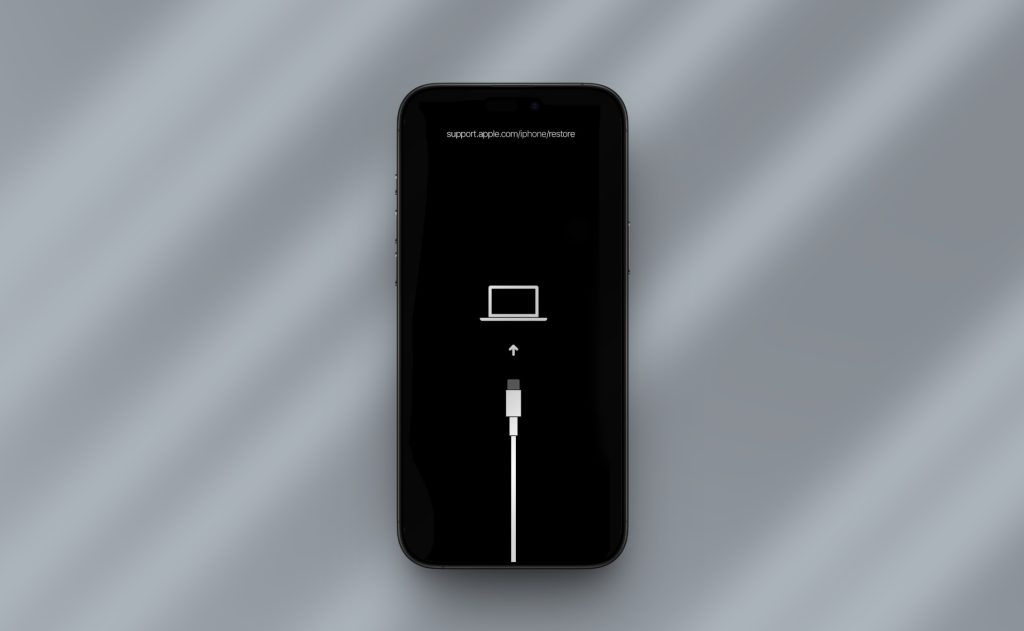
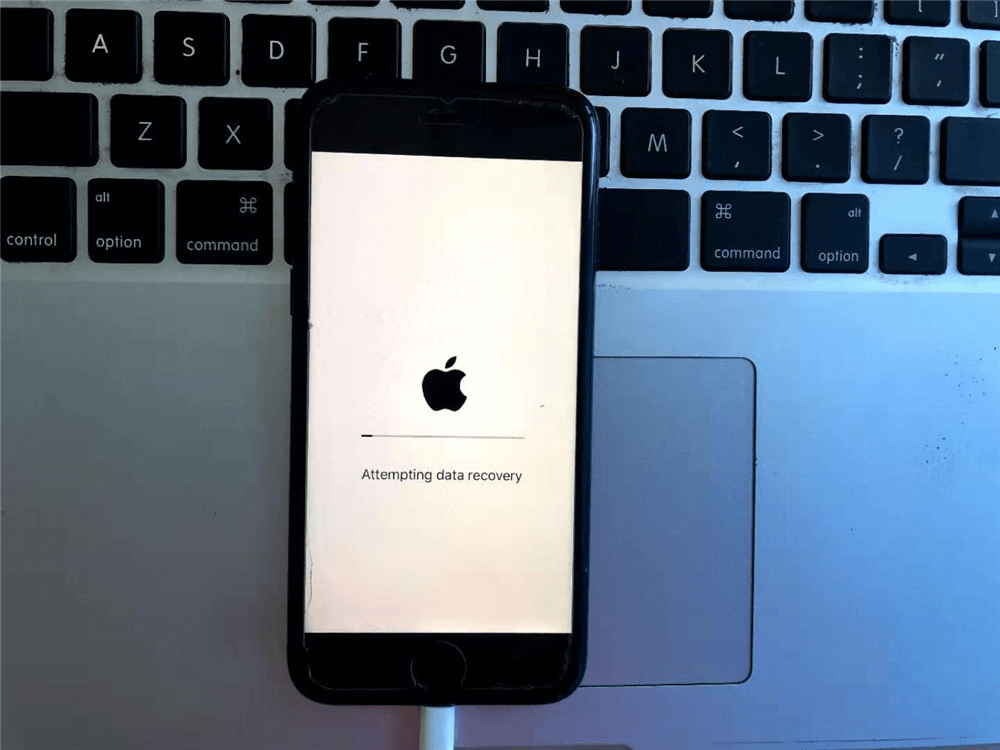
Entering Recovery Mode varies slightly depending on the iPhone model. For iPhone 8, iPhone X, and later models, the process involves quickly pressing and releasing the Volume Up button, then the Volume Down button, and finally holding the Side button until the recovery mode screen appears—a graphic depicting a cable pointing toward a computer. For iPhone 7 and 7 Plus, the Volume Down and Side buttons are held simultaneously. Older models with Home buttons require holding the Home and Top (or Side) buttons. Once the device is in this state, connecting it to a computer running the latest version of macOS or iTunes triggers a prompt to either “Update” or “Restore.” Since the goal is to remove a forgotten passcode, the “Restore” option is the necessary choice. This action downloads the latest iOS firmware and installs it on the device, wiping the existing data and passcode in the process.
The computer-assisted method is particularly valuable when dealing with devices that have severe software corruption alongside the passcode issue. Because the firmware is downloaded fresh from Apple’s servers, this method can also resolve underlying system errors that might prevent the phone from booting normally. However, it requires a stable internet connection for the computer to download the IPSW (iPhone Software) file, which can be several gigabytes in size. Interruptions during this download or installation process can leave the device in a recovery loop, requiring the process to be restarted. Users encountering persistent issues during this phase may benefit from consulting technical troubleshooting repositories that detail specific error codes and their resolutions.
One limitation of the computer method is the requirement for a trusted computer or the need to authorize the connection. If the computer has never been paired with the iPhone, the device will not allow access to its data, but it will still permit the restore command when in Recovery Mode. This distinction is crucial: pairing is required for data backup or extraction, but not for a factory reset via Recovery Mode. For users without access to a personal computer, public libraries or authorized service providers often have stations available, though privacy precautions should be taken. Additionally, for those managing multiple Apple devices, understanding the nuances between Finder on macOS Catalina and later versus iTunes on Windows is essential, as interface differences can sometimes cause confusion regarding the location of the restore buttons. Comprehensive comparisons of these workflows are often detailed in dedicated Apple ecosystem guides.
Advanced Third-Party Software Solutions
When native methods fail—perhaps due to a broken screen that prevents button combinations, a disabled USB port, or a lack of internet connectivity on the device—third-party software solutions offer an alternative pathway. These tools are developed by independent software vendors and are designed to interact with the iPhone’s bootloader and recovery partitions in ways that standard user interfaces do not. While Apple does not officially endorse these products, many have gained traction for their ability to handle complex locking scenarios, including devices stuck in recovery loops or those with damaged hardware components that impede standard button presses.
These software suites typically operate by guiding the user through a customized entry into Recovery Mode or DFU (Device Firmware Update) Mode. DFU mode is a deeper state than Recovery Mode, allowing the computer to communicate with the device’s hardware without loading the iOS bootloader. This is often necessary when the operating system is too corrupted to respond to standard recovery commands. Once the device is detected in this state, the software downloads the appropriate firmware and flashes it to the device, effectively performing the same wipe-and-restore operation as iTunes but with added automation and diagnostic features. Some advanced tools claim to fix system errors without data loss, but it is critical to understand that removing a passcode without a backup always results in data erasure due to encryption protocols. Claims of “passcode removal without data loss” usually apply only to removing Screen Time restrictions or Apple ID locks under very specific, non-standard conditions, not the main login passcode.
When evaluating third-party tools, credibility and safety are paramount. The market is saturated with applications ranging from reputable utilities to potential malware. Reliable software will clearly state its limitations, explicitly acknowledging that a factory reset is required to remove a passcode. Tools that promise magical data retention during a passcode reset should be approached with extreme skepticism, as they often contradict the fundamental security architecture of iOS. Reputable vendors often provide free trials that allow users to detect the device and verify compatibility before purchasing a license. For an objective assessment of various recovery tools and their success rates, users can refer to independent technology review platforms that test these applications under controlled conditions.
Furthermore, some professional-grade tools are utilized by repair shops and forensic experts. These solutions can bypass certain hardware checks or repair the baseband firmware, which is useful if the device is showing “No Service” or failing to activate after a restore. While the average user may not need such deep-level access, knowing that these tiers of software exist provides a fallback option when standard procedures yield error codes. It is advisable to download such software only from the official vendor websites to avoid compromised installers. The cost of these tools varies, with some offering one-time licenses and others subscription models, so reviewing the pricing and feature structures of leading utility developers can help users make informed decisions based on their specific needs and budget constraints.
Navigating Activation Lock and Apple ID Barriers
Successfully erasing an iPhone is only half the battle; the subsequent hurdle is the Activation Lock. This security feature is automatically enabled when “Find My iPhone” is turned on. Its purpose is to ensure that even if a device is wiped, it cannot be reactivated and used by anyone other than the original owner. Upon completing the restore process, the iPhone will boot to the “Hello” screen and proceed to the setup assistant. At this stage, it will connect to Apple’s activation servers and check the device’s unique serial number against the Activation Lock database. If the device is linked to an Apple ID, the setup process will halt and demand the email and password associated with that ID.
If the user remembers their Apple ID credentials, this step is straightforward. They simply log in, and the device unlocks, allowing them to proceed with setting it up as new or restoring from a backup. However, if the Apple ID password is also forgotten, the device remains unusable. In this scenario, the user must recover their Apple ID account first. Apple provides a dedicated account recovery portal where users can reset their passwords via trusted phone numbers, email addresses, or account recovery contacts. This process can take anywhere from a few minutes to several days, depending on the security information available. Detailed steps for regaining access to a compromised or forgotten Apple ID are available through Apple’s ID account recovery page.
There are rare instances where a user may purchase a second-hand iPhone that turns out to be locked to a previous owner’s Apple ID. In such cases, the only legitimate solution is to contact the previous owner and request that they remove the device from their account remotely via iCloud.com. They do not need to be physically present; they simply need to log in, select the device, and choose “Remove from Account.” If the seller is uncooperative or unreachable, the device may remain permanently locked. Apple Support can assist in removing Activation Lock only if the user can provide valid proof of purchase, such as the original receipt showing the device’s serial number. This policy is strictly enforced to deter theft and resale of stolen goods. More information on the requirements for proof of purchase and the removal request process can be found in Apple’s Activation Lock support guidelines.
It is a common misconception that third-party tools can easily bypass Activation Lock. While some services claim to offer “iCloud Bypass” solutions, these are often temporary, unstable, or rely on exploits that Apple patches in subsequent iOS updates. Furthermore, many such services operate in a legal gray area and may violate terms of service. A device with a bypassed Activation Lock often loses cellular functionality, rendering it little more than an iPod Touch. Therefore, the most reliable and permanent solution remains the official recovery of the Apple ID credentials or the provision of proof of purchase to Apple Support. Users should be wary of any service demanding payment to remove Activation Lock without proof of ownership, as these are frequently scams targeting desperate individuals.
Data Recovery Strategies Post-Reset
Once the iPhone is unlocked and reset, the focus shifts to data recovery. As established, the unlocking process erases all data on the device. Therefore, the extent of data recovery depends entirely on the existence of a backup created prior to the lockout. There are two primary backup ecosystems within the Apple environment: iCloud Backup and local computer backups (via Finder or iTunes).
If the user had iCloud Backup enabled, restoring data is seamless. During the setup process of the freshly reset iPhone, the user reaches the “Apps & Data” screen. Here, they can select “Restore from iCloud Backup.” After signing in with their Apple ID, a list of available backups appears, organized by date and size. Selecting the most recent backup initiates the restoration process. The device will download apps, photos, messages, and settings from the cloud. This process requires a strong Wi-Fi connection and can take considerable time depending on the amount of data. It is worth noting that not all data is stored in iCloud backups; for instance, data already synced to iCloud (like Photos, Contacts, and Notes) may redownload immediately, while app data waits for the specific backup restore phase. Users can verify what data is included in their iCloud backups by checking the storage settings on another active Apple device or via Apple’s iCloud management interface.
For users who backed up their iPhone to a computer, the restoration process involves reconnecting the device to that specific computer after the reset. In Finder or iTunes, the user selects the device and chooses “Restore Backup.” They can then pick the relevant backup file from the list. Local backups are often faster than iCloud restores and may contain more granular data, such as Health data and Keychain passwords, provided the backup was encrypted. If the backup was not encrypted, sensitive data like saved passwords and Health history will not be restored. This highlights the importance of using encrypted backups for comprehensive data protection. Guidelines on creating and managing encrypted backups are detailed in official Apple support articles regarding backup security.
In the unfortunate event that no backup exists, data recovery is generally not possible. The encryption keys tied to the old passcode are destroyed during the reset, making the old data mathematically unrecoverable. Some users turn to third-party data recovery software that scans the device’s storage directly. However, on modern iPhones with solid-state storage and advanced encryption, these tools have an extremely low success rate for recovering data from a wiped device. They are more effective at retrieving data from a functioning device that has suffered accidental deletion, not from a factory-reset unit. Claims of recovering data from a wiped iPhone without a backup should be treated with high skepticism. For a realistic understanding of data recovery limitations, users can consult forensic data recovery research which explains the technical barriers imposed by modern mobile encryption.
Comparative Analysis of Unlocking Methods
To provide a clear overview of the available options, the following table compares the primary methods for unlocking an iPhone without a passcode or iTunes. Each method has distinct requirements, success rates, and implications for data integrity.
| Feature | iCloud “Find My” Remote Erase | On-Device “Erase iPhone” (iOS 15.2+) | Computer (Finder/iTunes) | Third-Party Software |
|---|---|---|---|---|
| Hardware Required | Another device (phone/PC) | None (Locked Device Only) | Mac or PC with Cable | Mac or PC with Cable |
| Internet Connection | Required on Locked Device | Required on Locked Device | Required on Computer | Required on Computer |
| Prerequisites | Find My Enabled, Apple ID Password | Find My Enabled, Apple ID Password | None (Recovery Mode) | Varies by Tool |
| Data Retention | No (Factory Reset) | No (Factory Reset) | No (Factory Reset) | No (Factory Reset) |
| Complexity Level | Low | Very Low | Medium | Medium to High |
| Best Use Case | Device is online, no computer available | Device is online, no other device available | Device offline or Find My disabled | Hardware issues, Recovery Loops |
| Cost | Free | Free | Free | Usually Paid License |
| Activation Lock | Remains Active | Remains Active | Remains Active | Remains Active |
This comparison illustrates that while the end result—a wiped device—is consistent across all methods, the path to get there varies based on the device’s current state and the resources available to the user. The native Apple solutions (iCloud and On-Device Erase) are preferred due to their cost-effectiveness and seamless integration with the security infrastructure. Computer-based methods serve as the robust fallback when network-dependent features are unavailable. Third-party tools occupy a niche role for troubleshooting hardware-specific barriers or complex software errors that prevent standard recovery modes from engaging.
Frequently Asked Questions
Can I unlock my iPhone without losing my data?
No, it is not possible to unlock an iPhone without the passcode while retaining data. The data on an iPhone is encrypted using a key derived from the passcode. Without the correct passcode, the encryption key cannot be generated, rendering the data inaccessible. Any method that successfully removes the passcode does so by wiping the encryption keys and the data along with them, resetting the device to factory settings. The only way to regain access to data is through a pre-existing backup.
What if I don’t remember my Apple ID password either?
If both the device passcode and the Apple ID password are forgotten, the user must first recover the Apple ID account. This is done via the “iforgot.apple.com” portal. The process may involve answering security questions, receiving codes on trusted devices, or undergoing account recovery, which can take several days. Until the Apple ID is recovered, the iPhone will remain locked by Activation Lock even after a factory reset.
Does putting my iPhone in Recovery Mode delete everything immediately?
Entering Recovery Mode itself does not delete data; it simply puts the device in a state where it can communicate with a computer for restoration. Data is only deleted when the user selects the “Restore” option in Finder or iTunes, which downloads and installs a fresh copy of iOS. However, once the restore process begins, the erasure is irreversible.
Can I use someone else’s computer to unlock my iPhone?
Yes, you can use any Mac or PC with the appropriate software (Finder or iTunes) to restore an iPhone. The computer does not need to be “trusted” by the iPhone to perform a restore via Recovery Mode. However, after the reset, if you wish to restore data from a backup stored on that specific computer, you would need access to that backup file. Using a public computer requires caution; ensure you sign out of all accounts and do not save passwords on the machine.
Is there a way to bypass Activation Lock legally?
The only legal and permanent way to bypass Activation Lock is to provide the original proof of purchase to Apple Support. If the device was purchased second-hand, the previous owner must remove it from their iCloud account remotely. Services claiming to bypass Activation Lock for a fee often use temporary exploits that break with iOS updates and may disable cellular service, making them unreliable and potentially risky.
How long does the restore process take?
The duration of the restore process depends on the internet speed (for downloading firmware) and the amount of data being restored from a backup. The actual erasing and reinstalling of iOS typically takes 15 to 30 minutes. Restoring from an iCloud backup can take significantly longer, ranging from an hour to several hours, depending on the size of the backup and Wi-Fi speed.
What happens if the restore fails or gets stuck?
If the restore process fails, the iPhone may remain in Recovery Mode or display an error code. Common solutions include checking the USB cable, trying a different USB port, updating iTunes/Finder, or restarting both the computer and the iPhone. If specific error codes appear, searching Apple’s support database for that specific code usually yields targeted troubleshooting steps. In persistent cases, contacting Apple Support or visiting an Authorized Service Provider is recommended.
Can law enforcement unlock an iPhone without a passcode?
Law enforcement agencies utilize specialized forensic tools that can exploit vulnerabilities in specific iOS versions to extract data or bypass locks. However, these tools are not available to the general public, are often patched by Apple in updates, and their use is subject to legal warrants and strict protocols. For the average user, these methods are inaccessible.
Conclusion
Regaining access to a locked iPhone without a passcode or iTunes is a challenge that, while stressful, is entirely surmountable with the right knowledge and tools. The evolution of iOS has democratized the recovery process, shifting the reliance from physical computers to cloud-based and on-device solutions that are accessible to anyone with an internet connection. The core principle remains unchanged: security and accessibility are a trade-off. The robust encryption that protects personal data from malicious actors also means that forgetting a passcode results in data loss unless a backup exists.
The most effective strategy for any iPhone user is prevention. Regularly verifying that iCloud Backup is active, ensuring “Find My iPhone” is enabled, and maintaining a record of Apple ID credentials can transform a potential disaster into a minor inconvenience. For those currently facing a locked device, the hierarchy of solutions offers a clear path forward. Starting with the least invasive and most accessible methods—such as the on-device erase or iCloud remote wipe—allows for a quick resolution in the majority of cases. When these are not viable, the traditional computer-based recovery or reputable third-party tools stand ready to restore functionality to the hardware.
Ultimately, the goal is to return the device to a usable state. While the loss of unbacked data is a harsh reality of modern mobile security, the ability to salvage the hardware and start fresh ensures that the investment in the device is not lost. By understanding the mechanisms of Recovery Mode, the implications of Activation Lock, and the limitations of data encryption, users can navigate the unlocking process with confidence. The iPhone remains a secure fortress, and while the keys may be lost, the gates can still be opened through official channels, allowing users to rebuild their digital lives on a fresh, secure foundation.