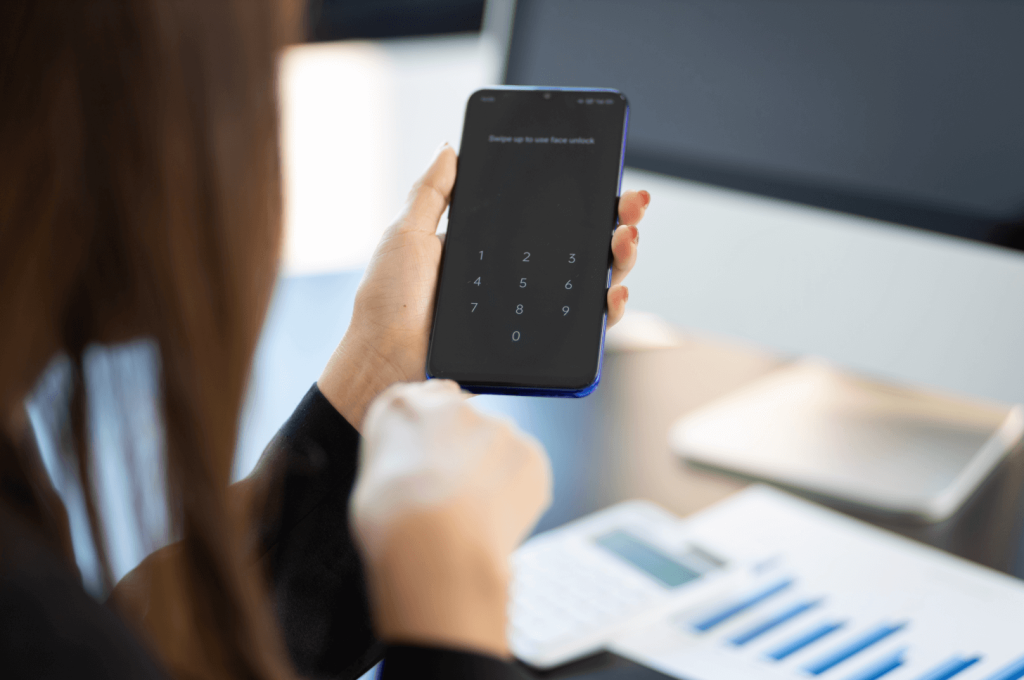
Losing access to an Android device due to a forgotten PIN, pattern, or password is a scenario that induces immediate panic. The smartphone has evolved from a simple communication tool into a digital vault containing banking credentials, family photos, work documents, and irreplaceable personal memories. When the screen locks and the mind goes blank, the instinct is to search for a “magic button” solution that restores access instantly without erasing a single byte of data. However, the landscape of Android security has shifted dramatically in recent years. Modern encryption standards, particularly those enforced by Android 10, 11, 12, 13, and 14, have made bypassing a lock screen without data loss significantly more difficult than it was in the past. Understanding the technical realities, the legitimate recovery pathways, and the limitations imposed by hardware-backed security is essential for anyone facing this dilemma.
The Evolution of Android Security and Encryption
To understand why bypassing a PIN is no longer a trivial task, one must first appreciate the architectural changes Google has implemented over the last decade. In the early days of Android, user data was often stored in a way that allowed third-party tools to manipulate system files and remove lock screen credentials with relative ease. This vulnerability was addressed through the introduction of Full Disk Encryption (FDE) and, later, File-Based Encryption (FBE).
Modern Android devices utilize a Trusted Execution Environment (TEE), a secure area within the main processor that handles all cryptographic operations. When a user sets a PIN, pattern, or password, this credential is not merely stored as a text file; it is used to derive a cryptographic key that encrypts the user’s data partition. As detailed in the Android Security Model documentation, the TEE ensures that the decryption key is never released to the main operating system unless the correct authentication credential is provided. This means that without the correct PIN, the data remains mathematically scrambled and inaccessible, regardless of whether one can boot the phone or access the file system via a computer.
This shift renders many “one-click” software solutions found on the internet ineffective for modern devices. Tools that claim to bypass locks on Samsung Galaxy S23, Google Pixel 8, or OnePlus 12 models without data loss are often misleading. They may work on very old devices running Android 6.0 or lower, where encryption was optional or less robust, but they fail against the hardware-backed keystores present in contemporary hardware. The National Institute of Standards and Technology (NIST) guidelines on mobile device security reinforce that strong authentication mechanisms coupled with encryption are designed specifically to prevent unauthorized access, even by the device owner if credentials are lost.
The Role of Cloud Services in Legitimate Recovery
While direct manipulation of the lock screen is largely blocked by encryption, cloud-based ecosystems offer the most reliable avenue for regaining access without data loss. These methods do not technically “bypass” the lock in the traditional sense; rather, they leverage pre-established trust relationships between the device and the user’s online account to reset credentials or unlock the device remotely.
Google Find My Device
For the vast majority of Android users, the primary line of defense is the native “Find My Device” service. Historically, this service allowed users to remotely set a new password for their locked device. However, Google has updated this functionality in response to evolving security threats. On newer versions of Android, the ability to remotely reset the lock screen password directly through the web interface has been restricted or removed to prevent malicious actors from locking owners out and demanding ransoms.
Despite these restrictions, Google Find My Device remains a critical tool. If the device is online and location services are active, the user can locate the phone, play a sound, or initiate a remote erase. While the erase function results in data loss, it is the only guaranteed method to regain usability of the hardware if other options fail. It is important to note that for the remote commands to execute, the device must have an active internet connection via Wi-Fi or mobile data. If the device is offline, the command queues and executes the moment the device connects.
Samsung Find My Mobile
Owners of Samsung devices possess a distinct advantage due to the proprietary “Find My Mobile” service. Unlike the standard Google implementation, Samsung’s ecosystem often retains the ability to remotely unlock the device screen without data deletion, provided the user previously logged into a Samsung Account on the device and enabled the “Remote Unlock” feature.
This service interacts directly with the Samsung Knox security platform. When a user requests an unlock via the Samsung Find My Mobile portal, a verified token is sent to the device, instructing the Knox container to dismiss the current lock screen credential. This process works even if the device is in “Offline Finding” mode, utilizing nearby Galaxy devices to relay the signal. This is currently one of the few legitimate, manufacturer-supported methods to bypass a PIN, pattern, or fingerprint lock on a modern Android device without triggering a factory reset. However, this requires prior setup; if the Samsung Account was not logged in or the feature was disabled before the lockout occurred, this avenue is closed.
Manufacturer-Specific Ecosystems
Other manufacturers have begun integrating similar capabilities, though they are less universal than Samsung’s offering. Xiaomi, Huawei, and Oppo often have their own cloud services that allow for device locating and, in some specific firmware versions, lock screen management. Users should consult their specific manufacturer’s support pages, such as the Xiaomi Cloud service or equivalent, to determine if remote unlocking features are available for their specific model and region. These services generally require the device to be linked to the respective brand account before the lockout occurs.
The Reality of Third-Party Software Solutions
A search for “Android unlock tools” yields hundreds of software products claiming to remove PINs, patterns, and passwords without data loss. A critical analysis of these tools reveals a stark divide between marketing claims and technical reality. Most of these programs operate on a freemium model, allowing users to scan the device and detect the model for free, but demanding payment to execute the unlock.
The efficacy of these tools depends entirely on the device’s age and chipset. For older devices (typically pre-2018) that lack hardware-backed encryption or use older bootloader vulnerabilities, some tools can exploit engineering modes or recovery partitions to delete the gesture.key or password.key files. However, for any device running Android 9.0 (Pie) or later with default encryption settings, these file-level manipulations are futile because the encryption key is tied to the credential in the TEE.
Reputable technology reviewers and security analysts consistently warn that many of these “unlocker” tools are potentially unwanted programs (PUPs) or malware. The Federal Trade Commission (FTC) has issued warnings regarding tech support scams and fraudulent software that promise to fix device issues but instead steal personal information or install ransomware. Even legitimate forensic tools used by law enforcement, such as those from Cellebrite or Grayshift, often require physical access, specialized hardware, and significant cost, and even they struggle with fully patched, modern devices.
Consumers should approach any software claiming to unlock a Samsung S24 or Pixel 9 without data loss with extreme skepticism. If a tool does not explicitly state that it only works on specific, older models or requires USB debugging to have been previously enabled, it is likely ineffective for modern use cases. The Electronic Frontier Foundation (EFF) frequently discusses the balance between user privacy and access, noting that strong encryption which prevents unauthorized access inherently prevents authorized access if credentials are lost, unless a backdoor (which poses security risks) exists.
Advanced Methods: ADB and USB Debugging
One technical avenue that theoretically allows for lock removal without data loss is the Android Debug Bridge (ADB). ADB is a versatile command-line tool that lets users communicate with a device. If “USB Debugging” was enabled in the Developer Options menu before the device was locked, it is possible to connect the phone to a computer and issue commands to remove the lock screen files.
The process typically involves connecting the device via USB, authorizing the computer (which usually requires tapping “Allow” on the phone screen—a catch-22 if the phone is locked), and then using shell commands to navigate to the /data/system/ directory. Commands such as adb shell rm /data/system/gesture.key or adb shell rm /data/system/password.key can delete the files storing the hash of the pattern or password. Upon reboot, the device might accept any input or show no lock screen.
However, this method has significant limitations in the modern era. First, USB Debugging is disabled by default on almost all consumer devices. Second, on encrypted devices, the /data partition is mounted only after successful authentication. Before the PIN is entered, the /data partition is often inaccessible, meaning ADB cannot navigate to the system folder to delete the key files even if debugging is enabled. Furthermore, modern Android versions often require authorization on the device screen itself before accepting ADB commands from a new computer, creating a circular dependency.
For those interested in the technical specifications of ADB and its limitations, the Android Developers Guide provides comprehensive documentation. It clarifies that ADB is a development tool, not a recovery utility, and its functionality is heavily restricted by the device’s security state. Relying on this method without prior configuration is rarely successful for the average user.
Biometric Alternatives and Smart Lock Features
Before resorting to drastic measures, users should explore alternative authentication methods that might still be active. Many users set up biometric authentication (fingerprint or face unlock) as a convenience feature but forget that these can serve as a backup when the PIN is forgotten. While Android security protocols usually require the PIN to be entered periodically (e.g., after a reboot or after 72 hours of inactivity), there are windows where biometrics remain valid.
Additionally, the “Smart Lock” feature, though deprecated in newer Android versions (Android 15 and moving forward), may still be active on devices running Android 14 or earlier. Smart Lock allows the device to remain unlocked in trusted situations, such as when connected to a specific Bluetooth device (like a car stereo or smartwatch), when in a trusted location (like home), or when on the user’s person (detected by accelerometers).
Checking for these exceptions can save time. If the phone is currently connected to a trusted Bluetooth device, it might bypass the lock screen entirely. Similarly, if the device believes it is being carried, it might not demand the PIN immediately. Users should attempt to move to a trusted location or connect to a paired accessory to see if the security prompt is suppressed. Google’s support pages on Smart Lock settings explain how these features function and why they might provide a temporary window of access.
Comparison of Unlocking Methods
To provide a clear overview of the available options, their success rates, and data implications, the following table compares the primary methods discussed.
| Method | Compatibility | Data Loss Risk | Prerequisites | Success Probability (Modern Devices) |
|---|---|---|---|---|
| Samsung Find My Mobile | Samsung Devices Only | No Data Loss | Samsung Account logged in, Remote Unlock enabled | High (if prerequisites met) |
| Google Find My Device | All Android Devices | High (Erases Device) | Google Account logged in, Internet active | High (for reset, not unlock) |
| ADB Command Line | All Android Devices | Low (Theoretical) | USB Debugging enabled, Computer authorized | Very Low (due to encryption) |
| Third-Party Software | Varies by Tool | Variable (Often High) | Payment, Specific Old Models | Low to None (for Android 10+) |
| Biometric/Smart Lock | All Android Devices | No Data Loss | Prior setup of biometrics or trusted zones | Moderate (Situational) |
| Factory Reset (Hardware) | All Android Devices | Total Data Loss | Physical access to buttons | 100% (Restores access, loses data) |
The Hard Truth: Factory Reset as the Last Resort
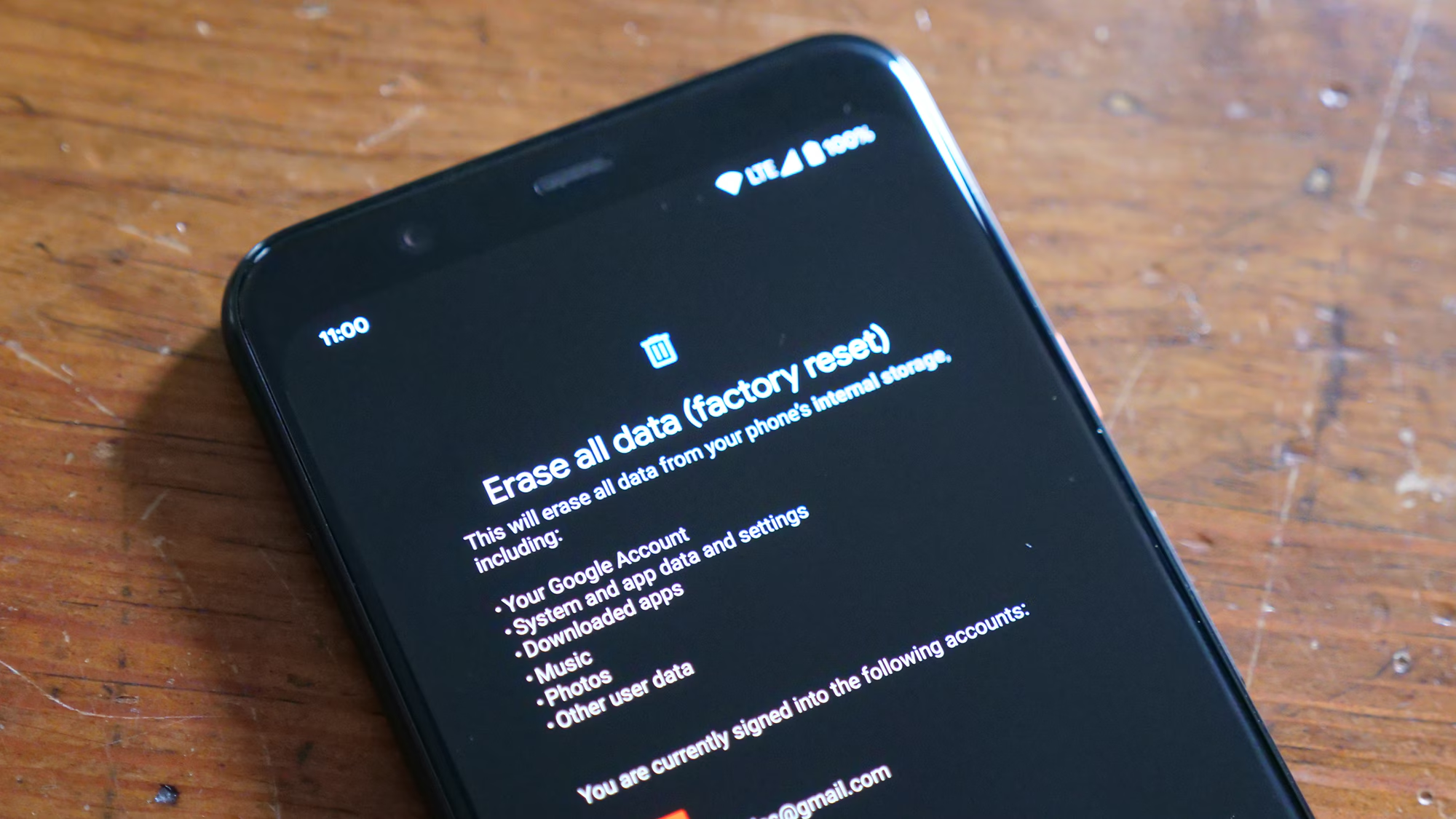
When all non-destructive methods fail, the only remaining option to regain use of the device is a factory reset. This process wipes the /data partition, removing the encryption keys along with all user files, apps, and settings. The device returns to its out-of-the-box state. While this results in permanent data loss for items not backed up to the cloud, it removes the lock screen barrier.
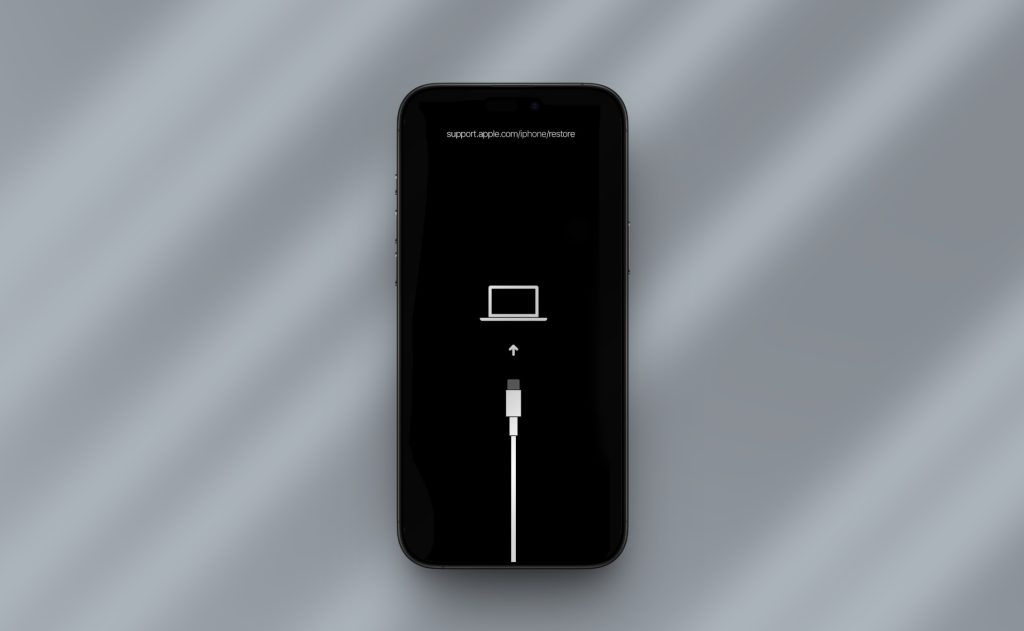
Performing a factory reset typically involves booting the device into “Recovery Mode.” This is done by pressing a specific combination of hardware buttons (usually Power + Volume Up or Down) during startup. Once in the recovery menu, users select “Wipe data/factory reset.” It is crucial to understand that after a reset, the device will trigger Factory Reset Protection (FRP). FRP is an anti-theft measure that requires the user to log in with the Google Account (or Samsung Account) that was previously synced to the device. This prevents thieves from resetting a stolen phone and using it.
If the user does not remember the credentials for the synced Google Account, the device may remain permanently unusable, effectively becoming a brick. This underscores the importance of password managers and maintaining up-to-date recovery information for primary email accounts. Detailed instructions for entering recovery mode vary by manufacturer and can be found on official support sites like the Google Pixel Help page or manufacturer-specific guides.
Preventative Measures and Best Practices
Given the difficulties associated with recovering a locked modern Android device, prevention is vastly superior to cure. Security experts recommend several best practices to mitigate the risk of permanent lockout.
First, regular backups are non-negotiable. Utilizing Google One, Samsung Cloud, or third-party services to back up photos, contacts, and documents ensures that a factory reset is a minor inconvenience rather than a catastrophe. Automated backups should be enabled to run daily or weekly over Wi-Fi.
Second, users should maintain a secure record of their lock screen credentials. While writing a PIN on a sticky note is ill-advised, using a reputable password manager to store the device passcode is a sound strategy. This ensures that the credential is retrievable from another device if memory fails.
Third, verifying the status of recovery accounts is essential. Users should periodically check that their Google and Samsung accounts are active, that recovery phone numbers and email addresses are current, and that features like “Find My Device” and “Remote Unlock” are enabled. Testing these features occasionally—such as trying to locate the phone from a computer—can confirm they are working correctly before an emergency arises.
Finally, staying informed about OS updates is vital. Major Android updates sometimes change security behaviors or introduce new recovery options. Being aware of these changes helps users adapt their security posture accordingly. Resources like the Android Authority security news or official Android blogs provide timely updates on these shifts.
Frequently Asked Questions
Q: Can I bypass the PIN on my Android phone without losing photos and messages?
A: For most modern Android devices (Android 10 and newer), it is generally impossible to bypass the PIN without data loss unless you have a Samsung device with “Find My Mobile” pre-configured. The encryption keys are tied to the PIN, and without it, the data remains unreadable. Third-party tools claiming to do this are often scams or only work on very old, unencrypted devices.
Q: Does performing a factory reset remove the Google Account lock (FRP)?
A: No. A factory reset removes the screen lock (PIN/Pattern) but triggers Factory Reset Protection (FRP). You will still need to enter the username and password of the Google Account that was last synced to the device to complete the setup. This is an anti-theft feature.
Q: Is there a universal default PIN for Android phones?
A: No. There is no universal default PIN, pattern, or password for Android devices. Each user sets their own credentials during the initial setup. Any website or video claiming a “master code” exists is providing false information.
Q: Can I use ADB to remove the lock screen if I didn’t enable USB Debugging beforehand?
A: No. ADB commands cannot be executed unless USB Debugging was explicitly enabled in the Developer Options prior to the lockout. Additionally, on encrypted devices, the data partition required to delete lock files is not accessible without the PIN.
Q: Will flashing custom firmware remove the lock without data loss?
A: Flashing custom firmware or ROMs typically requires unlocking the bootloader, which automatically triggers a factory reset and wipes all data as a security measure. Therefore, this method also results in data loss.
Q: How does Samsung Find My Mobile unlock the phone without the PIN?
A: Samsung Find My Mobile uses a secure token sent from the Samsung servers to the device’s Knox security container. If the device verifies the token matches the logged-in Samsung Account, Knox dismisses the lock screen requirement temporarily. This works because the trust is established at the account level, not by cracking the PIN.
Q: What happens if I forget both my PIN and my Google Account password?
A: If you cannot recall the Google Account credentials associated with the device, you may be unable to bypass Factory Reset Protection after a reset. In this scenario, you must go through the Google Account recovery process at accounts.google.com to regain access to your email before the phone can be used again.
Q: Are there any professional services that can unlock my phone without data loss?
A: Legitimate professional forensic services exist for law enforcement but are not available to the general public and are extremely expensive. Local repair shops claiming to unlock phones without data loss for modern devices are likely unable to fulfill that promise and may charge fees for unsuccessful attempts.
Conclusion
The quest to bypass an Android PIN lock without data loss is a journey through the complex intersection of user convenience and rigorous security architecture. The reality is that the very features designed to protect users from hackers and thieves—hardware-backed encryption, Trusted Execution Environments, and Factory Reset Protection—also create formidable barriers for owners who lose their credentials. While methods like Samsung Find My Mobile offer a glimmer of hope for specific ecosystems, the overarching trend in mobile security is toward impenetrability without the correct key.
For the vast majority of users with modern devices, the hard truth is that data preservation is contingent upon proactive measures: regular cloud backups, diligent password management, and the pre-configuration of remote recovery tools. Relying on miraculous software solutions or unverified tutorials often leads to wasted time, financial loss, or further compromise of device security. The most effective strategy is not to seek a workaround after the fact, but to build a resilient digital habit that assumes lockouts can happen and prepares for them accordingly. In an era where our digital lives are paramount, the peace of mind provided by robust security is worth the occasional inconvenience of strict recovery protocols. By understanding these limitations and respecting the design of modern Android security, users can better safeguard their data and navigate the unfortunate event of a forgotten PIN with realistic expectations and a clear path forward.