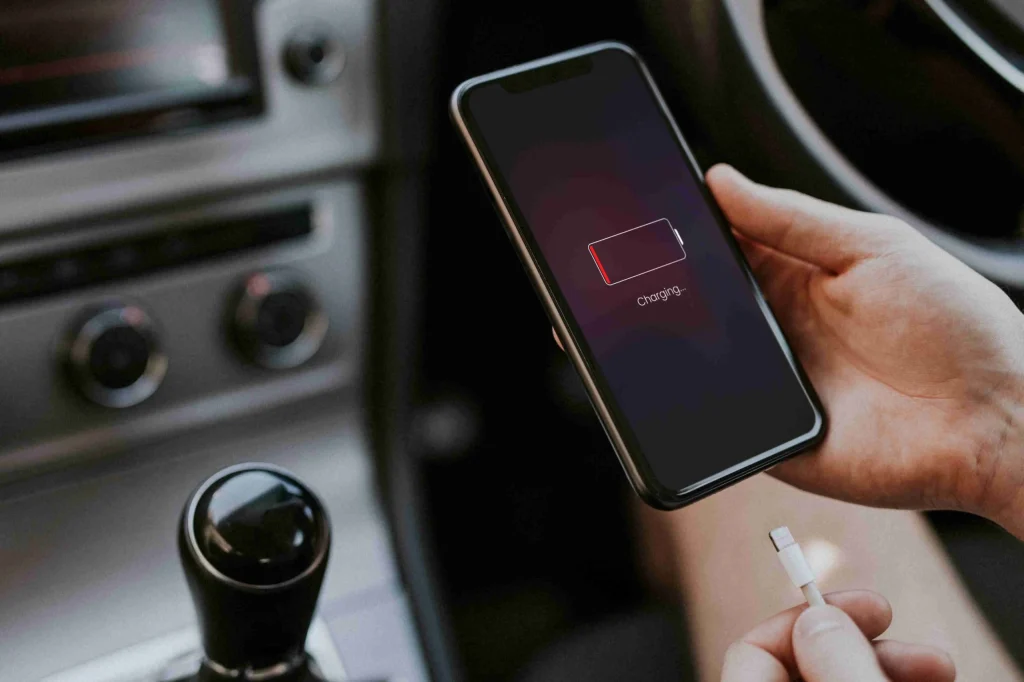
The modern smartphone has evolved from a simple communication device into the central hub of daily life, managing everything from financial transactions and professional correspondence to health tracking and entertainment. Yet, despite exponential growth in processing power and display fidelity, the fundamental limitation remains the lithium-ion battery. Users frequently find themselves tethered to wall outlets, watching battery percentages dwindle with alarming speed. While the Google Play Store is flooded with applications promising to “boost,” “clean,” or “optimize” battery life, the reality is that many of these tools are counterproductive. They often run background processes that consume the very resources they claim to save. True battery preservation does not require third-party software; it requires a deep understanding of the device’s native architecture, electrochemical principles, and systematic configuration adjustments available within the Android operating system itself.
The Science of Lithium-Ion Degradation
To effectively manage battery health, one must first understand the chemical reality of the power source. Android devices, like nearly all modern electronics, rely on lithium-ion (Li-ion) or lithium-polymer (Li-Po) cells. These batteries do not have a memory effect, meaning they do not need to be fully discharged before recharging. Instead, their lifespan is measured in charge cycles, where one cycle equals using 100% of the battery’s capacity, whether all at once or over several days. According to extensive research from battery universities and engineering standards, a typical Li-ion battery begins to show noticeable capacity loss after 300 to 500 full charge cycles.
The primary enemy of these cells is not usage, but stress. Stress manifests in three main forms: high voltage, extreme temperatures, and deep discharge states. When a battery is charged to 100%, the internal voltage rises, placing significant strain on the cathode material. Conversely, letting a battery drop to 0% can cause the voltage to fall below a critical threshold, leading to chemical instability. Furthermore, heat accelerates the degradation of the electrolyte within the cell, permanently reducing its ability to hold a charge. Understanding these mechanical constraints allows users to make informed decisions about charging habits and environmental exposure, forming the bedrock of any effective battery maintenance strategy without installing a single additional application. For a deeper dive into the electrochemistry involved, resources from Battery University provide essential technical context on how these cells age under various conditions.
Optimizing Display Settings for Maximum Efficiency
The display is invariably the most power-hungry component in an Android smartphone. Modern screens, particularly those utilizing Organic Light-Emitting Diode (OLED) or Active Matrix OLED (AMOLED) technology, offer vibrant colors and deep blacks but come with specific power characteristics that can be leveraged for efficiency. Unlike older LCD screens, which use a constant backlight, OLED pixels emit their own light. This means that black pixels are essentially turned off and consume no power. Consequently, enabling Dark Mode across the system interface and supported applications can result in significant power savings, especially at higher brightness levels. Studies have shown that on average brightness settings, dark mode can reduce power consumption by up to 40% on OLED displays.
Beyond color themes, brightness management is critical. While auto-brightness is a convenient feature, it often errs on the side of visibility rather than efficiency, pushing the screen brighter than necessary for the ambient environment. Manually adjusting the brightness slider to the lowest comfortable level is a direct method to extend runtime. Additionally, the screen timeout setting dictates how long the display remains active after user interaction ceases. Reducing this window from two minutes to thirty seconds prevents unnecessary drain when the phone is left idle in a pocket or on a desk.
Refresh rate is another pivotal factor introduced in recent years. Many flagship and mid-range Android devices now support high refresh rates, such as 90Hz or 120Hz, which make scrolling and animations appear smoother. However, rendering more frames per second demands significantly more from the GPU and the display driver. Switching the display settings to “Standard” or 60Hz can drastically reduce the workload on the processor and the energy draw of the screen. While the visual difference is noticeable, the trade-off in battery longevity is often worth it for users prioritizing endurance over fluidity. Detailed explanations of how display technologies impact power draw can be found through technical analyses provided by AnandTech, which frequently breaks down component-level efficiency in mobile devices.
Strategic Management of Connectivity and Radios
Smartphones are constantly communicating with the world around them, searching for Wi-Fi networks, cell towers, Bluetooth devices, and GPS satellites. Each of these radios consumes power, and their cumulative effect can be substantial. A common misconception is that keeping Wi-Fi on drains the battery faster than mobile data. In reality, Wi-Fi is generally more power-efficient for data transmission than cellular networks, particularly when the cellular signal is weak. When a phone struggles to maintain a connection with a distant cell tower, it amplifies its radio signal, leading to rapid battery depletion. Therefore, in areas with poor cellular reception but available Wi-Fi, forcing the device onto Wi-Fi is a smarter strategy for conservation.
Bluetooth and Near Field Communication (NFC) are other frequent culprits. If these features are not actively being used to connect to headphones, wearables, or payment terminals, they should be disabled. While the idle drain of a single radio might seem negligible, the aggregate effect of multiple active radios searching for connections adds up over the course of a day. Location services represent perhaps the most aggressive power consumer. Many applications request location access even when it is not strictly necessary for their core function. Navigating to the privacy settings and restricting location access to “While Using the App” rather than “All the Time” prevents background tracking that serves no immediate user benefit.
For scenarios where connectivity is not needed at all, such as during sleep or in areas with no coverage, Airplane Mode remains the ultimate power-saving tool. It instantly cuts power to all wireless transmitters, allowing the phone to function as an offline device with minimal energy expenditure. Understanding the hierarchy of radio power consumption helps users make situational decisions. For instance, turning off GPS while navigating via a pre-downloaded map or disabling Bluetooth when not wearing earbuds are small actions that compound into meaningful gains. The Federal Communications Commission (FCC) provides guidelines on radio frequency usage and power, offering a regulatory perspective on how these devices manage transmission energy.
Taming Background Processes and App Behavior
The Android operating system is designed to multitask, keeping applications ready in the background for quick switching. However, poorly optimized apps can abuse this capability, waking the processor frequently to check for updates, sync data, or track user activity. This phenomenon, often referred to as “wakelocks,” prevents the device from entering deep sleep modes where power consumption is at its absolute minimum. Identifying and curbing these behaviors is possible entirely through the native Digital Wellbeing and Battery settings menus, negating the need for task-killer apps which often disrupt system stability and cause apps to restart aggressively, consuming even more power.
Android’s adaptive battery feature, powered by machine learning, learns user habits to restrict resources for apps that are rarely used. Ensuring this feature is enabled is a crucial first step. Beyond automation, manual intervention yields superior results. Users should regularly review the battery usage list to identify outliers—applications that consume a disproportionate amount of power relative to their usage time. For social media platforms and news aggregators that constantly poll for new content, forcing “Restricted” background activity can stop them from running when not on screen. This does not prevent notifications from arriving but delays the background synchronization until the app is opened.
Push notifications are another vector for battery drain. Every time a notification arrives, the screen may light up, the vibration motor may engage, and the processor must wake to handle the alert. Auditing notification permissions and disabling non-essential alerts from games, shopping apps, or promotional services reduces the frequency of these wake events. Furthermore, uninstalling or disabling bloatware—pre-installed applications that cannot be removed but are never used—stops them from running hidden background services. The Android Developers documentation offers comprehensive guides on how the system manages background processes, providing insight into why restricting these activities is safe and effective for battery health.
Thermal Management and Charging Protocols
Heat is the silent killer of battery capacity. Chemical reactions inside a lithium-ion cell accelerate with temperature, leading to faster degradation of the anode and cathode materials. Sustained exposure to temperatures above 35°C (95°F) can cause permanent capacity loss, meaning the battery will never hold as much charge as it did when new. Conversely, extremely cold temperatures can temporarily reduce the battery’s ability to deliver current, though this effect is usually reversible once the device warms up. Managing the thermal environment of the device is therefore a critical component of long-term battery health.
Users should avoid leaving their phones in direct sunlight, such as on a car dashboard or near a window, especially while charging. Charging generates inherent heat due to electrical resistance, and adding external heat sources compounds the stress on the cell. Removing thick protective cases during intensive tasks like gaming or fast charging can help dissipate heat more effectively. Additionally, avoiding the use of the phone while it is charging prevents the dual heat generation from both the incoming current and the processor’s workload.
Charging habits also play a pivotal role. While modern phones have sophisticated battery management systems (BMS) to prevent overcharging, keeping a battery at 100% state of charge for extended periods maintains high internal voltage stress. Similarly, regularly draining the battery to 0% forces the BMS to work harder to stabilize the cell upon recharge. The ideal practice, often called the “40-80 rule,” suggests keeping the battery level between 40% and 80% for daily use. Many manufacturers now include features like “Optimized Charging” or “Protect Battery” modes that automatically limit the maximum charge to 80% or delay the final top-off until just before the user typically wakes up. Leveraging these built-in tools is far superior to relying on unverified third-party claims. Information on thermal impacts and charging best practices is extensively covered by Consumer Reports, which tests device durability under various environmental conditions.
System Updates and Native Power Saving Modes
The Android ecosystem is dynamic, with Google and device manufacturers releasing regular software updates that often include refinements to power management algorithms. Keeping the operating system and security patches up to date ensures the device benefits from the latest optimizations. Occasionally, a specific update may introduce a bug that causes drain, but these are typically addressed in subsequent patches. Ignoring updates based on fear of battery drain is generally counterproductive, as outdated software lacks the efficiency improvements and security fixes necessary for optimal performance.
Native power saving modes are robust tools that should be utilized proactively rather than as a last resort. Standard “Power Saving” modes typically limit background data, reduce performance slightly, and lower screen resolution or refresh rate. “Extreme” or “Ultra” power saving modes take this further by restricting the device to a handful of essential apps and turning off most connectivity. Configuring these modes to activate automatically at a specific battery percentage, such as 20%, ensures a safety net without requiring manual intervention. These native implementations are deeply integrated into the kernel, allowing them to throttle resources more effectively than any external application could.
Furthermore, users should explore developer options with caution. While intended for engineers, certain settings like “Background process limit” can be adjusted to strictly control how many apps run simultaneously. However, incorrect changes here can destabilize the system, so it is advisable to stick to the standard battery settings unless specific technical knowledge is possessed. The Google Support community serves as a vital resource for troubleshooting specific update-related battery issues and understanding the nuances of native power-saving features across different Android versions.
Comparative Analysis of Battery Conservation Strategies
To visualize the impact of various no-app strategies, the following table contrasts common user behaviors against optimized practices. This comparison highlights the tangible differences in battery stress and potential lifespan extension.
| Feature / Behavior | Standard User Approach | Optimized No-App Approach | Impact on Battery Health & Daily Runtime |
|---|---|---|---|
| Display Brightness | Auto-brightness at max potential | Manual adjustment to lowest comfortable level | High impact on daily runtime; reduces heat generation. |
| Screen Refresh Rate | Always set to Highest (120Hz) | Adaptive or locked to 60Hz | Moderate impact on runtime; reduces GPU load significantly. |
| Changing Habits | Charge to 100%, drain to 0% | Maintain charge between 20% – 80% | Critical for long-term chemical health; extends total lifespan cycles. |
| Background Apps | Unrestricted background activity | Restricted background data & activity | High impact on idle drain; prevents wakelocks. |
| Connectivity | GPS/Bluetooth always On | Context-aware toggling (On only when needed) | Moderate impact; reduces radio search frequency. |
| Dark Mode | Light mode always | Dark mode enabled system-wide | Significant on OLED screens; saves power per pixel. |
| Thermal Exposure | Phone used while fast charging | Idle charging in cool environments | Critical for preventing permanent capacity degradation. |
| Notifications | All apps allowed to push alerts | Non-essential notifications disabled | Reduces screen wake-ups and processor interrupts. |
This table underscores that the most effective strategies involve a shift in usage patterns rather than technical hacks. The cumulative effect of these adjustments creates a more efficient device ecosystem. For further validation of these efficiency metrics, independent testing labs like GSMArena regularly publish battery life tests that correlate specific settings with endurance results.
Frequently Asked Questions Regarding Android Battery Health
Does installing a battery saver app actually improve battery life?
Generally, no. Most third-party battery saver apps function by killing background processes or toggling settings that users can manage manually. These apps often run persistent background services to monitor battery status, which ironically consumes the power they aim to save. Android’s native battery management is highly sophisticated and capable of handling resource allocation more efficiently than external tools. Relying on built-in settings avoids the risk of malware or ad-heavy interfaces common in free utility apps.
Is it harmful to leave my phone plugged in overnight?
Modern smartphones are equipped with Battery Management Systems (BMS) that cut off the charging current once the battery reaches 100%, preventing overcharging. However, keeping the battery at 100% voltage for prolonged periods (like throughout the night) keeps the cell under high stress, which can accelerate long-term degradation. To mitigate this, many manufacturers now include “Optimized Charging” features that learn sleep patterns and delay the final charge to 100% until just before the alarm goes off. Enabling this feature makes overnight charging safe and convenient without compromising health.
Why does my battery drain faster in cold weather?
Lithium-ion batteries rely on chemical reactions to move ions between the anode and cathode. Cold temperatures slow down these chemical reactions, increasing the internal resistance of the battery. This results in a temporary reduction in capacity and the ability to deliver peak power. While this effect is usually reversible once the device returns to room temperature, consistently exposing the phone to freezing conditions can cause permanent damage to the electrolyte structure over time.
How often should I fully calibrate my battery by draining it to 0%?
Calibration by fully draining and recharging the battery is rarely necessary for modern Li-ion cells. This practice was more relevant for older Nickel-Cadmium batteries that suffered from the “memory effect.” For Android devices, doing this frequently subjects the battery to deep discharge stress, which is harmful. The battery gauge may occasionally become inaccurate, but a full cycle should only be performed if the percentage indicator is behaving erratically, not as a routine maintenance task.
Does using Fast Charging damage the battery?
Fast charging generates more heat than standard charging due to higher current flow, and heat is the primary driver of battery degradation. However, manufacturers design fast-charging protocols with thermal safeguards that throttle speeds if the device gets too hot. While fast charging may theoretically degrade the battery slightly faster over several years compared to slow charging, the convenience often outweighs the marginal loss in total lifespan. Using fast charging when necessary and standard charging when time permits offers a balanced approach.
What is the single most effective setting to change for immediate battery savings?
Reducing screen brightness and shortening the screen timeout duration yield the most immediate and noticeable improvements. Since the display is the largest power consumer, even a small reduction in brightness or active time translates directly to extended runtime. Coupling this with Dark Mode on OLED devices creates a compounding effect that can add hours of usage to a single charge.
Can a swollen battery be fixed by software settings?
No. A swollen battery indicates a serious physical failure where gas has built up inside the cell, often due to internal short circuits or severe degradation. This is a safety hazard that poses a risk of fire or explosion. No software setting, app, or calibration trick can reverse physical swelling. The device should be powered down immediately and the battery replaced by a qualified professional.
Conclusion and Path Forward
Preserving the battery health and lifespan of an Android device is a discipline rooted in understanding the technology rather than relying on software shortcuts. The narrative that third-party applications are required to maintain a healthy battery is a misconception that often leads to poorer performance and increased security risks. By leveraging the robust native tools provided by the Android operating system, users can exert precise control over their device’s power consumption. From optimizing display technologies and managing connectivity radios to adopting thermally conscious charging habits, every adjustment contributes to a more efficient and durable device.
The journey to better battery health is not about a single magic switch but about a holistic approach to device usage. It involves shifting from passive consumption to active management, where the user understands the cost of every feature enabled. The strategies outlined—utilizing Dark Mode, restricting background activities, managing thermal exposure, and adhering to optimal charging windows—are proven methods backed by electrochemical science and engineering standards. These practices not only extend the daily runtime but also preserve the total capacity of the battery over years of use, delaying the inevitable need for hardware replacement.
As mobile technology continues to advance, the fundamental constraints of battery chemistry will likely persist for the foreseeable future. Therefore, the skills required to manage these limitations remain evergreen. Users who master these native configurations empower themselves to get the most out of their hardware, ensuring reliability and performance without the clutter of unnecessary applications. The path forward is clear: trust the system, understand the science, and manage the settings with intention. By doing so, the smartphone remains a reliable tool, ready to perform whenever needed, unburdened by the anxiety of a dying battery. For ongoing updates on battery technology and mobile efficiency, staying informed through reputable tech journalism and manufacturer guidelines remains the best strategy for long-term success.