Seeing an iPhone frozen on the glowing Apple logo is a universally frustrating experience. The device, usually a hub of productivity and connection, suddenly becomes a brick, unresponsive to touches and trapped in a boot loop. For many users, the immediate fear is not just the loss of the device’s functionality, but the potential loss of irreplaceable data stored within: family photos, critical work documents, and years of message history. The good news is that this specific software glitch, often referred to as a “boot loop,” is frequently resolvable without resorting to measures that wipe the device clean. Understanding the underlying causes and applying a structured, step-by-step troubleshooting approach can often restore the phone to full health while preserving every byte of data.
This phenomenon typically occurs when the iOS operating system encounters a critical error during the startup sequence, preventing it from loading the user interface. It can happen after a failed software update, a corrupted app installation, or even due to minor hardware fluctuations. While the situation feels dire, Apple has built several layers of recovery mechanisms into the iPhone architecture specifically to address these scenarios. By methodically working through force restarts, recovery mode interventions, and specialized third-party tools, most users can bypass the logo screen and regain access to their digital lives. The key lies in patience and avoiding the temptation to immediately factory reset, which should always be the last resort.
Understanding the Boot Loop Phenomenon
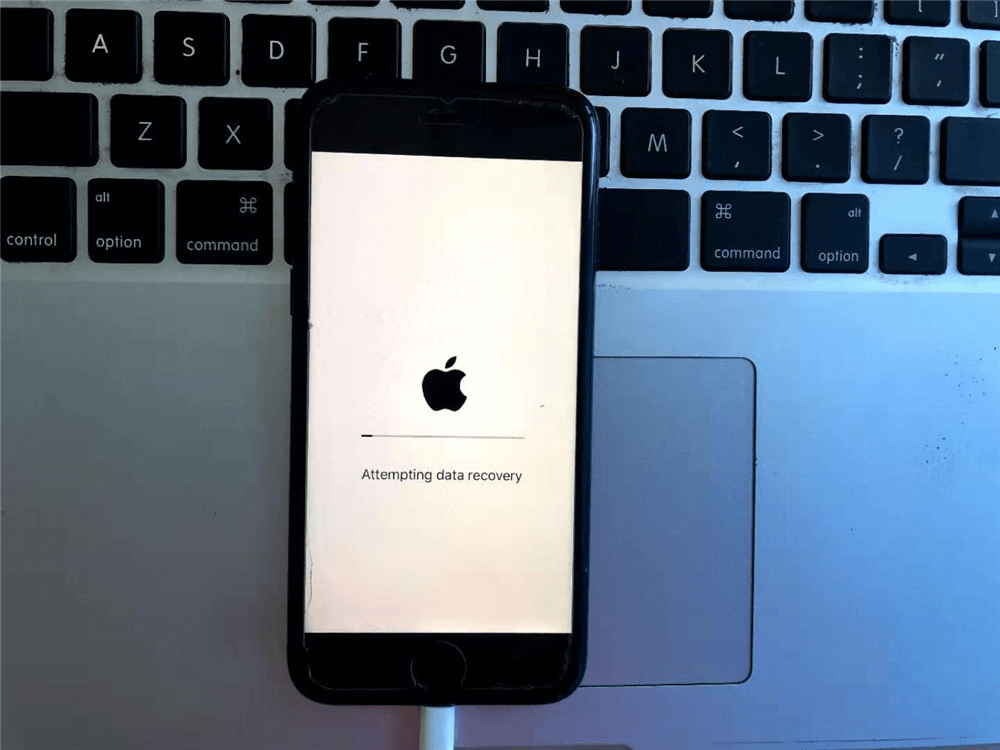
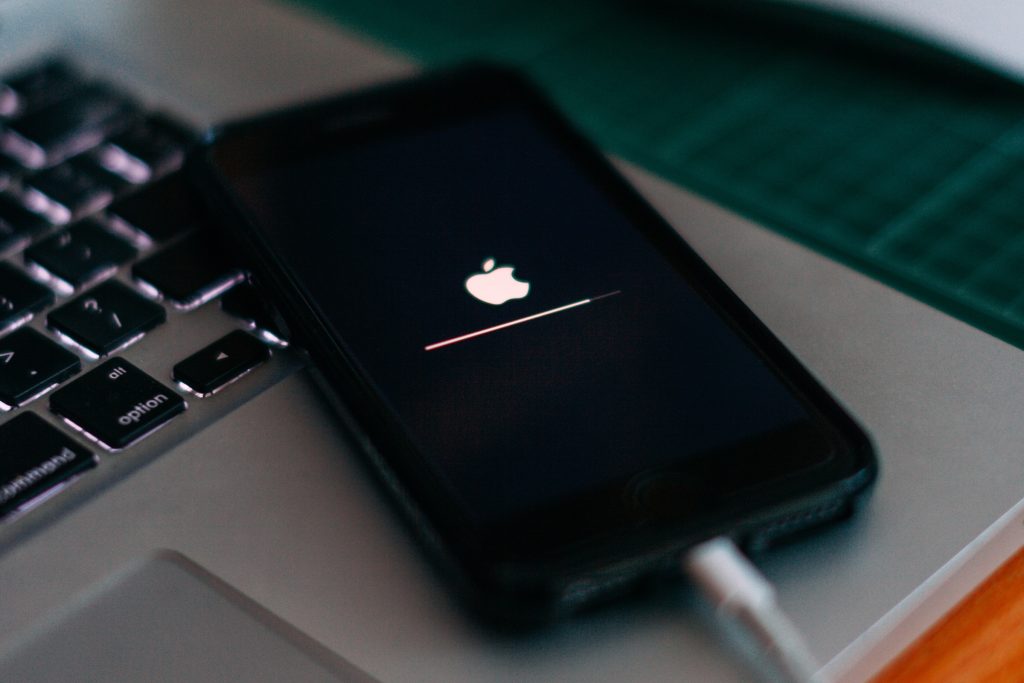
Before attempting repairs, it is beneficial to understand why an iPhone gets stuck on the Apple logo. This state is technically known as a boot loop, where the device attempts to load the operating system, encounters a fatal error, crashes, and immediately attempts to reboot, creating an endless cycle. This is distinct from a hard freeze where the screen simply stays black or unresponsive; in a boot loop, the Apple logo may disappear and reappear, or simply remain static while the device heats up slightly due to the continuous processing effort.
The primary culprit is often software corruption. This can stem from an interrupted iOS update, perhaps caused by a unstable Wi-Fi connection or the battery dying mid-installation. When the update files are incomplete or mismatched, the bootloader cannot verify the system integrity, halting the process at the logo screen. Similarly, jailbreaking attempts or the installation of unauthorized tweaks can modify system files in ways that conflict with the standard boot sequence. In rarer instances, hardware issues such as a failing battery that cannot sustain the power surge required for booting, or logic board damage from previous liquid exposure, can manifest as a software hang. However, statistical analysis of repair cases suggests that over 90% of these incidents are software-related and reversible.
Recognizing the difference between a slow boot and a stuck boot is crucial. An older iPhone model might take a minute or two to start up, especially after a major update, but it will eventually progress to the lock screen. If the device remains on the logo for more than five minutes without any change, it is officially stuck. At this stage, the internal watchdog timer of the iPhone is likely triggering repeated restarts. Addressing this requires interrupting the cycle physically or forcing the device into a diagnostic state where it can communicate with a computer for repair instructions. Resources from Apple Support provide foundational diagnostics that confirm these patterns are common across various iPhone generations, from the iPhone 6s to the latest iPhone 15 models.
The First Line of Defense: Force Restarting
The most effective and safest initial step to resolve an iPhone stuck on the Apple logo is performing a force restart. Unlike a standard restart, which requires the screen to be responsive to swipe gestures, a force restart uses a specific hardware button combination to cut power to the logic board and force a cold boot. This process clears the device’s RAM and interrupts any hung processes without touching the flash storage where user data resides. Consequently, there is zero risk of data loss with this method, making it the ideal first attempt.
The button combination varies depending on the iPhone model, a detail that often causes confusion. For users with an iPhone 8, iPhone X, iPhone 11, iPhone 12, iPhone 13, iPhone 14, or iPhone 15, the procedure is specific: quickly press and release the Volume Up button, then quickly press and release the Volume Down button, and finally, press and hold the Side button (power button). The key here is persistence; the Side button must be held down even when the “slide to power off” slider appears on the screen. The user should continue holding until the screen goes black and the Apple logo reappears, which can take up to 20 seconds. Releasing the button too early will result in the phone simply powering off rather than restarting.
For owners of the iPhone 7 and iPhone 7 Plus, the mechanism differs due to the lack of a mechanical home button. These devices require pressing and holding both the Volume Down button and the Side button simultaneously. Both buttons must be held until the Apple logo flashes. Older models, including the iPhone 6s, iPhone SE (1st generation), and earlier, utilize the classic combination of holding the Home button and the Top (or Side) button together. It is vital to consult specific guides like those found on MacRumors if there is uncertainty about the model, as using the wrong combination will yield no results.
If the first attempt at a force restart fails and the phone returns to the stuck logo, it is advisable to try the sequence again. Sometimes the timing of the button presses needs to be precise, or the device requires a second interruption to clear the cache fully. Ensuring the device has adequate charge before attempting this is also prudent; plugging the iPhone into a certified charger for at least 30 minutes can rule out power starvation as a contributing factor. If the force restart successfully boots the phone, it is highly recommended to immediately back up the data via iCloud or a computer, as the underlying issue might recur if the file system has minor corruptions.
Leveraging Recovery Mode via Computer
When a force restart proves insufficient, the next tier of troubleshooting involves placing the iPhone into Recovery Mode. This state allows the device to communicate with a computer running iTunes (on Windows or older macOS) or Finder (on macOS Catalina and later). Recovery Mode is designed specifically for situations where the iOS software is compromised but the hardware is functional. The significant advantage of this method is that it offers an option to “Update” the software, which attempts to reinstall iOS without erasing user data.
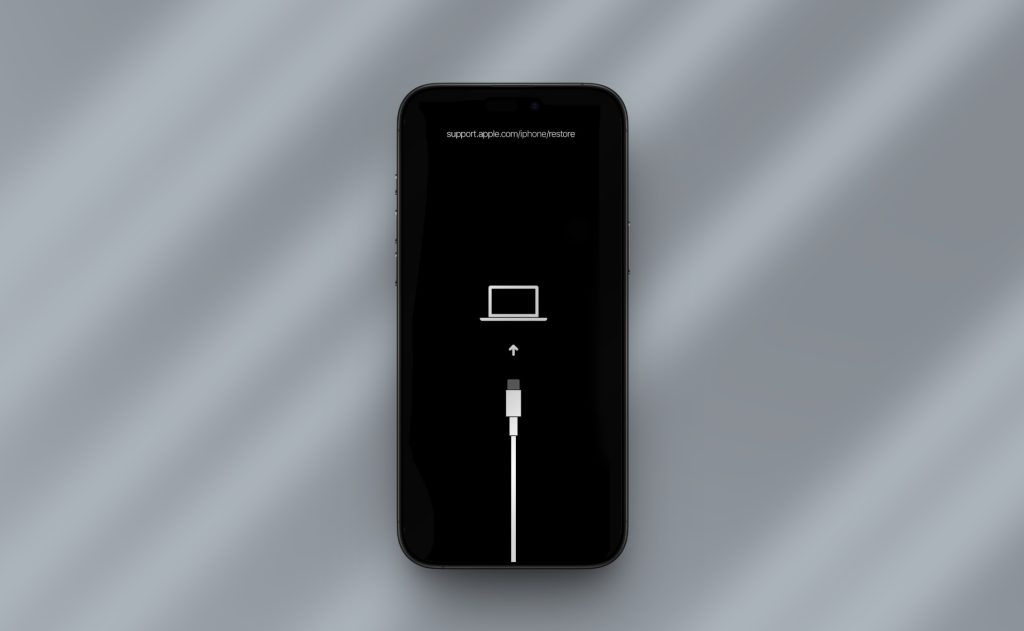
To initiate this process, a user needs a Mac or PC with the latest version of iTunes or macOS installed. After connecting the iPhone to the computer via a lightning or USB-C cable, the user must perform the button sequence similar to a force restart but hold the final button until the Recovery Mode screen appears. This screen displays an icon of a computer and a cable, indicating the phone is waiting for instructions. It is distinct from the Apple logo screen and confirms the device is ready for intervention. Detailed visual guides on entering this mode are available through iMore, which can help users verify they have successfully triggered the correct state.
Once the computer detects the iPhone in Recovery Mode, a prompt will appear offering two choices: “Update” or “Restore.” Selecting “Update” is the critical step for data preservation. The computer will download the latest iOS firmware and attempt to install it over the existing system. This process repairs the corrupted operating system files while leaving the user’s photos, messages, and apps intact. The download may take some time, and if it exceeds 15 minutes, the iPhone might exit Recovery Mode. If this happens, the user simply needs to wait for the download to finish on the computer and then repeat the button sequence to re-enter Recovery Mode.
It is important to note that the “Update” process is not guaranteed to succeed if the file system corruption is severe. However, it is a non-destructive attempt that should always be tried before considering a restore. If the computer only offers the “Restore” option, or if the “Update” fails repeatedly, it indicates deeper corruption. In such cases, proceeding to a restore will erase all data, so this path should only be taken if a recent backup exists. The distinction between these options is explained thoroughly in technical documentation from Tom’s Guide, emphasizing the importance of choosing the correct action to prevent accidental data loss.
Advanced Solutions: DFU Mode and Third-Party Tools
If Recovery Mode fails to resolve the issue, the situation calls for more advanced techniques. Device Firmware Update (DFU) mode is the deepest level of restoration available for an iPhone. Unlike Recovery Mode, which loads a small bootloader, DFU mode bypasses the bootloader entirely, allowing for a complete low-level restore of the firmware. While powerful, DFU mode traditionally involves a “Restore” action that wipes the device. However, some advanced users utilize DFU in conjunction with saved SHSH blobs (digital signatures for specific iOS versions) to attempt restores without data loss, though this is highly complex and generally not feasible for the average user without a prior backup.
For users uncomfortable with the technical nuances of DFU or those for whom the standard “Update” in Recovery Mode has failed, reputable third-party iOS repair tools offer a viable alternative. Software solutions like Tenorshare ReiBoot, Dr.Fone, or iMyFone Fixppo are designed specifically to handle boot loops. These programs often feature a “Standard Repair” mode that claims to fix iOS system issues without data loss. They work by downloading the appropriate firmware package and injecting it into the device in a way that repairs the system partition while preserving the user data partition.
While third-party tools are convenient, they come with caveats. Most require a paid license to complete the repair process, and their success rates can vary depending on the specific iOS version and the nature of the corruption. It is essential to download such software only from official vendor websites to avoid malware. Reviews and comparisons on sites like PCMag can help users identify which tools have the highest reliability scores and best customer support. These tools essentially automate the complex command-line processes that experts might use, providing a graphical interface that guides the user through entering DFU or Recovery mode and managing the firmware injection.
It is worth noting that if the iPhone is stuck due to hardware failure, such as a damaged NAND flash chip or a faulty power management IC, no amount of software manipulation—including DFU or third-party tools—will resolve the issue. In these scenarios, the device may enter Recovery Mode but fail to verify the restore, or it may simply refuse to connect consistently. Recognizing when a problem is hardware-based saves time and prevents unnecessary stress. If all software avenues are exhausted, the focus must shift to professional hardware diagnostics.
The Role of Professional Data Recovery Services
When self-help methods fail and the data on the device is critical, seeking professional assistance is the logical next step. Authorized Apple Service Providers and independent data recovery specialists possess tools and expertise that go beyond consumer-grade software. Apple Stores, for instance, can run proprietary diagnostics (AST2) that pinpoint whether the boot loop is caused by a specific component failure. While Apple’s standard protocol for a non-booting device often involves swapping the unit or erasing it, their Genius Bar technicians can sometimes identify if a simple battery replacement or connector reseating resolves the boot issue, thereby saving the data indirectly.
Independent data recovery labs offer even more specialized services for logic board repairs. These experts can perform “board level” repairs, such as replacing a shorted capacitor or fixing a broken trace on the motherboard that is preventing the CPU from accessing the storage chip. In extreme cases, they may perform a “NAND transplant,” moving the memory chip from the damaged phone to a working donor board to extract the data. This is a delicate, microscopic procedure that carries risks but is often the only hope for devices with catastrophic physical damage. Organizations like the Data Recovery Institute outline the complexities of these procedures, highlighting that success depends heavily on the extent of the physical damage.
Cost is a significant factor when considering professional services. Board-level repairs can range from $200 to $500 or more, depending on the complexity, while NAND transplants can exceed $1,000. Users must weigh the value of their data against these costs. For business-critical data or irreplaceable family memories, the investment is often justified. It is crucial to vet any third-party repair shop carefully, ensuring they have positive reviews regarding data privacy and success rates. Avoiding “mall kiosk” style repairers for logic board issues is advisable, as these problems require micro-soldering skills and clean-room environments.
Preventative Measures and Best Practices
Once an iPhone is successfully recovered from a boot loop, implementing preventative measures is essential to avoid recurrence. The most critical habit is maintaining regular backups. iCloud Backup and local computer backups via Finder or iTunes create a safety net, ensuring that even if a future boot loop requires a full restore, data loss is minimized. Enabling “Optimize iPhone Storage” can also help manage space, as a completely full storage drive is a known cause of boot failures. When the system has no room to write temporary files during an update or daily operation, it can crash and fail to reboot.
Keeping the iOS software up to date is another protective layer. Apple frequently releases patches that fix bugs related to system stability and boot processes. However, it is often wise to wait a few days after a major iOS release before updating, allowing time for any widespread issues to be identified and reported by the community. Monitoring battery health is also vital; a degraded battery that cannot deliver peak power can cause unexpected shutdowns and boot issues. Users can check their battery health in the Settings app and consider a replacement if the maximum capacity drops below 80%.
Avoiding jailbreaking and sticking to apps from the official App Store significantly reduces the risk of software corruption. Unauthorized modifications to the file system are a leading cause of boot loops, as they can introduce incompatible code that conflicts with iOS updates. Furthermore, using high-quality, MFi-certified charging cables and adapters prevents power surges that could potentially damage the logic board. Simple habits like not letting the phone discharge completely to 0% regularly can also prolong the life of the battery and ensure stable power delivery during critical boot sequences. Guidelines on maintaining device health are consistently updated on CNET, offering practical tips for long-term device reliability.
Comparison of Repair Methods
| Method | Data Loss Risk | Difficulty Level | Success Rate for Software Issues | Cost |
|---|---|---|---|---|
| Force Restart | None | Very Low | High (for minor glitches) | Free |
| Recovery Mode (Update) | None | Low/Medium | High (for corrupted OS) | Free |
| Recovery Mode (Restore) | Total Loss | Low/Medium | Very High | Free |
| Third-Party Tools | Low (in Standard Mode) | Medium | Moderate to High | $30 – $60 |
| DFU Mode | Total Loss (usually) | High | Very High | Free |
| Professional Repair | Low (if board repairable) | N/A (Expert) | Depends on Hardware | $200+ |
Frequently Asked Questions
Can I fix an iPhone stuck on the Apple logo without a computer?
In many cases, yes. A force restart is performed entirely using the physical buttons on the device and does not require a computer. This resolves a significant portion of boot loop issues caused by temporary software hangs. However, if the operating system files are corrupted, a computer will be necessary to enter Recovery Mode and reinstall iOS.
Will updating my iPhone in Recovery Mode delete my photos and messages?
No, selecting the “Update” option in Recovery Mode is designed specifically to reinstall the iOS software without touching the user data partition. Your photos, messages, contacts, and apps should remain intact. However, it is always prudent to have a backup if possible, as there is a small risk of complications during any software repair process.
How long does it take to fix an iPhone stuck on the Apple logo?
The duration varies based on the method used. A force restart takes less than a minute. If using Recovery Mode, the time depends on the internet speed for downloading the iOS firmware, which can range from 15 minutes to over an hour. Professional hardware repairs can take anywhere from a few hours to several days depending on parts availability.
What if my iPhone keeps restarting in a loop even after a successful update?
If the boot loop persists after a successful software update, the issue is likely hardware-related. Common culprits include a failing battery, a damaged charging port, or logic board components. In this scenario, software solutions will not work, and the device requires inspection by a qualified technician.
Is it safe to use third-party software to fix a boot loop?
Reputable third-party tools from well-known developers are generally safe to use and can be effective when Apple’s native methods fail. However, users should exercise caution, ensure they are downloading from official sources, and be aware that some tools require payment. Always research the specific tool and read recent user reviews before purchasing.
Does putting my iPhone in DFU mode erase everything?
Yes, traditionally entering DFU mode and restoring the device via iTunes or Finder will erase all content and settings, returning the iPhone to factory conditions. While DFU is the most powerful software repair method, it should be considered a last resort if data preservation is the priority and no backup exists.
Why did my iPhone get stuck on the Apple logo after an update?
This usually happens if the update process was interrupted, perhaps due to a lost Wi-Fi connection, a low battery, or a server error. It can also occur if the downloaded update file was corrupted. The incomplete installation leaves the operating system in an unusable state, triggering the boot loop as the device tries and fails to load the system.
Can a dead battery cause an Apple logo loop?
Yes, if a battery is severely degraded or failing, it may not be able to provide the consistent voltage required to boot the processor and other components. The phone may attempt to start, draw a surge of power, drop voltage, and crash back to the logo. Replacing the battery often resolves this specific type of loop.
Conclusion
Dealing with an iPhone stuck on the Apple logo is a stressful ordeal, but it is rarely a permanent sentence for the device or its data. The architecture of iOS provides multiple fail-safes, ranging from the simplicity of a force restart to the robustness of Recovery Mode updates, all designed to recover the system while prioritizing data retention. By approaching the problem methodically—starting with the least invasive steps and progressing to more advanced solutions only when necessary—users can often resolve the issue without professional intervention.
The journey from a frozen screen to a fully functional device underscores the importance of understanding the technology we rely on daily. Knowing the difference between a soft reset and a hard restore, or understanding when to seek professional hardware repair, empowers users to take control of the situation rather than succumbing to panic. While the fear of data loss is real, the vast majority of boot loops are software glitches that yield to patient troubleshooting.
Ultimately, the best defense against such incidents remains proactive maintenance. Regular backups, careful management of storage space, and timely software updates create a resilient digital environment. Should the worst happen and the device requires a full restore, having a recent backup ensures that the disruption is merely a temporary inconvenience rather than a catastrophic loss. With the right knowledge and tools, the glowing Apple logo can once again become a symbol of connectivity and capability rather than a source of anxiety. For further reading on device maintenance and troubleshooting, resources from ZDNet and TechRadar offer ongoing insights into the evolving landscape of mobile technology support.